Learn and master Clay with Clay university
Featured in Clay University
Clay x Salesforce Actions
Introduction
In our previous lesson, we covered Clay HubSpot Actions. Now we're diving into Clay SFDC Actions, where we'll explore Salesforce-specific functionality.
While some actions are quite similar to HubSpot, Salesforce has unique features and quirks that require a slightly different approach. Most importantly, we'll show you how to work safely with sandbox environments so you can test everything before deploying to your production Salesforce instance.
🧪 Safe Testing with Sandbox Environments
When starting out, always use a Salesforce sandbox environment when testing Clay actions. This is perhaps the most important best practice for any Salesforce automation work.
Think of a sandbox like a practice room for musicians. You wouldn't perform a complex piece in front of an audience without rehearsing it first. Similarly, you don't want to test Clay automations directly in your production Salesforce instance where real customer data lives and active sales processes depend on data integrity.
Setting Up Your Sandbox Connection
Here's how to establish your safe testing environment:
Navigate to Settings in Clay, then go to Connections and look for the Salesforce test environment option. Connect your sandbox instance using the same authentication process you used for your production environment. This creates a completely separate connection that mirrors your production setup without affecting live data.
Once you've validated everything works correctly in sandbox, you can confidently deploy to production.
🔍 Understanding Salesforce Data Visibility
Once you've imported your Salesforce data into Clay, you might notice something unexpected compared to HubSpot. All your Salesforce objects don't automatically show up in the cell details view.
This difference stems from Salesforce's more complex data architecture and permission system. To see complete record information, you need to explicitly lookup your records using the CRM ID as an identifier. This tells Clay to fetch the full record details from Salesforce rather than just displaying the imported fields.
The Lookup and Display Process
Here's the step-by-step process to access complete Salesforce data:
Add a new enrichment column and select Salesforce Lookup. Use your CRM ID column as the identifier and run the lookup to populate full record details. This additional step fetches all available fields and related data for each record.
To display specific Salesforce objects in your Clay table as separate columns, click on the data point you want to display in the cell details, then select "Add as column." This creates a new column with that specific field, giving you granular control over your data presentation.
⚙️ Core Salesforce Actions
The core Salesforce actions in Clay operate on similar principles to HubSpot, but with important differences that reflect Salesforce's enterprise architecture.
Lookup and Create/Update functions work on the same fundamental principles you learned in the HubSpot lesson. You're either retrieving existing records for analysis or creating new records and updating existing ones with enriched data.
Upsert
Salesforce includes a special action called Upsert that's essentially a combination of Create and Update in one intelligent operation. This is one of Salesforce's most powerful features for data management.
Here's how it works:
If a record with the specified external ID exists, Salesforce updates it with your new data. If no record exists with that external ID, Salesforce creates a new record automatically. This dual functionality requires you to have an external ID field configured in your Salesforce setup, but it eliminates the need for separate existence checking and conditional logic.
📊 Advanced Data Retrieval with SOQL
For more complex data relationships and enterprise-level automation, you can retrieve exactly what you need using SOQL (Salesforce Object Query Language). This is Salesforce's specialized data retrieval language designed for complex enterprise data structures.
SOQL becomes especially valuable when you're dealing with one-to-many relationships that are common in enterprise sales processes:
- Finding all opportunities associated with a specific account to understand deal pipeline
- Retrieving all activities related to a contact to understand engagement history
- Pulling custom object data that relates to standard Salesforce objects
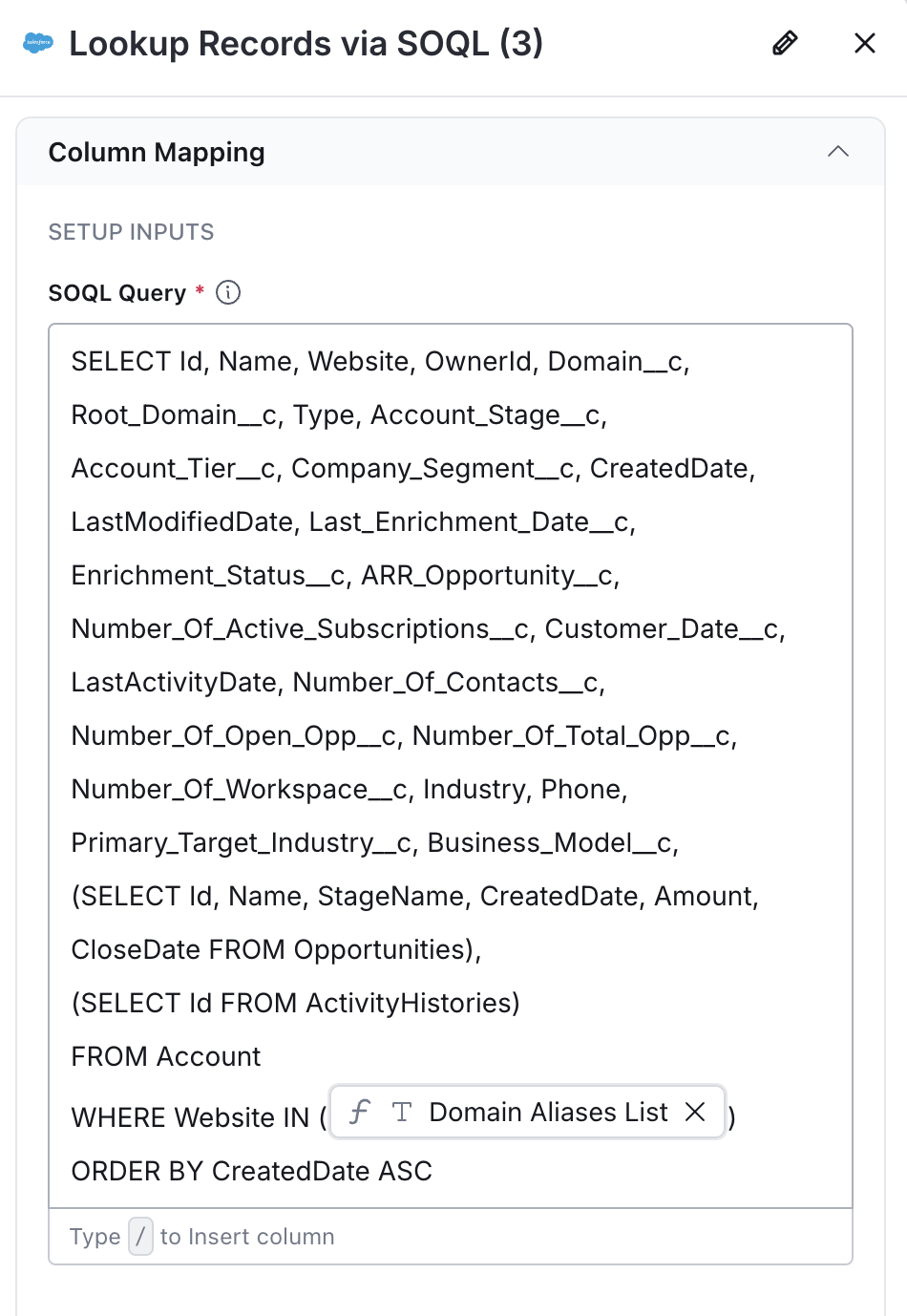
If SOQL syntax seems daunting, Claude is excellent at generating these queries for you. Instead of learning SOQL syntax from scratch, you can describe what you want to retrieve in plain English, and Claude will generate the proper SOQL query with correct syntax and best practices.
This approach allows you to leverage Salesforce's powerful querying capabilities without becoming a SOQL expert, making enterprise-level automation accessible to revenue operations professionals.
🔄 Lead Conversion Automation
Another one of Salesforce's unique features is the Convert Lead action, which automates a fundamental part of the Salesforce lead management process. This action converts a lead record into the standard Salesforce account and contact structure.
When you run Convert Lead through Clay, several things happen automatically:
The lead record gets converted to a contact with all relevant information transferred. A new account gets created (or the contact gets associated with an existing account if there's a match). Optionally, an opportunity record gets created if there's a potential deal identified during the conversion process.
This automation is particularly valuable for inbound workflows where you want to move qualified leads from your lead queue into your standard account and contact structure without manual intervention. It maintains data consistency while enabling automated lead processing at scale.
🎯 Understanding Salesforce Object Relationships
Understanding the difference between Leads and Contacts in Salesforce is crucial for effective Clay automation because it affects how you structure your workflows and data management strategies.
The Contact vs. Lead Distinction
Contacts and Accounts represent your source of truth in Salesforce. These are the permanent records for people and companies in your database, regardless of their current engagement status or sales process stage.
A Lead, however, represents a contact who's in an active sales process or came through an inbound channel. Think of leads as temporary records that represent active sales opportunities rather than permanent relationship records.
This creates a potentially complex relationship: one Contact can be associated with multiple Lead records over time as they engage with different campaigns or sales processes.
🛠️ Strategic Automation Planning
When building Salesforce automations in Clay, always start by mapping out your desired outcomes and required object interactions. Are you creating leads first, then converting them through your qualification process? Are you updating existing contacts with new intelligence? Are you creating opportunities tied to existing accounts?
Best Practices
Start by defining which Salesforce objects you need to interact with and in what sequence. This planning prevents data inconsistencies and ensures your automation follows your business process logic.
Always use Lookup actions to verify whether records exist in your CRM before running subsequent Create, Update, or Upsert actions. This verification step helps you avoid creating duplicate records and ensures you're working with the most current information available.
✅ Key Takeaways
Salesforce actions in Clay offer enterprise-grade automation capabilities with unique features like Upsert and SOQL querying that aren't available in simpler CRM platforms. Sandbox testing is essential for safe development and validation of complex workflows.
You're in the driver's seat when it comes to how Clay works with your Salesforce data. We provide the enrichment actions and automation tools, but you decide who gets to use them, which records they can touch, and what fields they can modify. You don't have to choose between security and functionality—Clay's enrichment power works within your existing governance framework.
The key to success is systematic planning, thorough testing, and leveraging AI assistance for complex query generation. This approach enables enterprise-level automation while maintaining data integrity and business process alignment.
Next up, we're diving into contact enrichment strategies that will transform your CRM from a static database into a living, breathing intelligence system, giving your sales team maximum context for every prospect interaction.