




Integration Overview
Salesloft in Clay allows you to manage accounts and people, including creating, updating, and looking up records, as well as adding people to cadences.
For the Clay and Salesloft integration, here’s a breakdown of the actions available:
- Create Account/Person: Add new accounts or individuals directly to Salesloft.
- Lookup Account/Person: Find specific accounts or people in Salesloft using existing data fields for reference.
- Add Person to Cadence: Place individuals on designated cadences for automated outreach or follow-up.
- Upsert Account/Person: Update existing records or insert new ones to ensure the most current data for accounts and individuals.
- Export Data for Bulk Email Campaigns: Gather and export data efficiently for large-scale email campaigns, keeping your outreach organized and scalable.
Requirements for Setting Up SalesLoft
To get set up with Salesloft, you’ll need to obtain an API key and have an existing Cadence if you want to send leads directly to a Cadence.
Connect Salesloft with Clay via an API Key
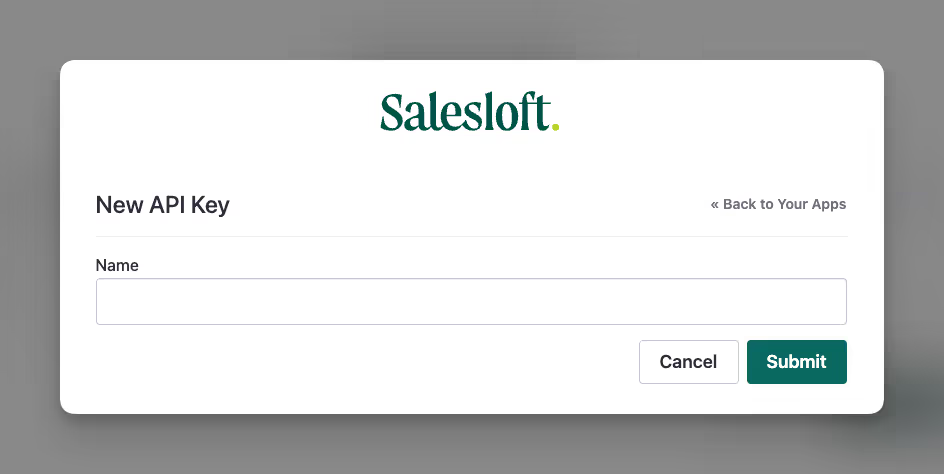
To set up Salesloft within Clay, you’ll need to first obtain a Salesloft API Key. You can request for an API key within Salesloft’s New API Key Page.
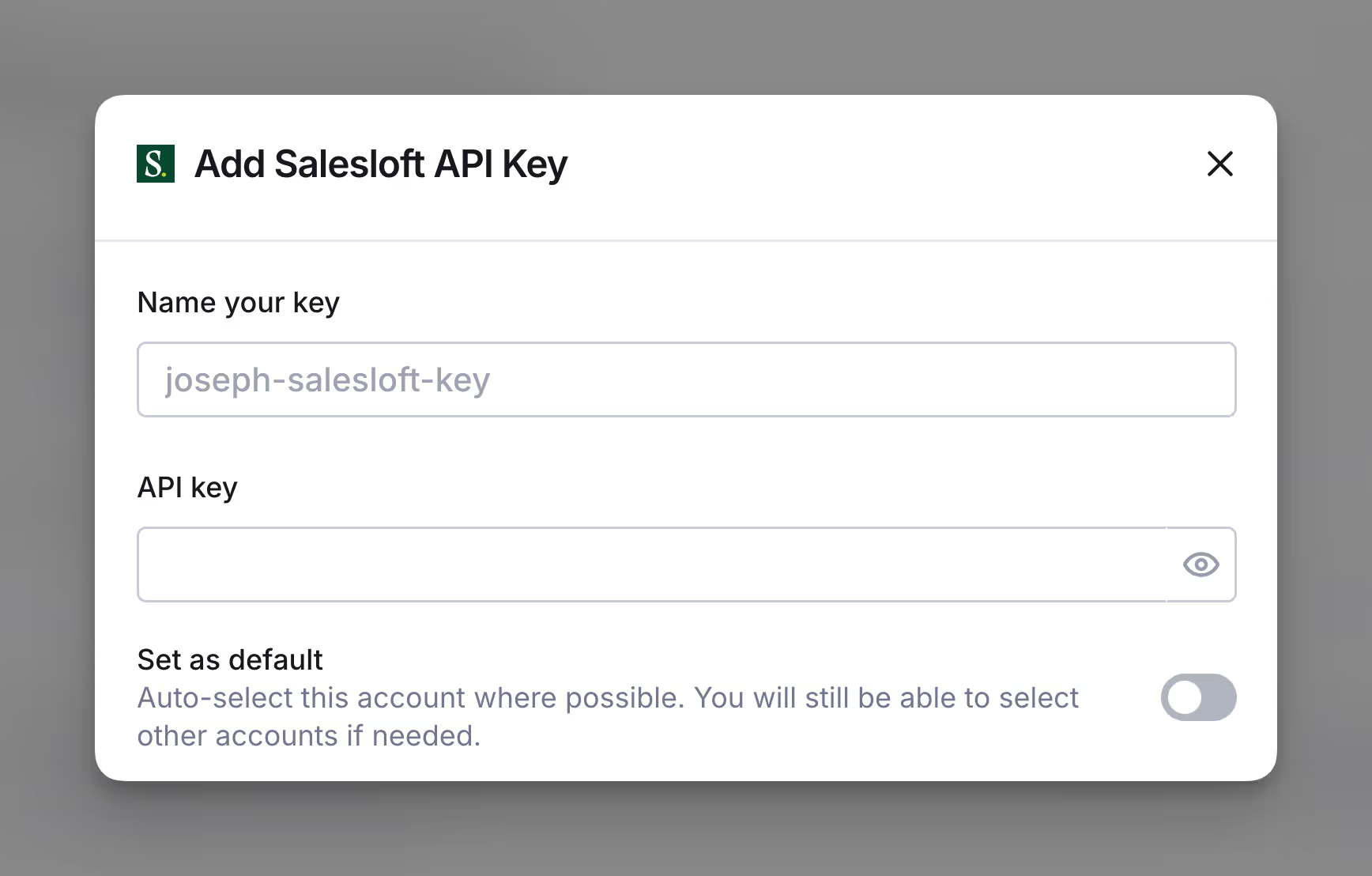
Once you’ve obtained your API key, navigate to your enrichment panel and paste your API key when creating a new account.
Set up Cadence within Salesloft
To add leads to a Cadence directly from Clay you will need to have an existing Cadence. This must be done directly within Salesloft. Refer to Salesloft’s documentation if you need more help.
Salesloft use cases
There are a few important callouts
- If you want to push personalized snippets to SalesLoft, please make sure to use custom variables within your enrichment
- Ensure you are mapping out all fields like first name, last name and email correctly
Action: Create Account
The Salesloft Create Account action lets you create new accounts within Salesloft.
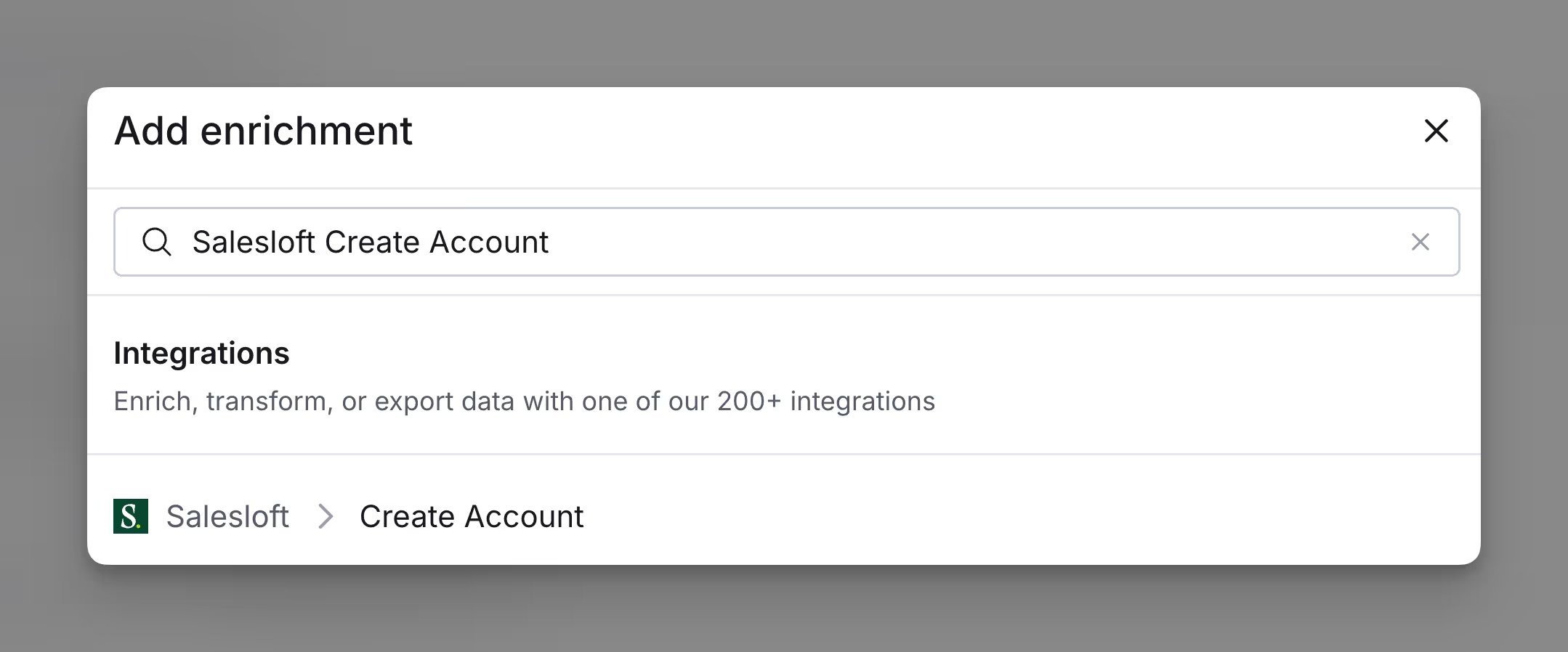
Step 1: Select the Create Account action
Step 2: Select your Salesloft account
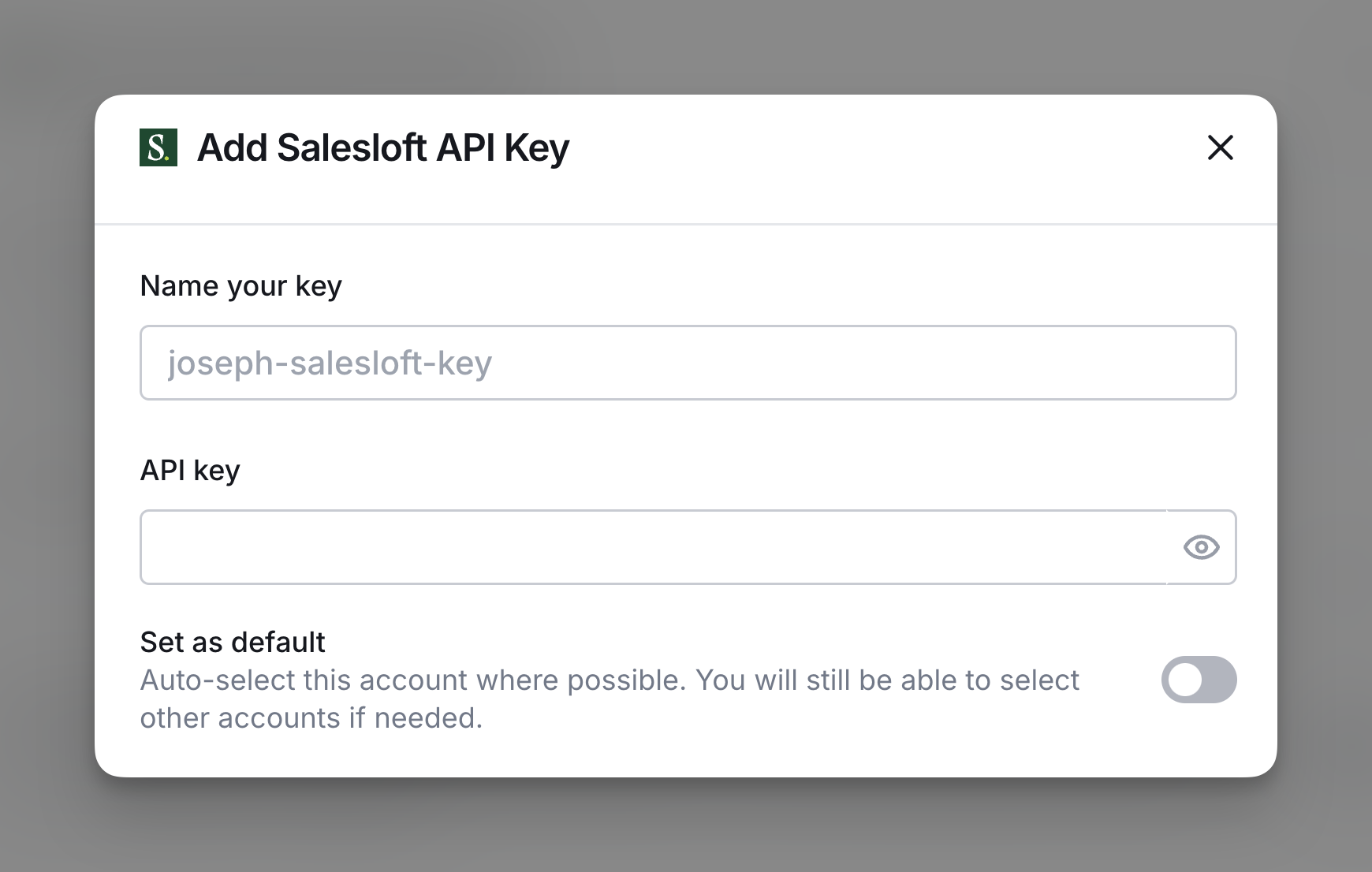
Select the Salesloft account to send emails from. If you have not already integrated Salesloft with Clay, please enter your API key when creating an account (Salesloft API key documentation).
Step 3: Configure the required and optional fields
Make sure fields like first name, last name, and Personal LinkedIn URL are all mapped correctly.
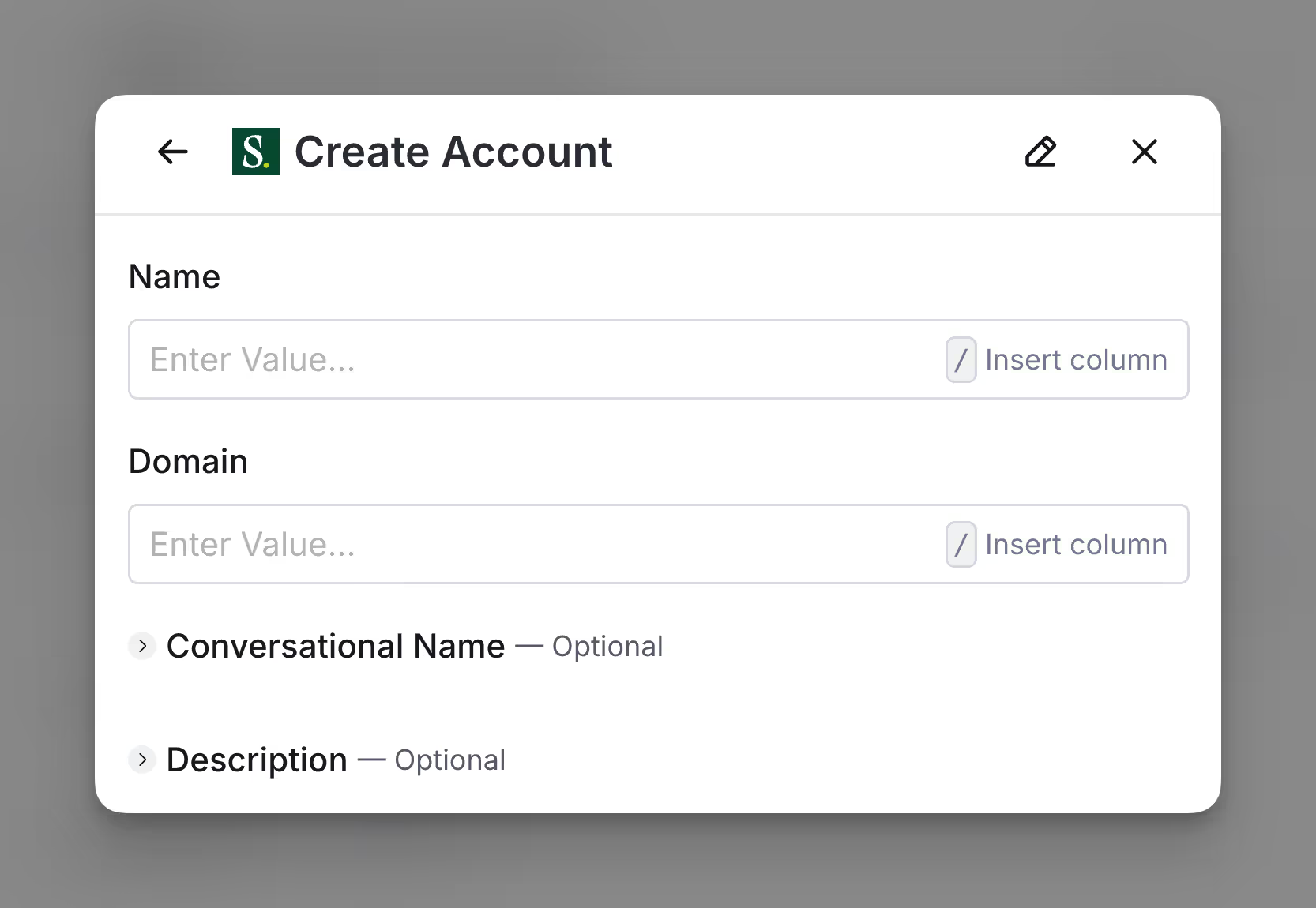
Step 4: Insert custom variables
Please note this step if you are inserting custom variables. This can include summaries, AI snippets, and other custom fields within Salesloft.

Step 5: Configure run settings
Specify Auto-update and Conditional run statements.
If you are running trigger campaigns please make sure to turn Auto-update on.
.png)
Action: Upserting an Account
The Salesloft Upsert Account action lets you upsert accounts within Salesloft.
Step 1: Select the Upsert Account action
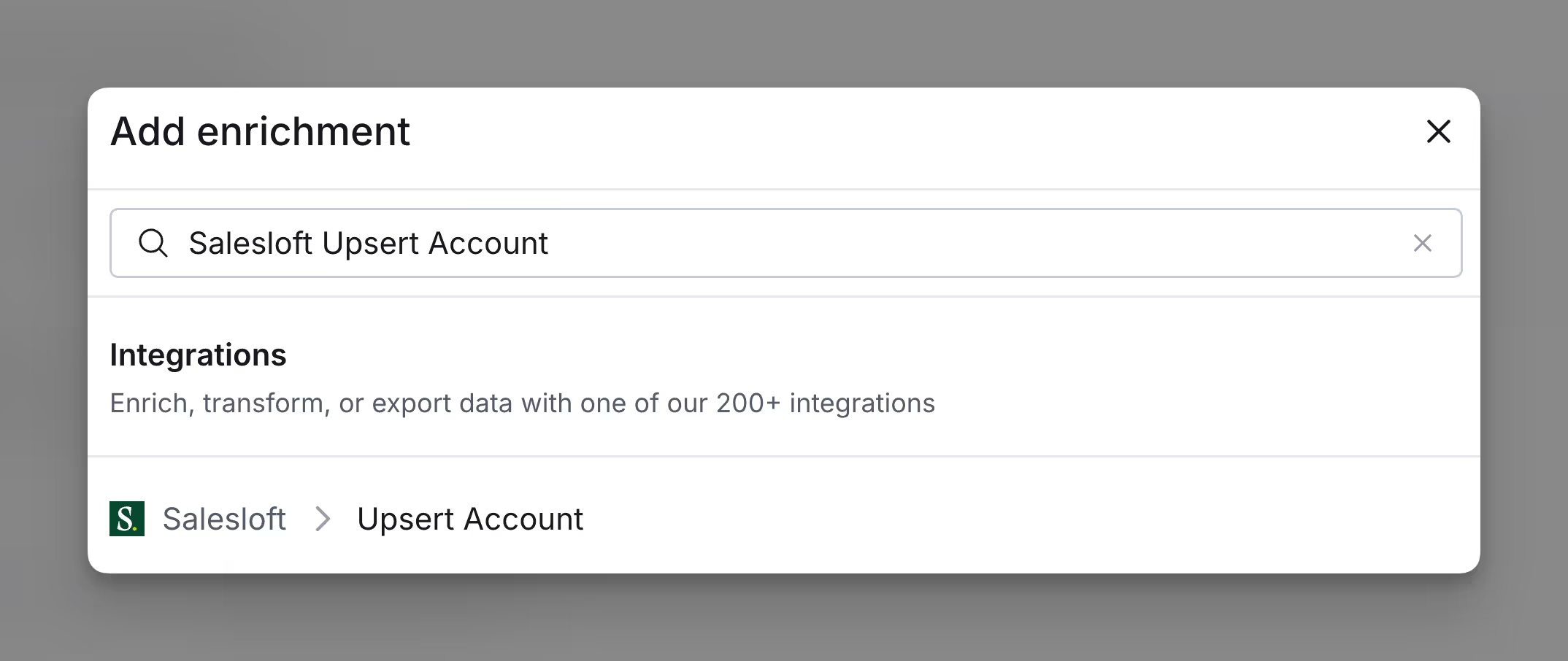
Step 2: Select your Salesloft account
Select the Salesloft account to send emails from. If you have not already integrated Salesloft with Clay, please enter your API key when creating an account (Salesloft API key documentation).
Step 3: Configure the required and optional fields
Make sure fields like first name, last name, and Personal LinkedIn URL are all mapped correctly.
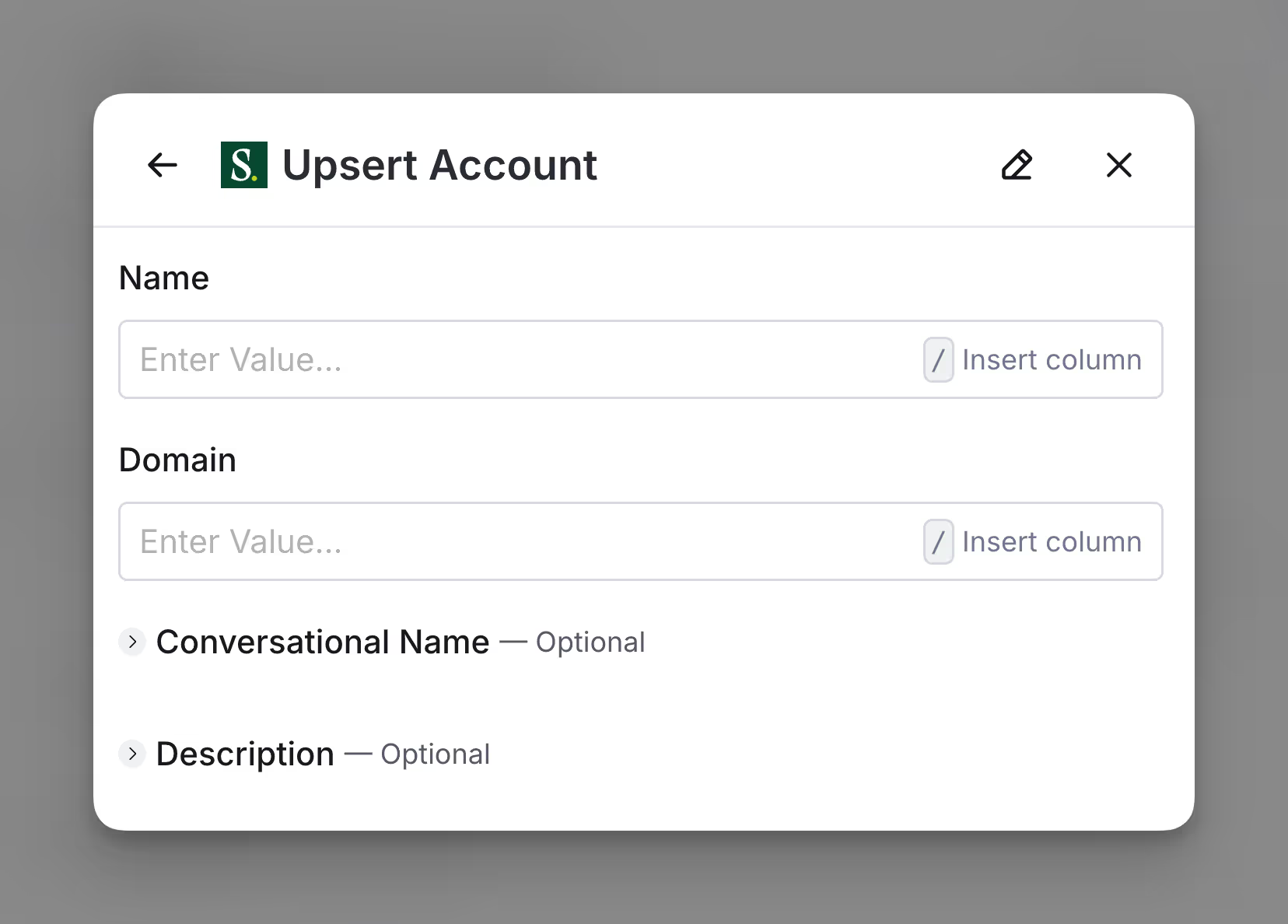
Step 4: Insert custom variables
Please note this step if you are inserting custom variables. This can include summaries, AI snippets, and other custom fields within Salesloft.
Step 5: Configure run settings
Specify Auto-update and Conditional run statements.
If you are running trigger campaigns please make sure to turn Auto-update on.
Action: Adding Person to Cadence
The Add Person to Cadence action lets you create new leads within Salesloft.
Step 1: Select the Add Person to Cadence action
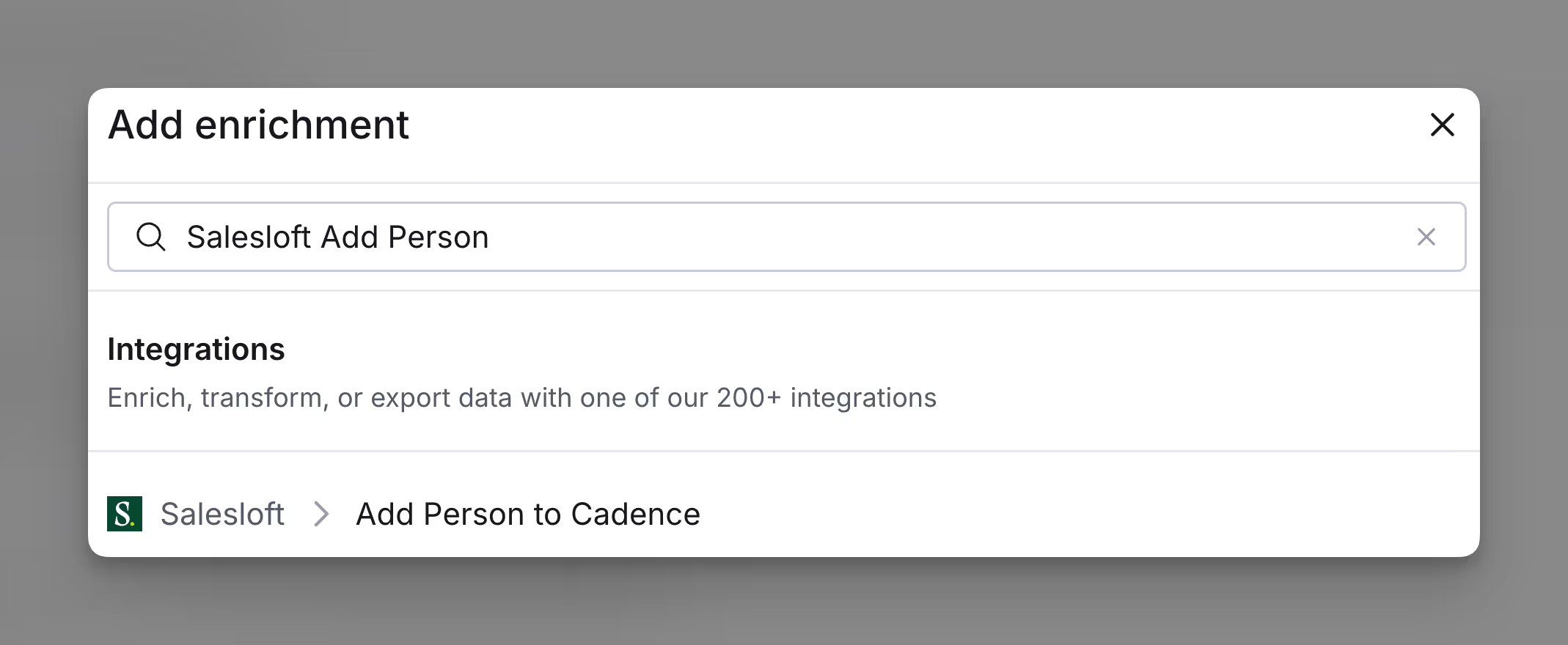
Step 2: Select your Salesloft account
Select the Salesloft account to send emails from. If you have not already integrated Salesloft with Clay, please enter your API key when creating an account (Salesloft API key documentation).
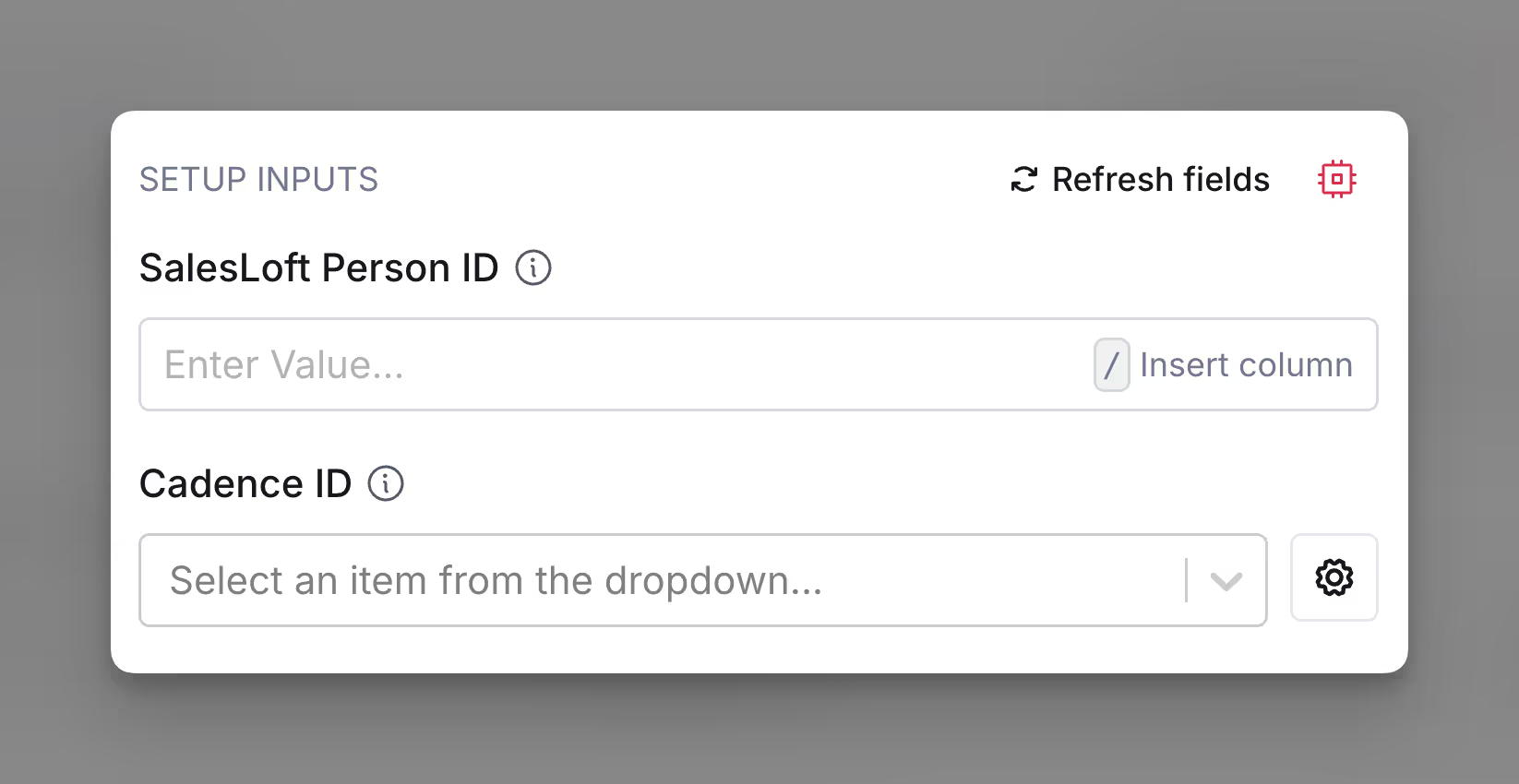
Step 3: Specify the Salesloft Person and Cadence ID
The SalesLoft Person you'd like to add to a cadence. This is normally taken from a Lookup Person or Upsert Person step.
The Cadence you'd like to add this person to.
Step 4: Configure run settings
Specify Auto-update and Conditional run statements.
If you are running trigger campaigns please make sure to turn Auto-update on.
Action: Upsert Person
The Upsert Person action lets you Upsert leads within Salesloft.
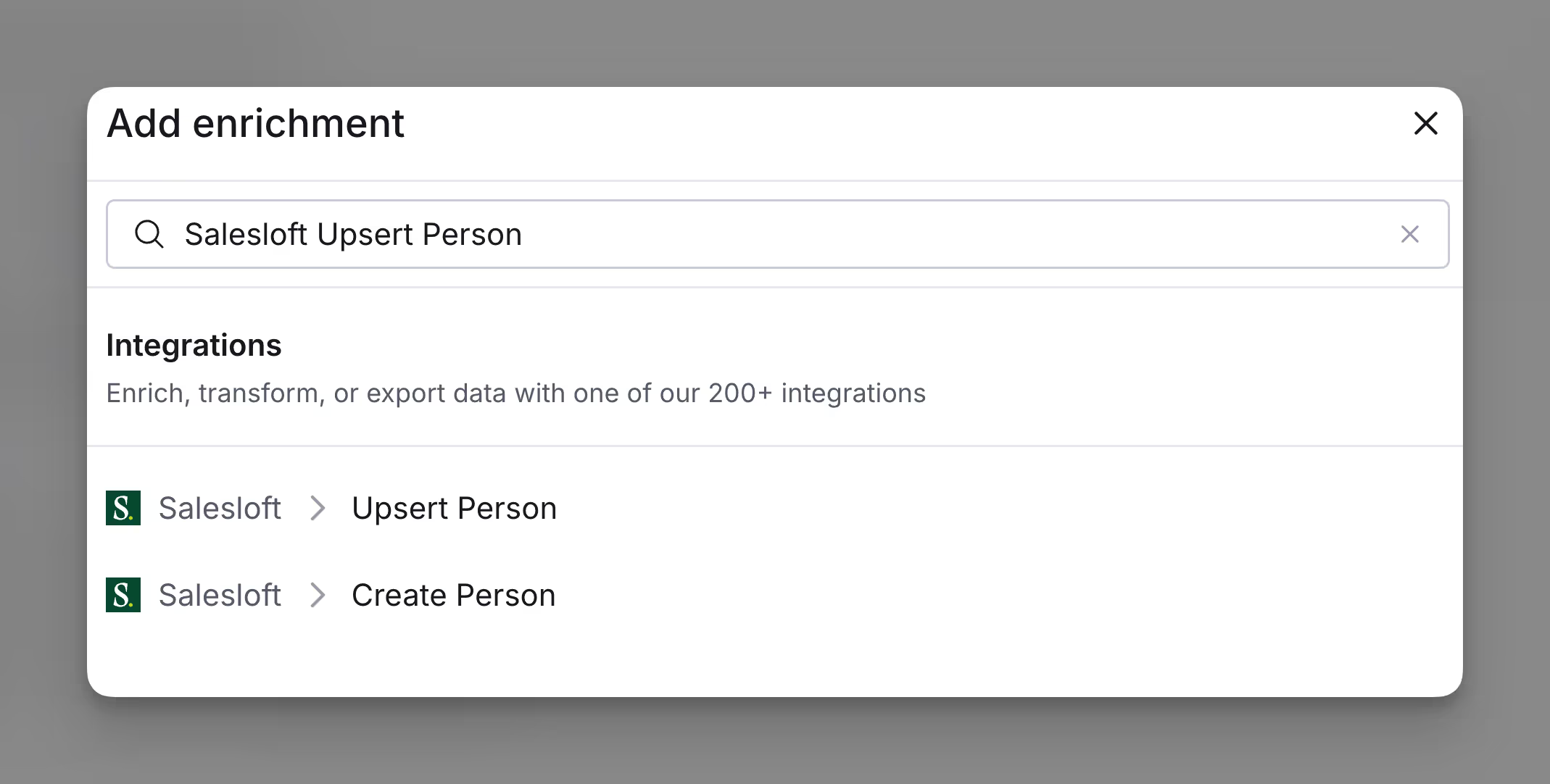
Step 1: Select the Upsert Person action
Step 2: Select your Salesloft account
Select the Salesloft account to send emails from. If you have not already integrated Salesloft with Clay, please enter your API key when creating an account (Salesloft API key documentation).
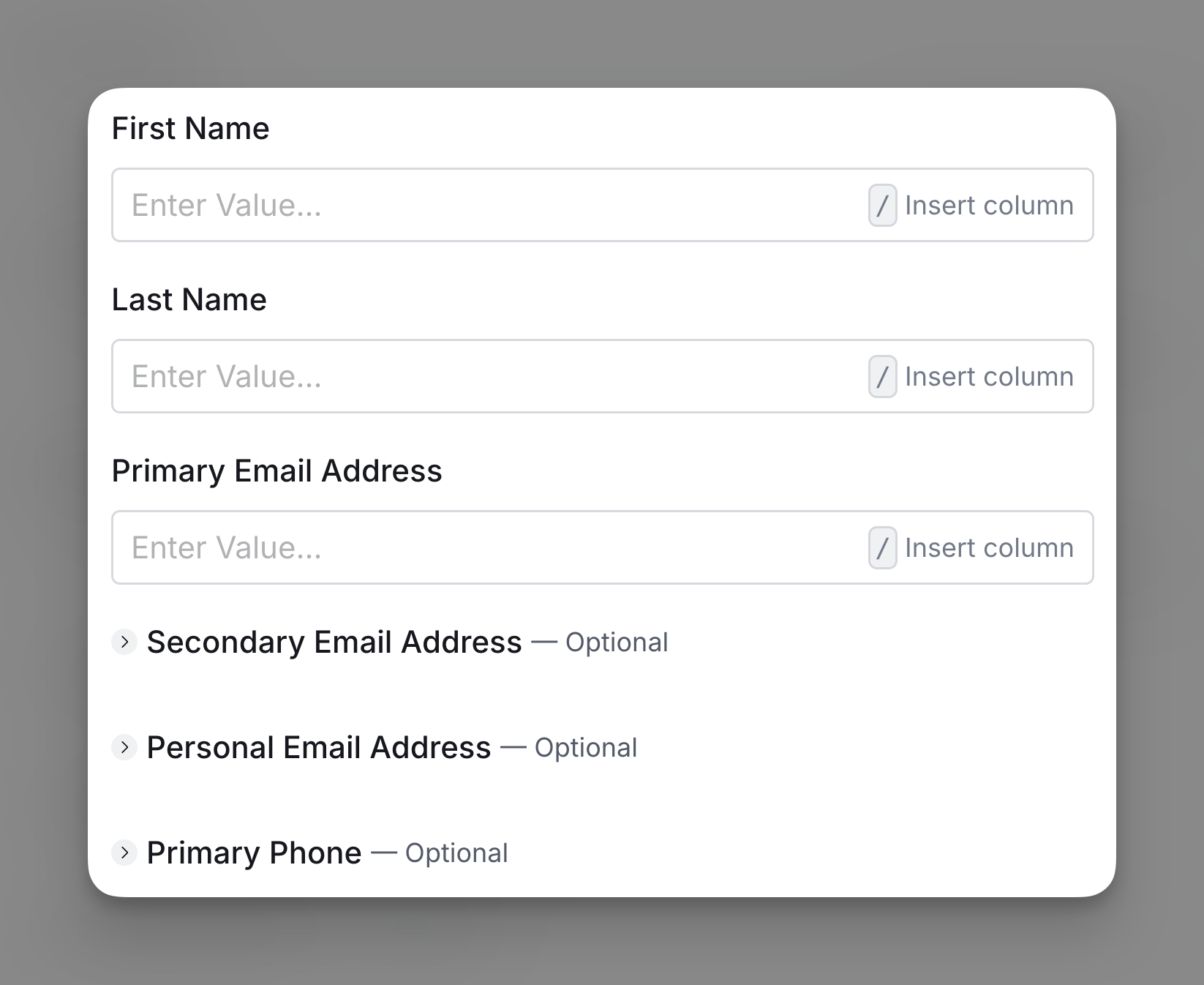
Step 3: Input mandatory and optional setup inputs
Enter the contact information of the lead you want to upsert.
If you want to add any additional information to the contacts you are upserting, you can map out the dynamic fields as inputs.
Step 4: Insert custom variables
Please note this step if you are inserting custom variables. This can include summaries, AI snippets, and other custom fields within Salesloft.
Step 5: Configure run settings
Specify Auto-update and Conditional run statements.
If you are running trigger campaigns please make sure to turn Auto-update on.
Action: Create Person
The Salesloft Create Person action lets you create new leads within Salesloft.
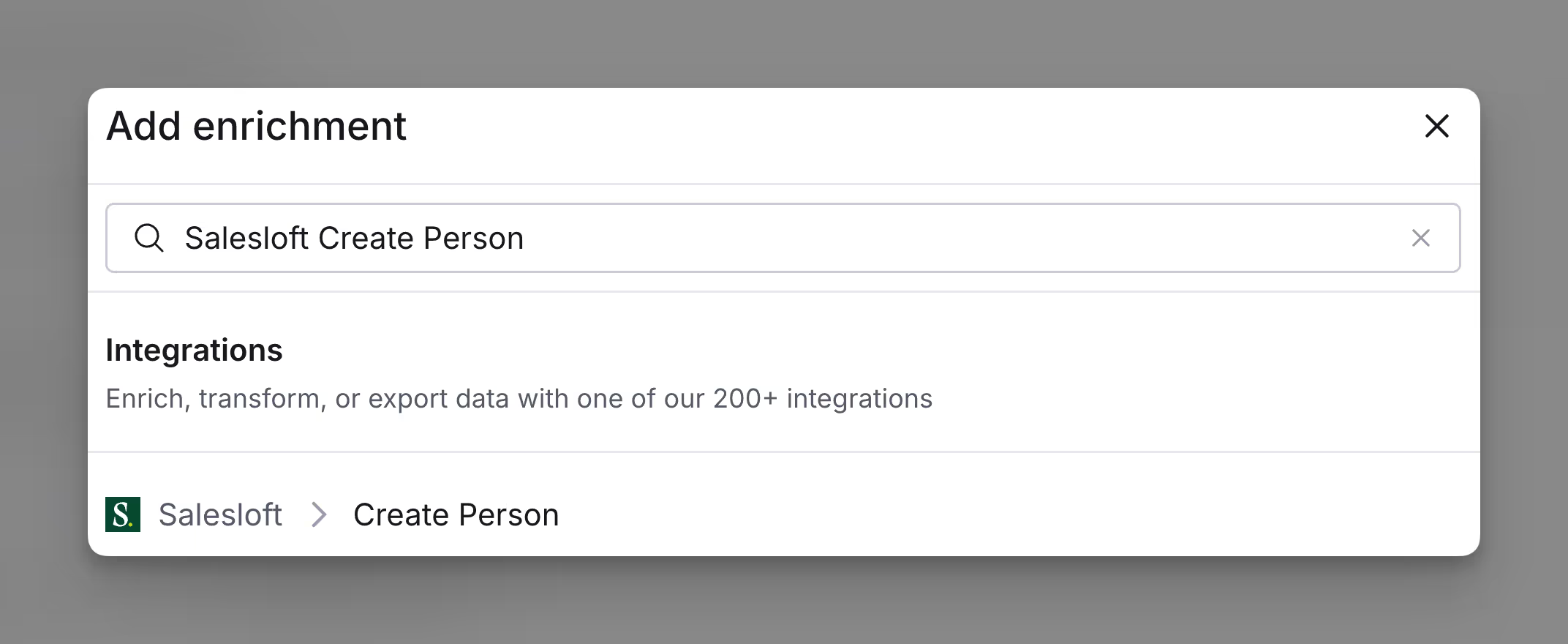
Step 1: Select the Create Person action
Step 2: Select your Salesloft account
Select the Salesloft account to send emails from. If you have not already integrated Salesloft with Clay, please enter your API key when creating an account (Salesloft API key documentation).
Step 3: Input mandatory and optional setup inputs
Enter the contact information of the lead you want to upsert.
If you want to add any additional information to the contacts you are upserting, you can map out the dynamic fields as inputs.
Step 4: Insert custom variables
Please note this step if you are inserting custom variables. This can include summaries, AI snippets, and other custom fields within Salesloft.
Step 5: Configure run settings
Specify Auto-update and Conditional run statements.
If you are running trigger campaigns please make sure to turn Auto-update on.
Explore other docs
Other popular resources
Join a cohort, learn Clay fast!
The faster way to master Clay. Sign in if you're enrolled in a cohort (current or past) or apply!
Hire GTME Talent
Find and connect with GTM talent who've demonstrated expertise in building advanced workflows