



Set up SCIM provisioning in Clay
Keep your Clay workspace membership and roles in sync with your identity provider.

Keep your Clay workspace membership and roles in sync with your identity provider.
SCIM provisioning lets you add and remove Clay workspace members and set their roles from your identity provider (IdP). You set up the connection in the WorkOS Admin Portal, the tool Clay uses to connect directories, which carries step-by-step instructions for each provider.
Before you begin
Before you open the portal, make sure you have:
- Admin access. The
Adminrole in Clay, plus permission to configure provisioning in your identity provider. - A role mapping planned. Decide which people and groups to assign to Clay, and which Clay role each group should map to. Include at least one user mapped to
Admin, so the workspace keeps an administrator. - One SCIM connection per workspace. Each workspace supports a single connection, so set one up separately for every workspace you manage.
Single sign-on and domain verification aren't required to set up SCIM provisioning. They're only needed if you want to update users' email addresses through SCIM, which Account emails below covers.
How provisioning works
Roles
Your identity provider's groups decide each member's workspace role. You map each group to a Clay role in the WorkOS Admin Portal, and all four Clay roles are available.
| Role | What it allows |
|---|---|
Admin | Can edit workspace resources and manage users. |
Editor | Can edit workspace resources. |
Viewer | Can view workspace resources, but cannot edit them unless explicitly granted access. |
Sales Rep | Can use MCP and authorize Clay Sequencer, with no other feature access. |
Users without a mapped role get the Editor role. To change the default role, contact the Clay team.
Groups from your identity provider are only used to assign roles. SCIM provisioning doesn't create or update Clay user groups.
What syncs to Clay
Here's what each change in your identity provider does in Clay.
| In your IdP | In Clay |
|---|---|
| Assign a user whose email matches an existing Clay account | The user is added to the workspace with their mapped role. |
| Assign a user who doesn't have a Clay account | Clay creates a pending invite for that email. The user joins the workspace as soon as they sign up for Clay with that email. |
| Unassign or deactivate a user | The user is removed from the workspace. Their Clay account isn't deleted. |
| Change a user's name | Not synced. Members can update their own name in Clay Account settings. |
| Change a user's email | See Account emails below. |
Set up SCIM provisioning
- Go to
Settings→Workspace→SCIM provisioningand selectSet up SCIM. The WorkOS Admin Portal opens.
- In the portal, select your identity provider.

- Follow the portal's instructions for that provider to connect your identity provider, assign users and groups to Clay, map groups to Clay workspace roles, and start syncing.
Example: Okta setup
Okta is one of the identity providers the portal supports, and its guide walks you through the steps below.
- Create the Okta application. Add the
SCIM 2.0 Test App (OAuth Bearer Token)from the Okta App Catalog. If you already have an Okta app for Clay, selectUse existing applicationto add SCIM provisioning to it.
- Configure the API integration. On the app's
Provisioningtab, enable API integration and paste the endpoint and bearer token from the portal. - Configure provisioning actions. Under
To App, enableCreate Users,Update User Attributes, andDeactivate Users. - Assign people and groups. Assign the people or groups who should have access to the workspace.
- Push groups. On the
Push Groupstab, push the groups you want to map to Clay roles. - Map groups to roles. In the portal, choose a Clay role for each pushed group.

- Test the directory connection. Confirm the portal shows the connection as linked.
Check workspace access
After you finish the portal steps:
- Return to
Settings→Workspace→SCIM provisioningand confirm the status isConnected.
- Open
Settings→Teamand confirm assigned users appear with the expected roles. Users without a Clay account appear as pending invites until they sign up. - Once these look correct, assign the remaining people or groups in your identity provider.
The connection card shows the connection's status — Connected, Validating, Invalid credentials, Not connected, or Disconnecting — along with how many users and groups are syncing and when the last sync ran.
The button beside it follows that status: Set up SCIM before any connection exists, Manage while the connection is connected, validating, or showing Invalid credentials, and Reconnect if it isn't connected or is disconnecting.
Sync time depends on your identity provider and the size of your directory.
Manage members and roles
After setup, manage SCIM-provisioned memberships in your identity provider. To change group-to-role mappings, open Settings → Workspace → SCIM provisioning → Manage, which opens the WorkOS Admin Portal, and update them under Role assignment → Configure role assignment.
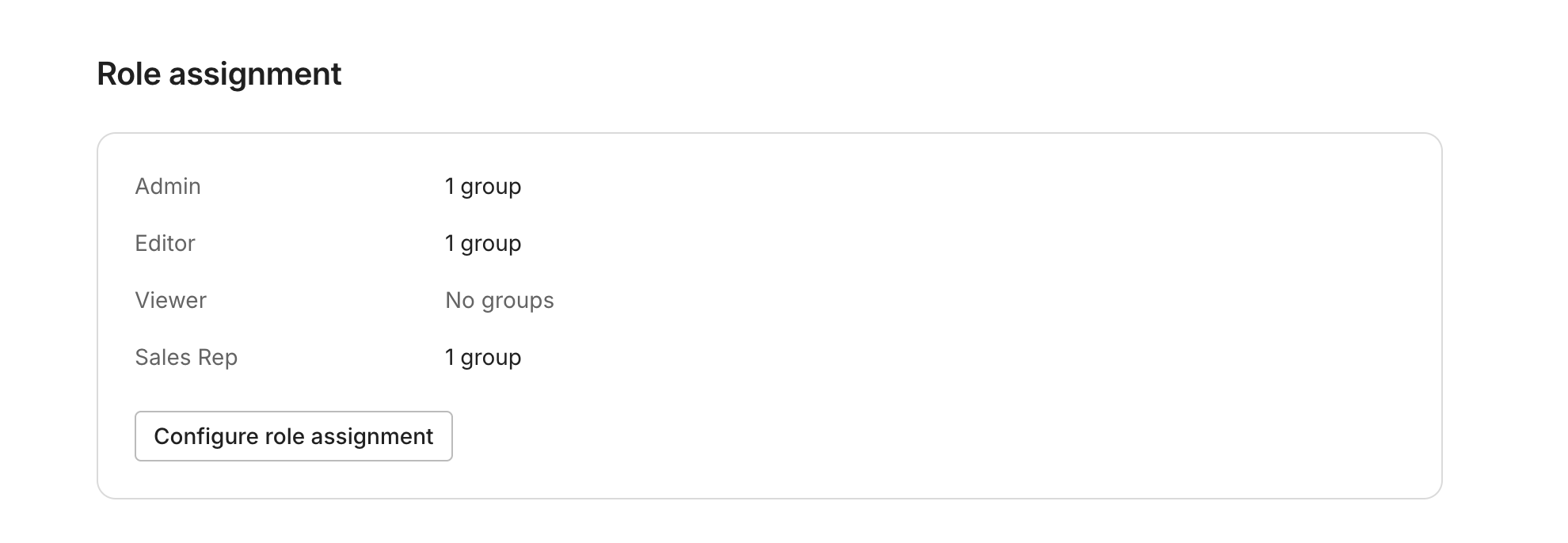
Note: SCIM-managed members are managed in your identity provider. You can't change their role or remove them from the workspace in Clay. Members added outside of SCIM can still be managed directly in Clay.
When a user is deprovisioned through SCIM, the workbooks, workflows, and other resources they created stay in the workspace.
Account emails
Clay initially matches an assigned person to a Clay account by email. Once linked, their workspace membership stays attached to that account. Changing their email in your identity provider doesn't change the user's email in Clay, move the membership to another Clay account, or merge accounts.
To update users' email addresses through SCIM, you need single sign-on configured and verified ownership of the email domains. Contact the Clay team to set this up.
Disconnect SCIM provisioning
- Open
Settings→Workspace→SCIM provisioning→Manage. - In the WorkOS Admin Portal, find
Delete directoryin theDanger zone. - Enter
DELETE DIRECTORYwhen prompted and follow any provider-specific cleanup instructions. - Return to Clay and review the remaining workspace memberships on
Settings→Team.
This deletes the WorkOS connection and its configuration. You can set up SCIM provisioning again at any time.
Troubleshooting
- The setup portal doesn't open, or the link has expired: Allow pop-ups for Clay. The portal's setup links expire after five minutes, so select
Set up SCIMorManageagain for a fresh one.
Explore other docs
Other popular resources
Join a cohort, learn Clay fast!
The faster way to master Clay. Sign in if you're enrolled in a cohort (current or past) or apply!
Hire GTME Talent
Find and connect with GTM talent who've demonstrated expertise in building advanced workflows