



Referencing dynamic data from other columns
Reference data from other columns for AI prompting, formulas, and message drafting.

Reference an endpoint from a column
You can use forward slash (/) to access the menu to reference enrichment data from other columns.
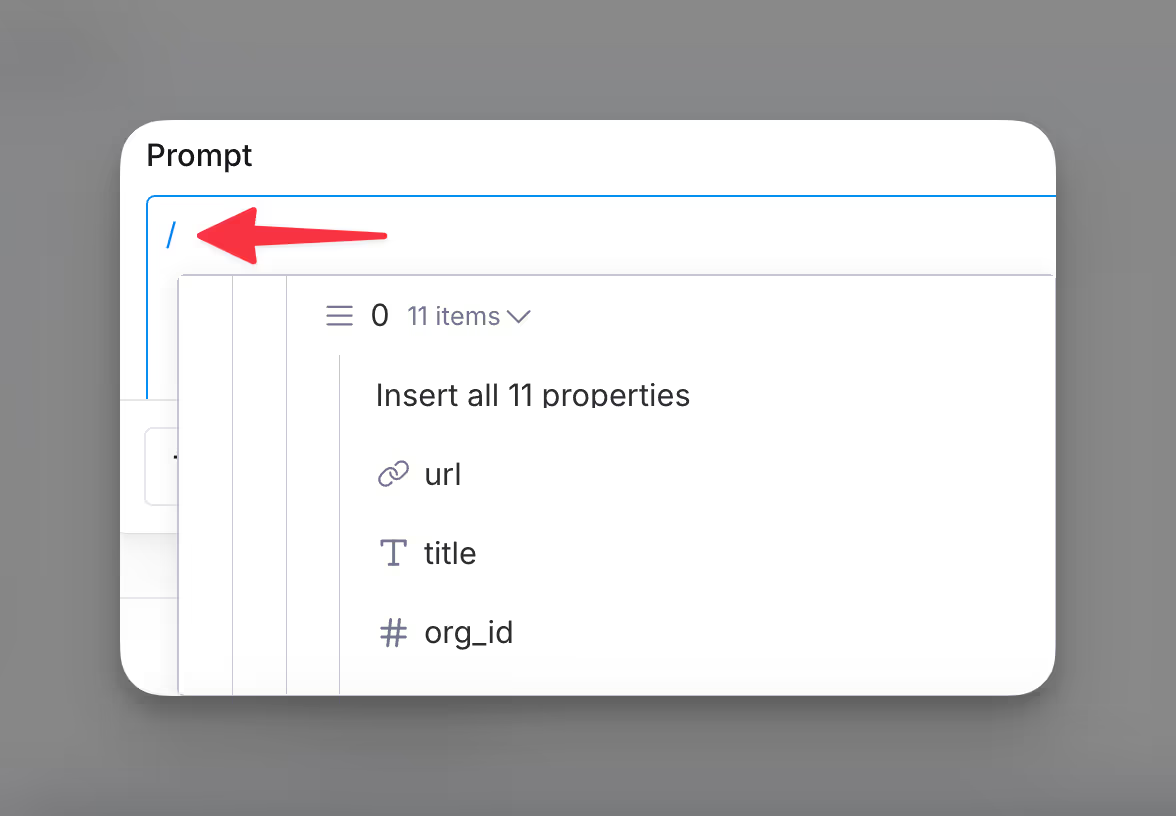
Use cases for dynamic column referencing
Dynamic referencing allows you to reference and insert fields — like a contact’s name, location, or company — into formulas, prompts, or message drafts.
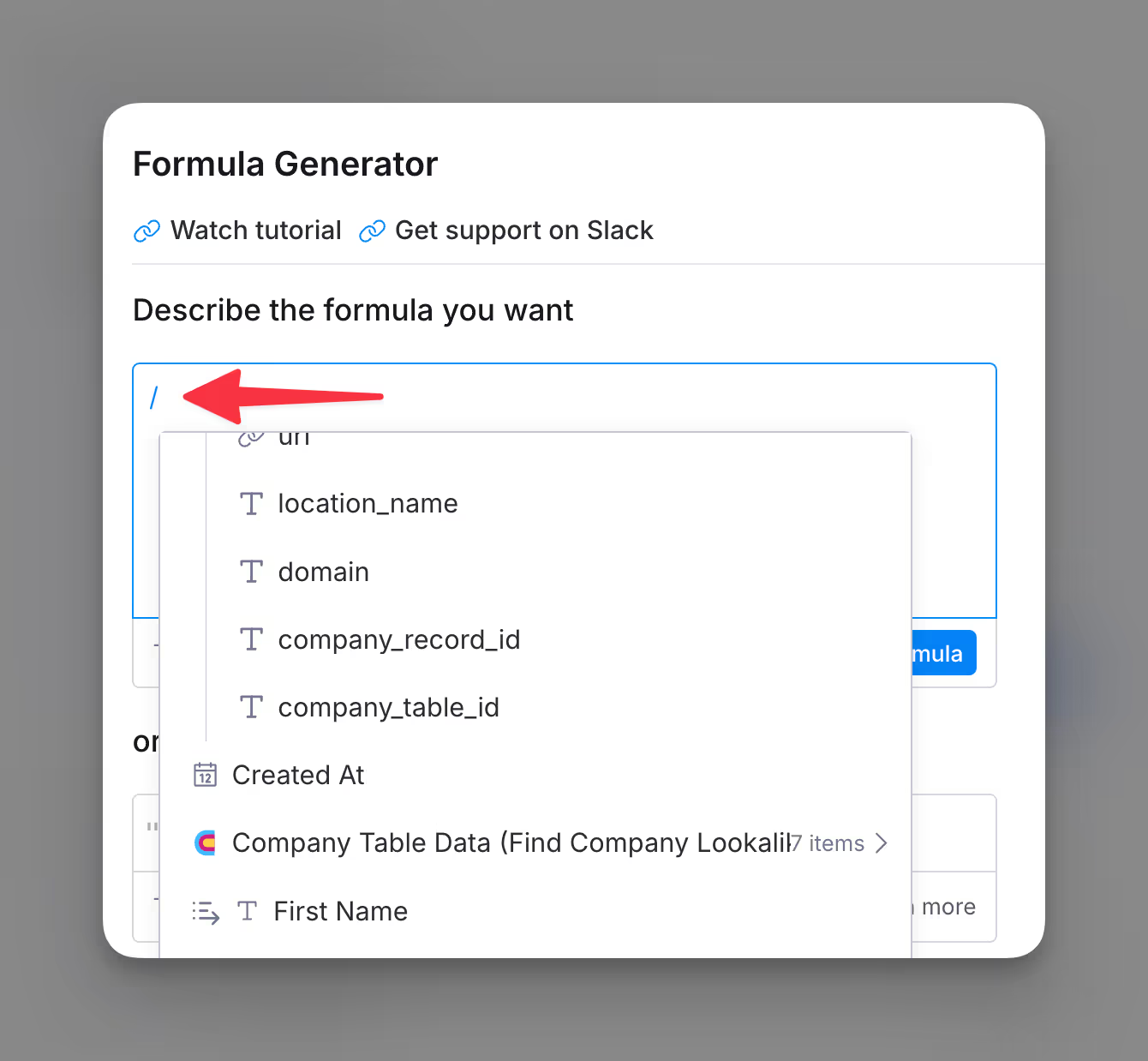
Formula generator
Use dynamic data to build formulas that pull in fields like names, locations, or domains.
Prompt editor
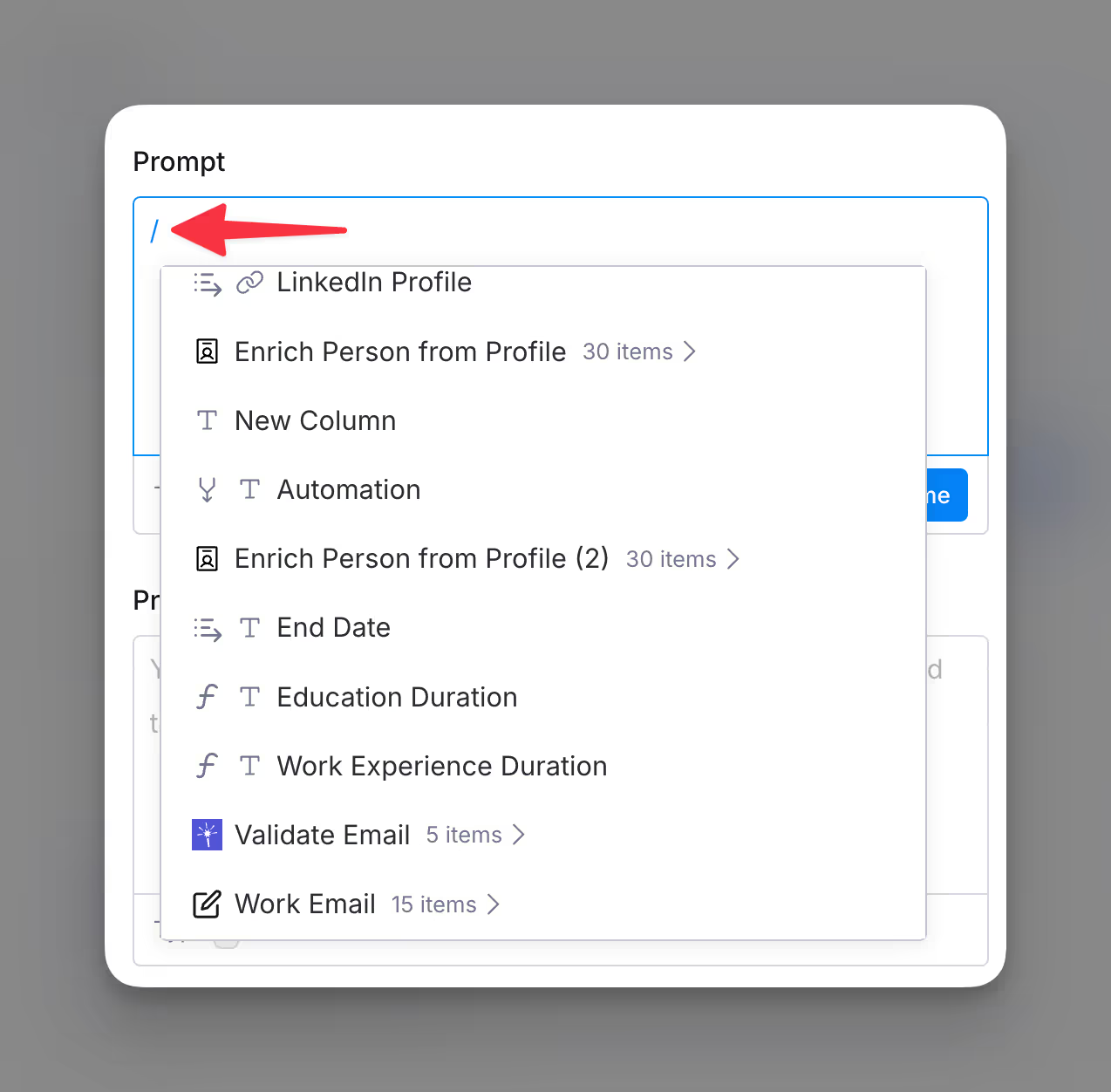
Referencing dynamic fields within AI enrichments is a key step for data orchestration in Clay.
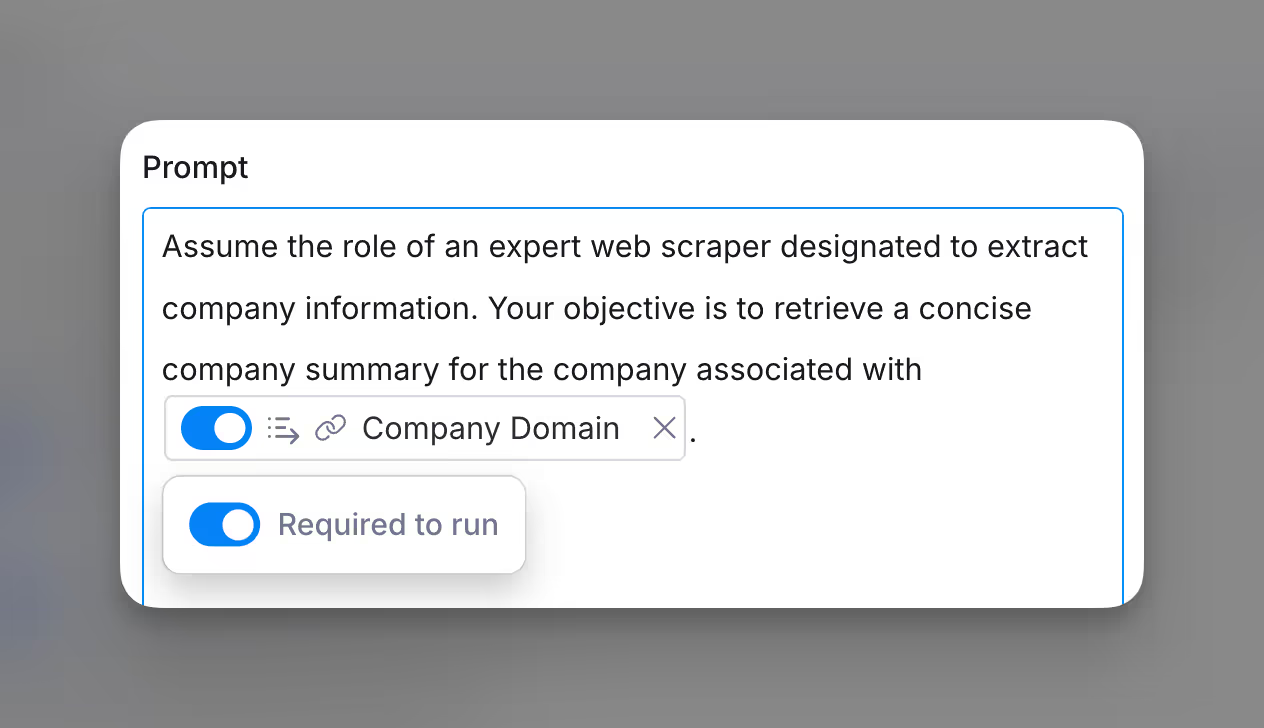
The Prompt Editor lets you insert dynamic fields to customize content for specific use cases. For example, you can add the Company Website field for account research.
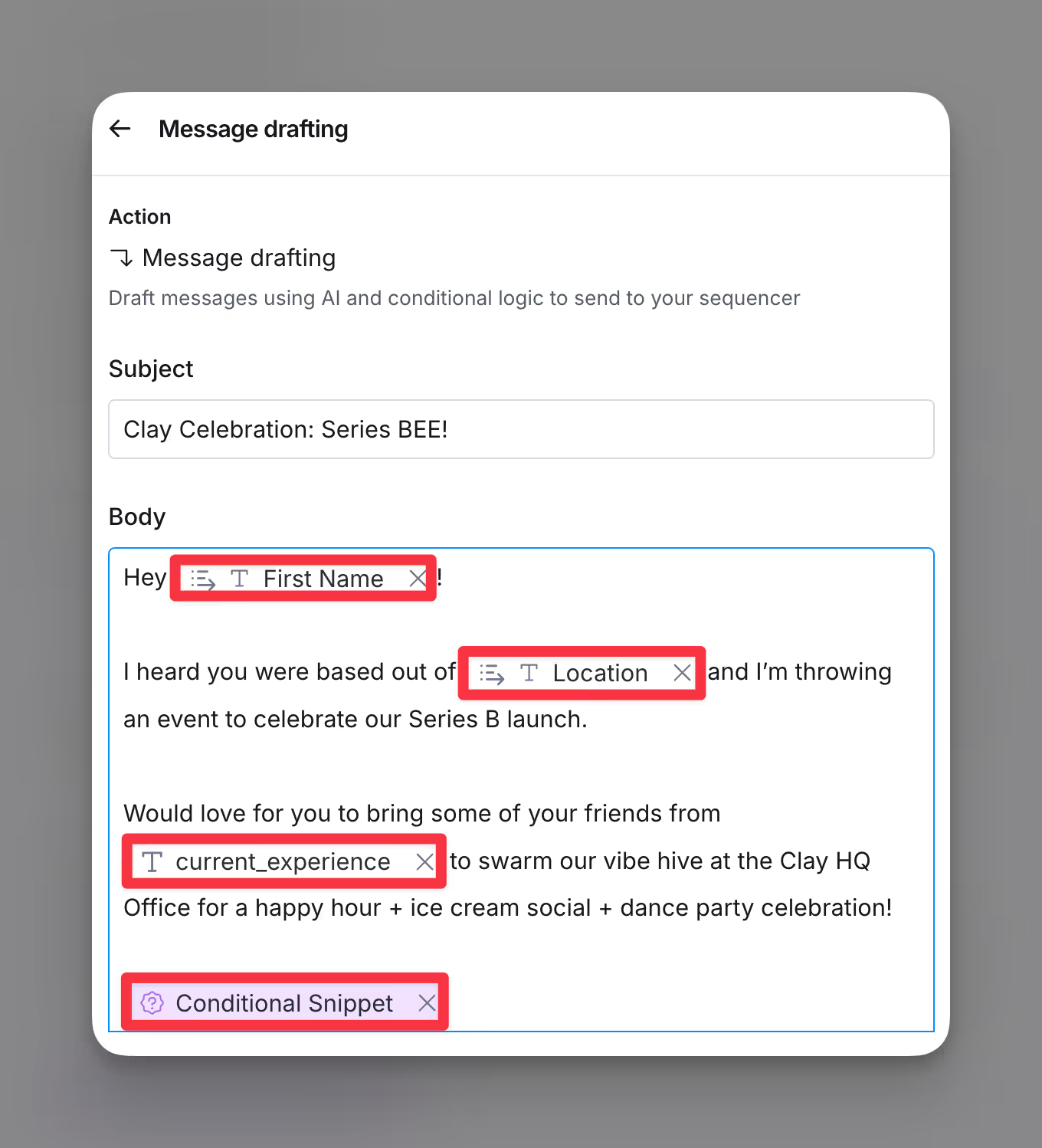
Message drafting
When writing messages, you can use dynamic data to personalize content with fields like First Name, Location, or current experience.
Required fields for AI prompt editors
In the Prompt Editor, the Required to run toggle ensures your AI enrichments only run when specific fields contain data. This helps avoid errors caused by empty or incomplete rows
Setting required fields
To mark a field as required or unnecessary:
- Open the Prompt Editor where you are configuring your enrichment.
- Identify the field that must contain data before the enrichment runs (e.g., Created At).
- Optionally, you can toggle
Required to runnext to the selected field. When enabled, the cell actwill be skipped if the referenced field does not contain a value. - Save your prompt configuration.
Types of data you can reference from enrichment columns
When working with enrichment columns in Clay, you can reference data at multiple levels:
- Entire enrichment: Access all data returned by an enrichment at once.
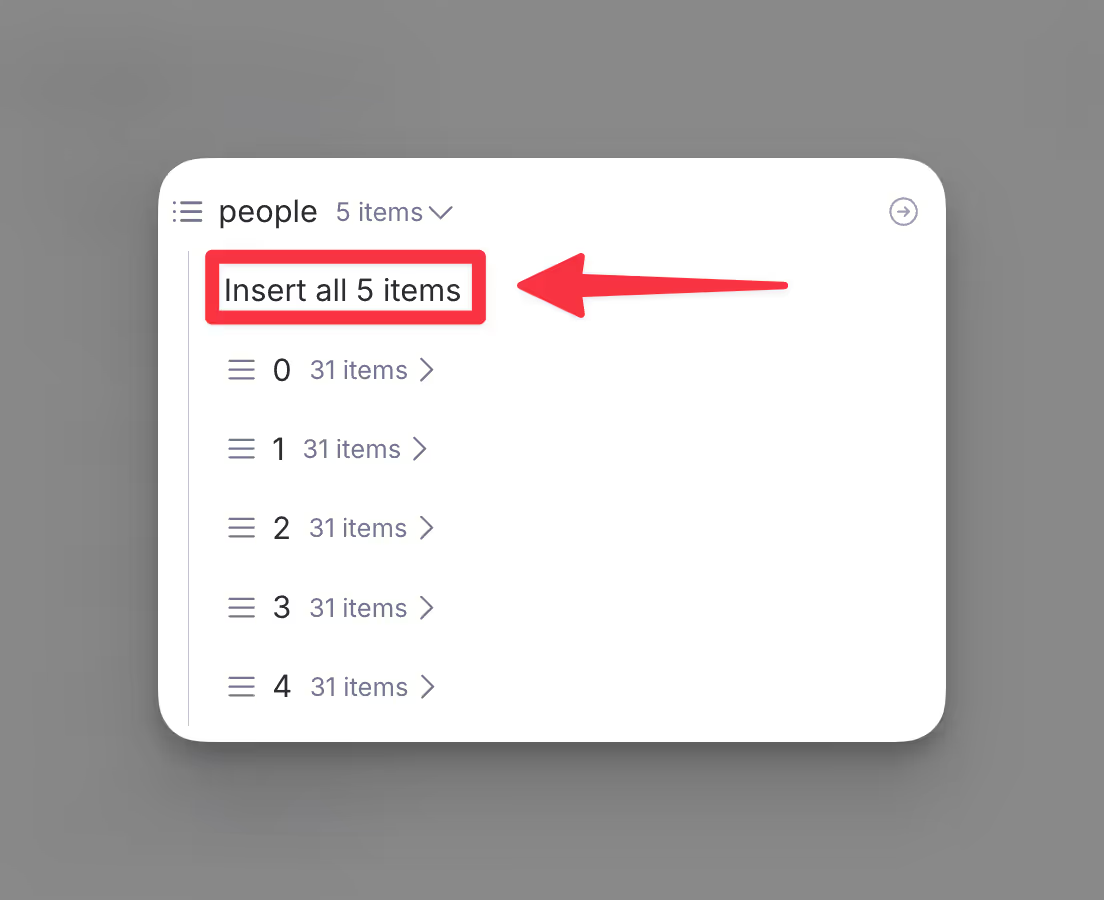
- Entire Lists: Reference all items in a list as a complete dataset.
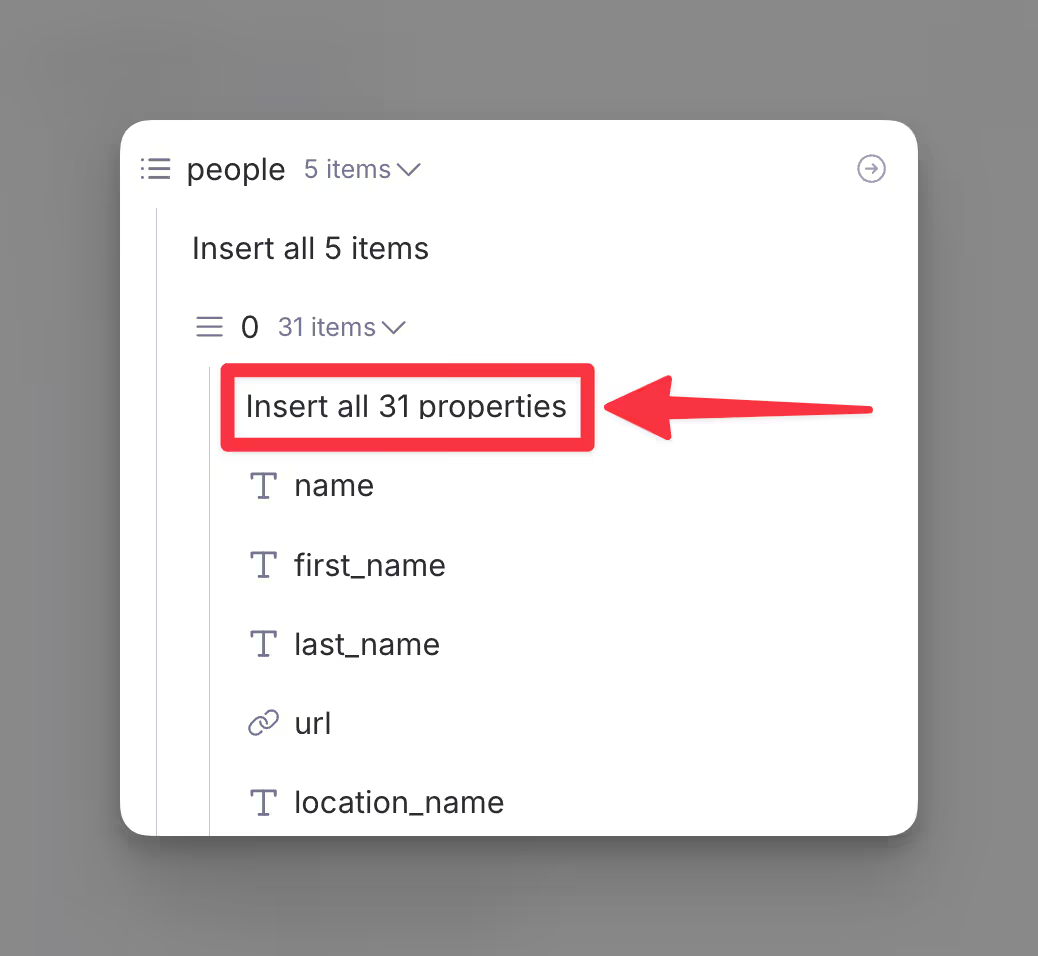
- Individual List Items: Extract a specific item within a list and access all its properties.
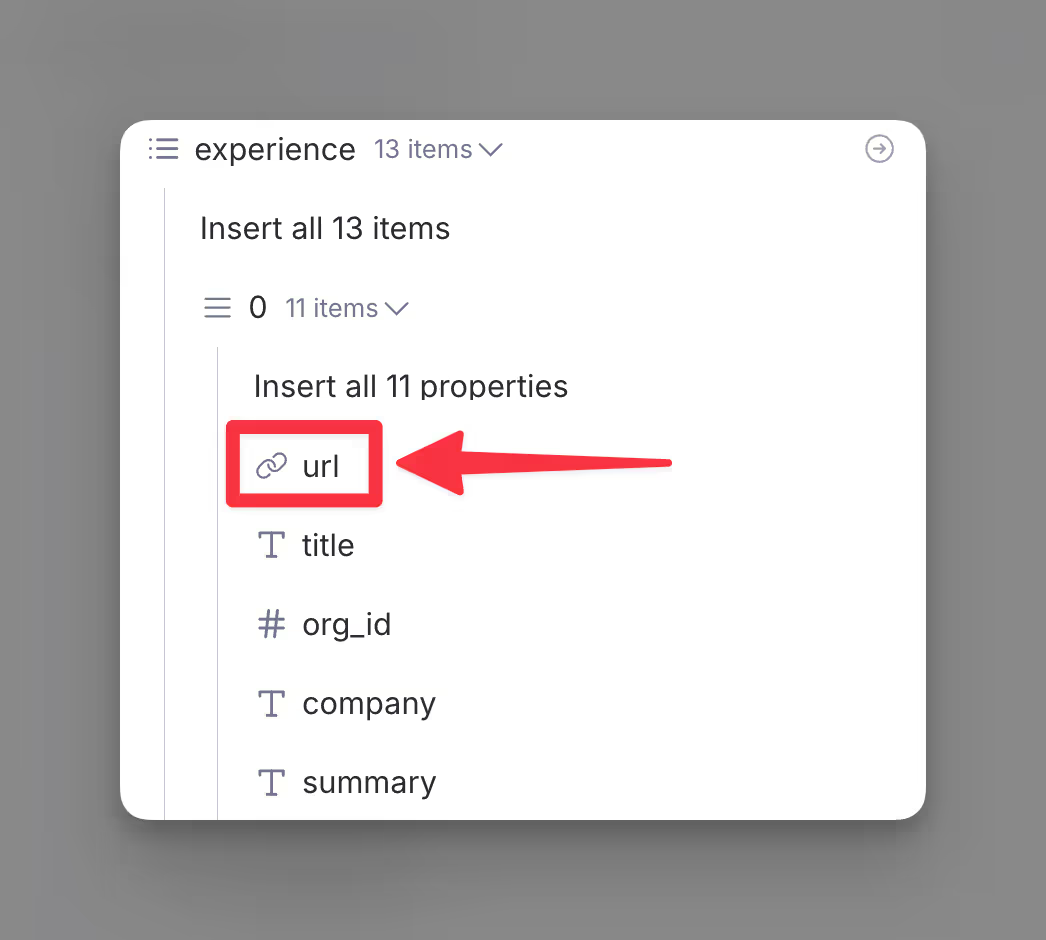
- Specific Endpoints: Drill down into an item to reference specific fields, such as a URL or title.
Entire enrichment
You can reference all the data returned by an enrichment, giving you access to every endpoint within that enrichment.
Example
Let’s say you want to reference all the data from a Website Summary enrichment:
- Locate the Website Summary column, which contains the enrichment results.
- Select
Insert all itemsto reference the entire enrichment.

Entire lists
You can reference all items within a list, giving you access to the complete set of data at once.
This is useful when you need to process or extract information for all entries in the list.
Example
Let’s say you want to pull the first names of all employees in a list:
- Locate the “people” list, which contains multiple items.
- Select Insert all items to reference the entire list.
- Extract the first_name property from the list with formulas.
Individual list items
You can reference specific items within a list when a column returns multiple results.
Referencing an item gives you access to all the data contained within it, including its individual endpoints.
Example
Let’s say you want to reference the first employee from a list of employees:
- Locate the “people” list, which contains multiple items.
- Expand the first item (Index 0) to view its details.
- Referencing this item gives you access to all its data, such as name, first_name, last_name, and url.
Specific endpoints
You can drill down into an item within a list to reference its specific fields endpoints. This allows you to target and pull precise details, such as a URL or title, from within an individual item.
Example
Let’s say you want to reference the URL of the latest experience from a contact. You can:
- Locate the “experience” list, which contains multiple items, or in this case experiences.
- Expand the first item (Index 0) to access its details.
- From the item, select the specific endpoint, such as url. This allows you to reference endpoints such as the URL of the experience, title of the role, company name, or a summary of the experience.
Explore other docs
Other popular resources
Join a cohort, learn Clay fast!
The faster way to master Clay. Sign in if you're enrolled in a cohort (current or past) or apply!
Hire GTME Talent
Find and connect with GTM talent who've demonstrated expertise in building advanced workflows