




Inspect cell details
View and analyze enriched data or outputs within a specific cell.
To inspect cell details:
- Locate the cell you want to inspect.
- Click on the cell to open the cell details panel.
Search within a cell
Quickly find specific data within a cell's outputs using the search feature.
To search for outputs in a cell:
- Click on the cell to open the cell details panel.
- Type a keyword or data point into the search bar to filter and display matching outputs.
Cell output schema
A cell output schema describes how data is structured in an enrichment output. It shows:
- Keys and values: Labels like "Company Name" or "Contact Email" with their corresponding data types (text, numbers, or lists).
- Organization: Whether data is a single value (e.g., "John Doe") or a grouped list (e.g., multiple contacts).
- Nested data: Information grouped under larger categories. For example, "Company Lookalikes" might contain "Lookalike #1" and "Lookalike #2," each with their own details.
Lists
A list is an array of items grouped together in a single cell within an enrichment.
Lists use zero-based indexing, where the first item is at index 0, the second at index 1, and so on. For example, in a skills list, "Solution Selling" is at index 0, "Cloud Computing" is at index 1, and "Virtualization" is at index 2.
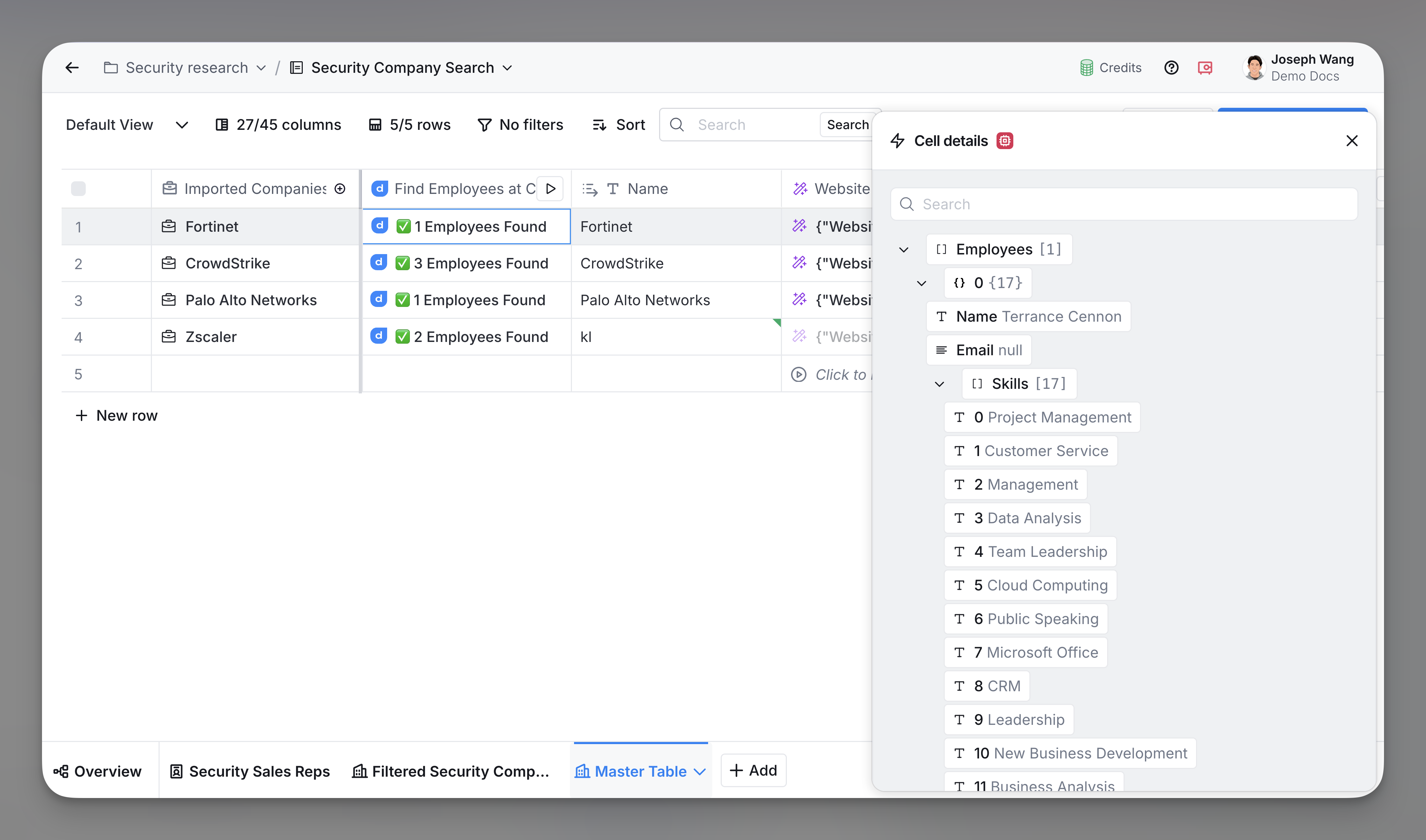
Take action on a list
In the Cell details panel, hover to the right of a list to access actions:
- Filter or find keywords: Search for specific items using formulas.
- Turn items into rows: Move each item into its own row in another table.
- Combine items into one text field: Join all items into one line, separated by commas. This action appears only for lists of single values. If each item is a group with its own fields, it isn't offered.
- Ask AI questions: Get answers or summaries about the list.
Cell size limits
Clay has two types of cell size limits:
- Basic columns (text and formula columns): 8KB limit
- Action columns (enrichment outputs): 200KB limit
The final step of a waterfall returns a basic column with an 8KB limit. If your waterfall contains large amounts of data, it may exceed this limit.
- Gong transcripts: Often exceed the 200KB limit.
- Technology waterfall (BuiltWith): Can output over 200KB; use keywords to filter.
- HTTP-API and webhooks: May bring in over 200KB; use field-path filters.
- Extracting to basic columns: May hit the 8KB limit when extracting large action fields.
Explore other docs
Other popular resources
Join a cohort, learn Clay fast!
The faster way to master Clay. Sign in if you're enrolled in a cohort (current or past) or apply!
Hire GTME Talent
Find and connect with GTM talent who've demonstrated expertise in building advanced workflows