




Getting started with LeadMagic
LeadMagic in Clay allows you to easily enrich company, find work email and mobile data, add or update lead using their social URL
There are many actions you can do with LeadMagic, including:
- Enrich Company
- Find Mobile Number
- Find Social Profile
- Find Work Email
- Validate Email
We'll cover how to connect Clay to LeadMagic, then we'll go over each action that is available with LeadMagic.
But first let's talk a bit about data enrichment waterfalls.
Getting better email and phone number coverage with waterfall enrichments
LeadMagic is great for finding email and phone number contacts, but it's not the only way to get this data.
For better coverage on contact data, we recommend using Clay's waterfall enrichments, which will let you search sequentially across multiple data providers.
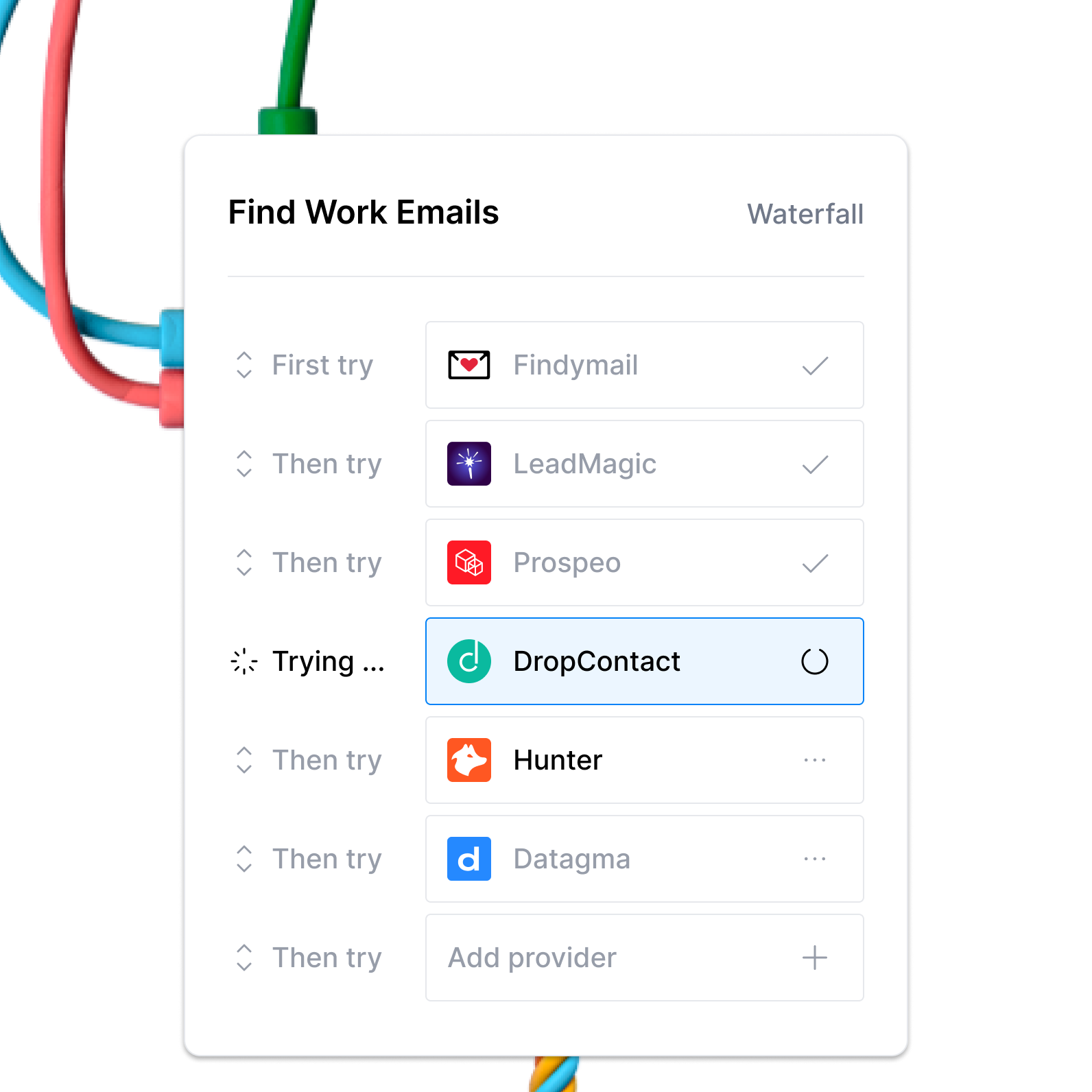
Learn more on how to use Clay waterfalls with this Clay University lesson.
That said, let's get into it on how to use LeadMagic with Clay!
Connecting with Clay with LeadMagic
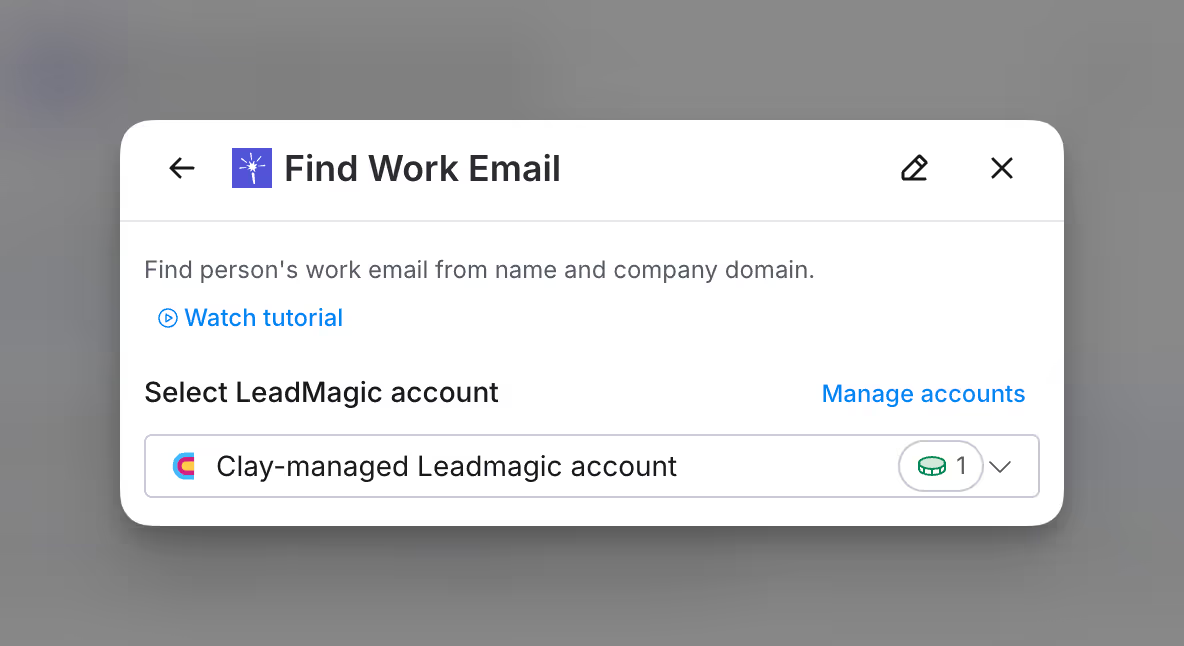
Option 1: Use the Clay-managed LeadMagic account
By default, LeadMagic enrichments will use the Clay-managed LeadMagic account. This means that any new enrichment will charge the designated credit amount. Simply pull up any LeadMagic enrichment within Clay to use the Clay-managed LeadMagic account.
Option 2: Add your own LeadMagic API key
If you are currently on a paid plan, you can use your own LeadMagic account within Clay through an API key.
Important: API key usage is only available on paid plans. Please upgrade to access the API key.
To obtain your LeadMagic API key
- Log in to your LeadMagic account.
- Navigate to your Account Profile.
- Locate the API Key section and copy your API key.
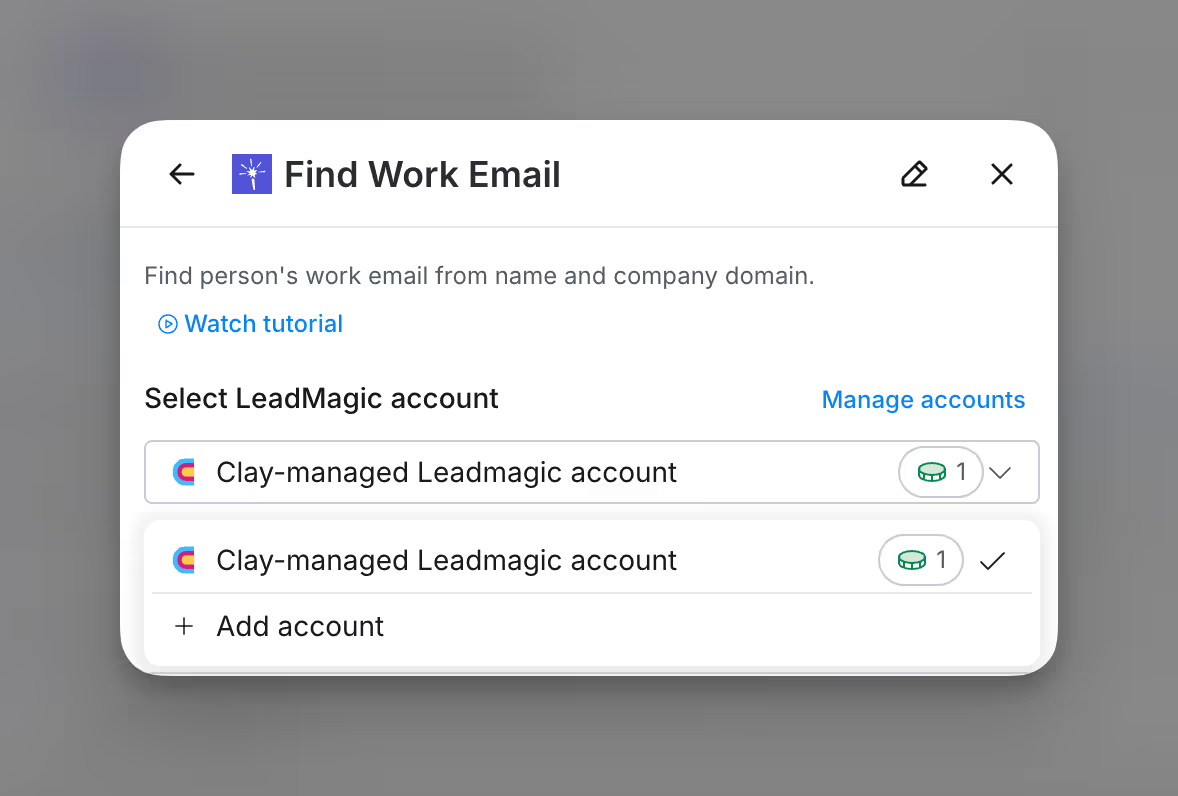
You can easily add your LeadMagic API key through the enrichment panel when selecting an account. Below is an example of where you can access the account creation process.
Action Enrich Company
The Enrich Company action enriches a company using their LinkedIn URL.
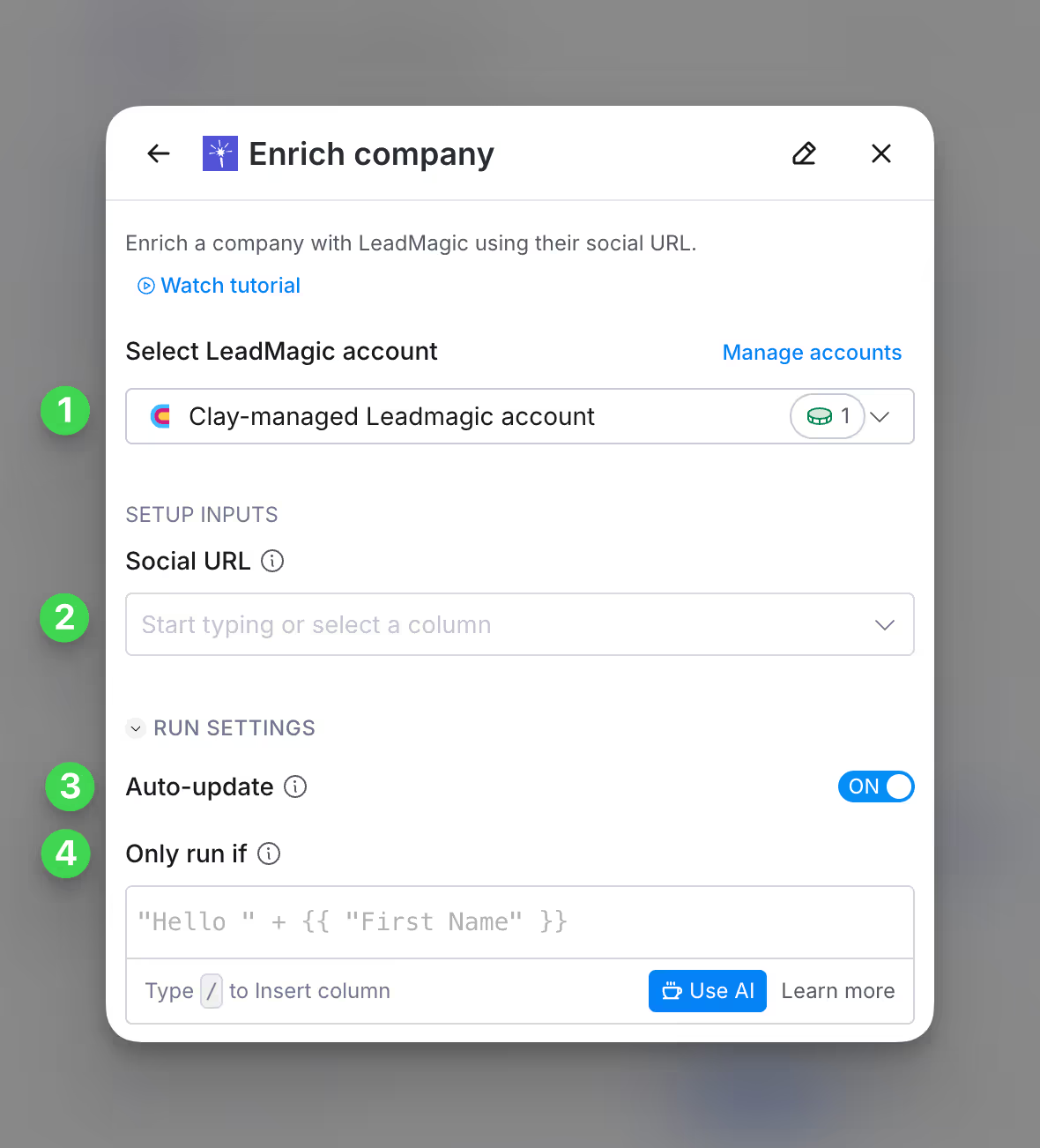
Step 1: Choose the LeadMagic account you want to use
First, you can use either the Clay-managed LeadMagic account or your own API key.
If you use the Clay-managed LeadMagic account you will be charged at 1 credit per enriched cell. For more information on how Clay credits work, please refer to this guide.
Step 2: Enter optional and required setup inputs
Please input the Social URL of the company you want to enrich. Most commonly this will be a LinkedIn profile.
Step 3 (Optional): Select Auto-update
By default, LeadMagic will auto-update the integration every 24 hours. This is optional. Make sure to toggle this step off if you do not want to auto-update, however, you might run into stale data problems.
For more information about how auto-update works, please read this brief guide.
Step 4 (Optional): Select conditional run criteria
If you want to only run this enrichment under set circumstances, you are able to input formulas where the column runs only if the formula is true. Learn more about conditional runs in this Clay University lesson.
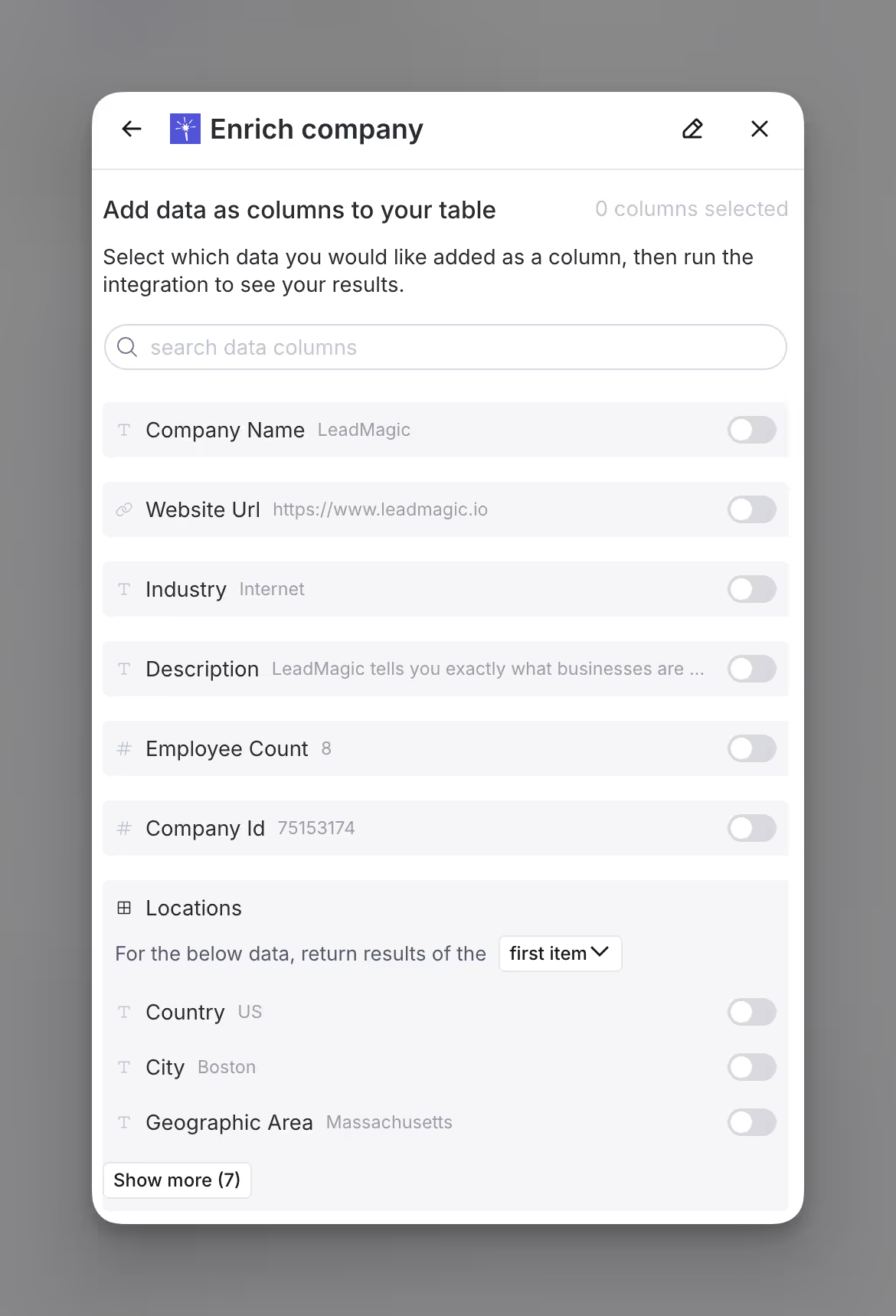
Step 5: Choose data to add as columns to table
Select which data from the enrichment you’d like to add as columns to your table. Even if you choose not to add columns at this point, the enriched data will still be available and accessible for later use.
Action Find Mobile Number
The Find Mobile Number integration finds a person’s mobile number from their LinkedIn profile.
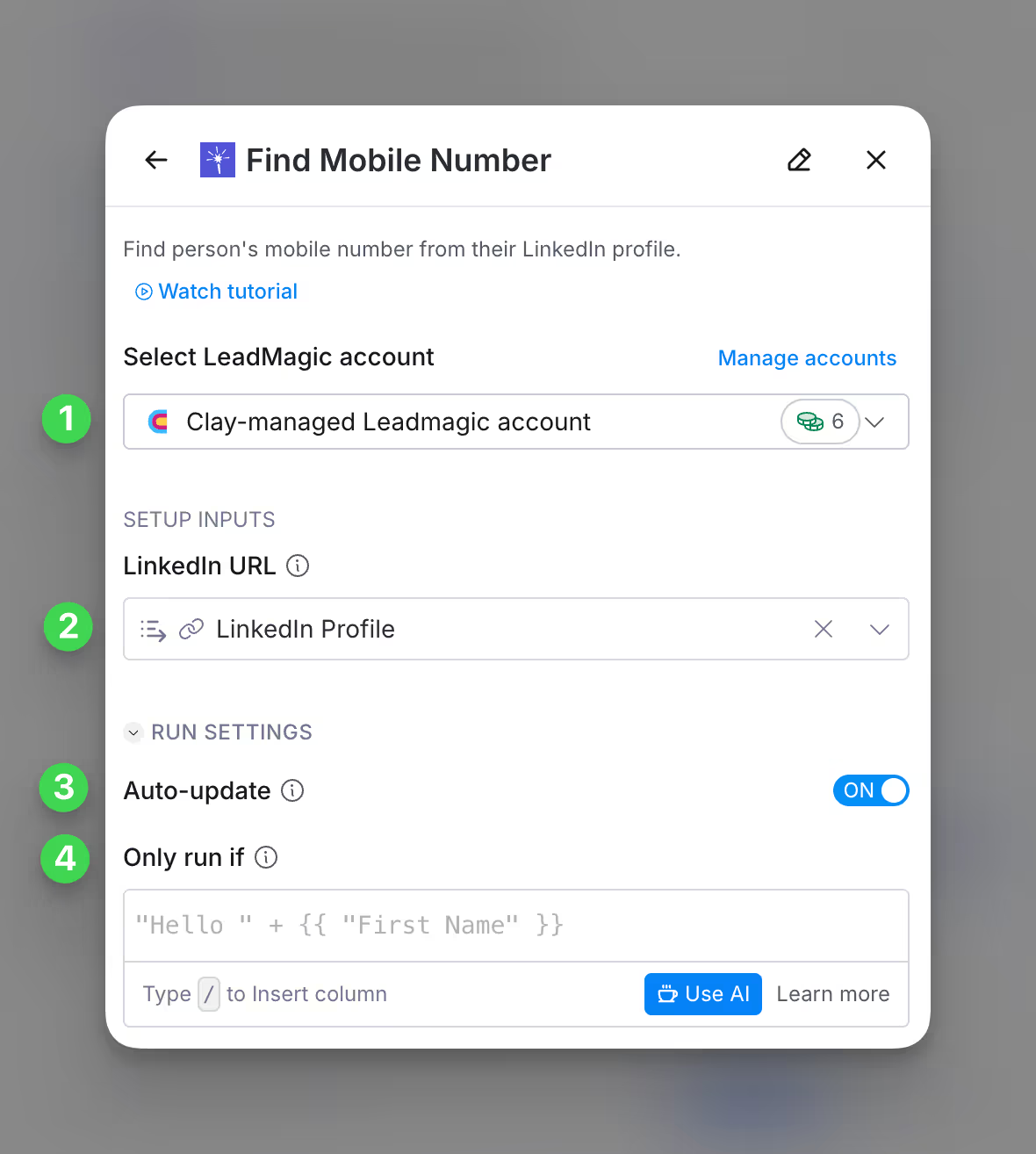
Step 1: Choose the LeadMagic account you want to use
First, you can use either the Clay-managed LeadMagic account or your own API key.
If you use the Clay-managed LeadMagic account you will be charged at 6 credits per enriched cell. For more information on how Clay credits work, please refer to this guide.
Step 2: Enter optional and required setup inputs
Please input the contact’s LinkedIn URL to find their mobile number.
Step 3 (Optional): Select Auto-update
By default, LeadMagic will auto-update the integration every 24 hours. This is optional. Make sure to toggle this step off if you do not want to auto-update, however, you might run into stale data problems.
For more information about how auto-update works, please read this brief guide.
Step 4 (Optional): Select conditional run criteria
If you want to only run this enrichment under set circumstances, you are able to input formulas where the column runs only if the formula is true. Learn more about conditional runs in this Clay University lesson.
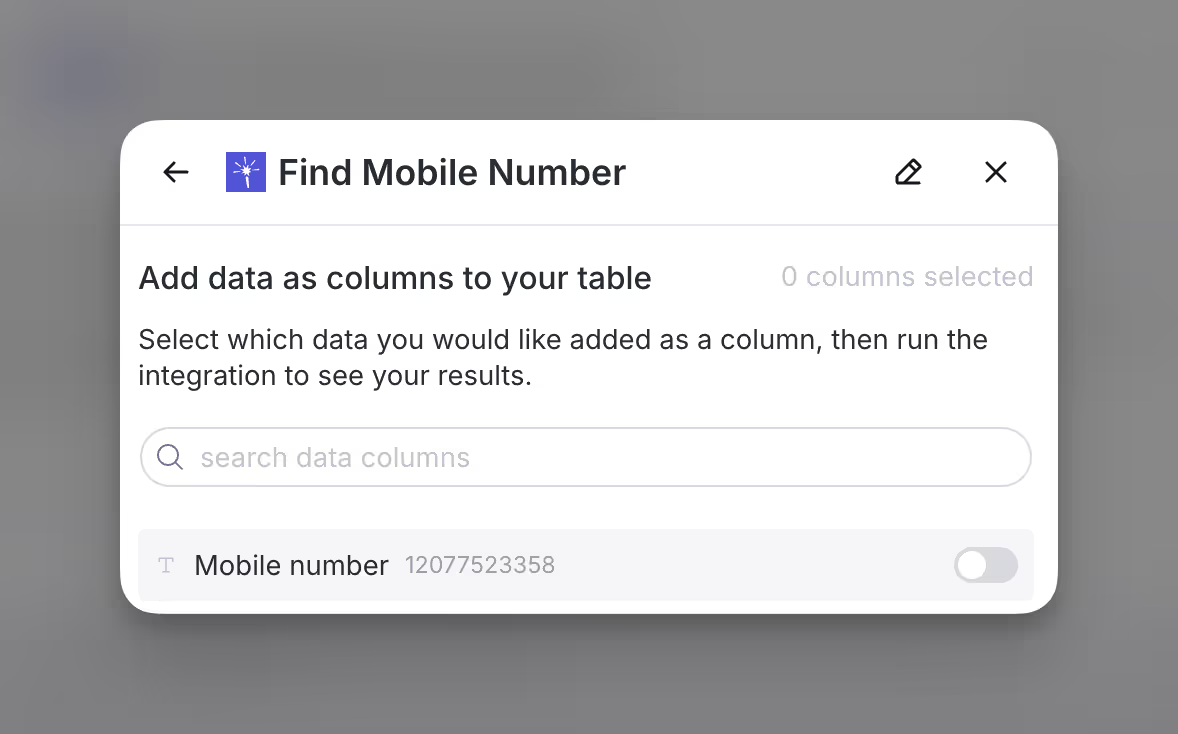
Step 5: Choose data to add as columns to table
Select which data from the enrichment you’d like to add as columns to your table. Even if you choose not to add columns at this point, the enriched data will still be available and accessible for later use.
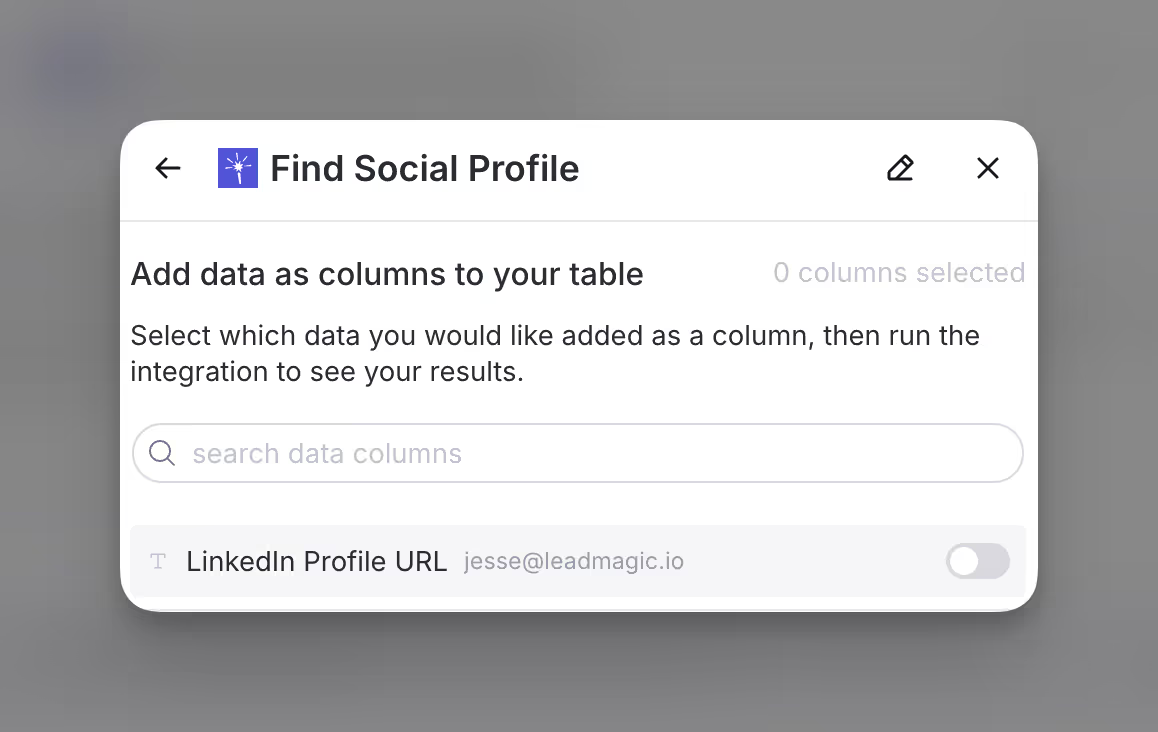
Action Find Social Profile
The Find Social Profile action finds a contact’s social profile from their work or personal email.
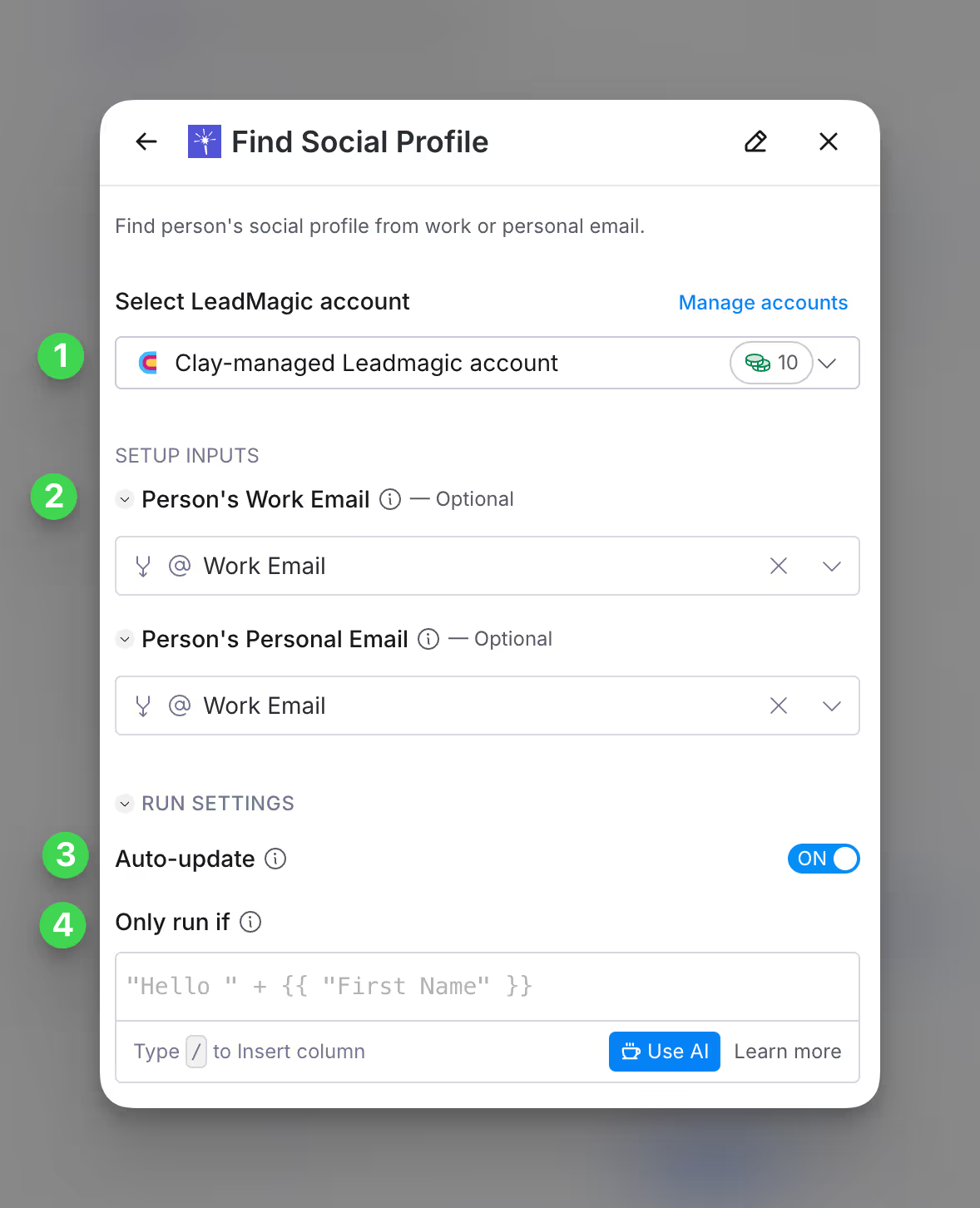
Step 1: Choose the LeadMagic account you want to use
First, you can use either the Clay-managed LeadMagic account or your own API key.
If you use the Clay-managed LeadMagic account you will be charged at 10 credits per enriched cell. For more information on how Clay credits work, please refer to this guide.
Step 2: Enter optional and required setup inputs
In this step, please input either the person’s work or personal email to obtain the social profile.
Step 3 (Optional): Select Auto-update
By default, LeadMagic will auto-update the integration every 24 hours. This is optional. Make sure to toggle this step off if you do not want to auto-update, however, you might run into stale data problems.
For more information about how auto-update works, please read this brief guide.
Step 4 (Optional): Select conditional run criteria
If you want to only run this enrichment under set circumstances, you are able to input formulas where the column runs only if the formula is true. Learn more about conditional runs in this Clay University lesson.
Step 5: Choose data to add as columns to table
Select which data from the enrichment you’d like to add as columns to your table. Even if you choose not to add columns at this point, the enriched data will still be available and accessible for later use.
Action Find Work Email
The Find Work Email helps find a person’s work email from name and company domain.
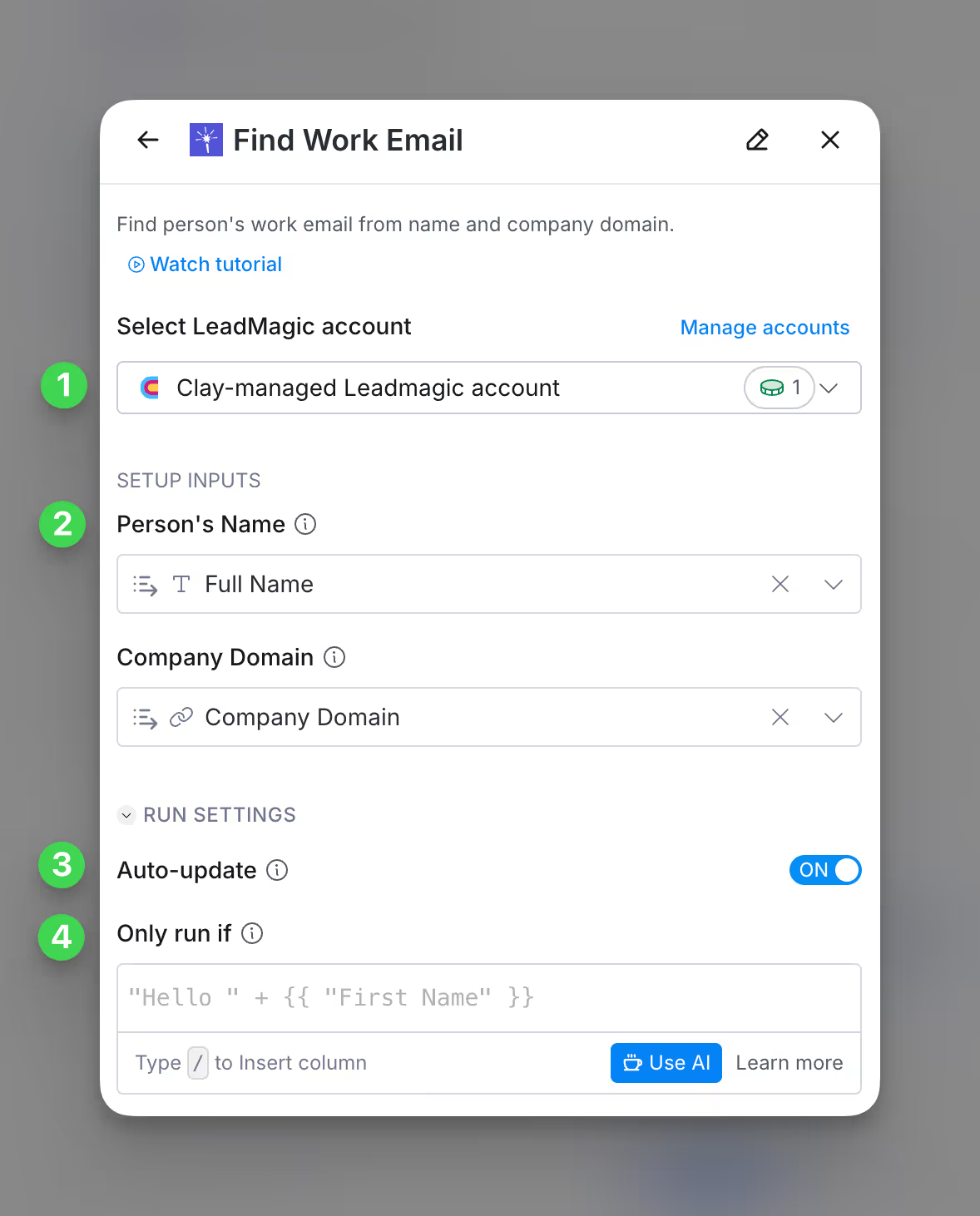
Step 1: Choose the LeadMagic account you want to use
First, you can use either the Clay-managed LeadMagic account or your own API key.
If you use the Clay-managed LeadMagic account you will be charged at 1 credit per enriched cell. For more information on how Clay credits work, please refer to this guide.
Step 2: Enter optional and required setup inputs
Please input the person’s name and either the company domain to obtain the contact’s work email you are trying to find.
Step 3 (Optional): Select Auto-update
By default, LeadMagic will auto-update the integration every 24 hours. This is optional. Make sure to toggle this step off if you do not want to auto-update, however, you might run into stale data problems.
For more information about how auto-update works, please read this brief guide.
Step 4 (Optional): Select conditional run criteria
If you want to only run this enrichment under set circumstances, you are able to input formulas where the column runs only if the formula is true. Learn more about conditional runs in this Clay University lesson.
Step 5: Choose data to add as columns to table
Select which data from the enrichment you’d like to add as columns to your table. Even if you choose not to add columns at this point, the enriched data will still be available and accessible for later use.

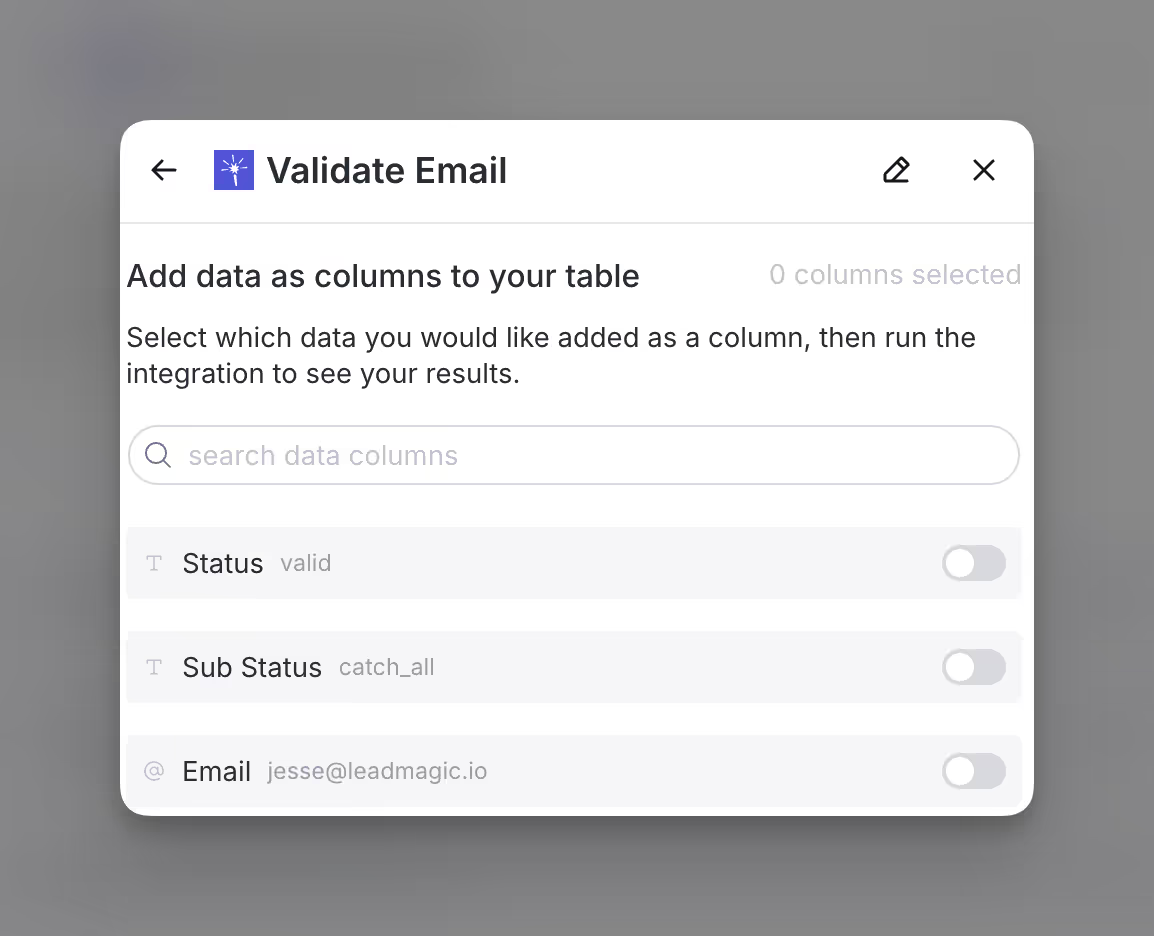
Action Validate Email
The Validate Email action helps you determine if an email address has a valid inbox.

Step 1: Choose the LeadMagic account you want to use
First, you can use either the Clay-managed LeadMagic account or your own API key.
If you use the Clay-managed LeadMagic account you will be charged at 1 credit per enriched cell. For more information on how Clay credits work, please refer to this guide.
Step 2: Enter optional and required setup inputs
Please input the email you want to validate in this step.
Step 3 (Optional): Select Auto-update
By default, LeadMagic will auto-update the integration every 24 hours. This is optional. Make sure to toggle this step off if you do not want to auto-update, however, you might run into stale data problems.
For more information about how auto-update works, please read this brief guide.
Step 4 (Optional): Select conditional run criteria
If you want to only run this enrichment under set circumstances, you are able to input formulas where the column runs only if the formula is true. Learn more about conditional runs in this Clay University lesson.
Step 5: Choose data to add as columns to table
Select which data from the enrichment you’d like to add as columns to your table. Even if you choose not to add columns at this point, the enriched data will still be available and accessible for later use.
Explore other docs
Other popular resources
Join a cohort, learn Clay fast!
The faster way to master Clay. Sign in if you're enrolled in a cohort (current or past) or apply!
Hire GTME Talent
Find and connect with GTM talent who've demonstrated expertise in building advanced workflows