




What is ClearoutPhone?
ClearoutPhone validates phone numbers by checking if they are active and identifying the line type (e.g., mobile or landline). It supports global numbers but requires a country code for non-US numbers to ensure accuracy.
Setting up ClearoutPhone and Clay
You can connect ClearoutPhone in Clay two ways.
Option 1: Use the Clay-managed ClearoutPhone account
By default, ClearoutPhone enrichments in Clay use the Clay-managed ClearoutPhone account, which charges one credit for each enrichment.
Option 2: Use your own ClearoutPhone API key
If you are currently on a paid plan, you can use your own ClearoutPhone account within Clay through an API key.
Within ClearoutPhone, you’re able to access your API key through the API Section of your settings.
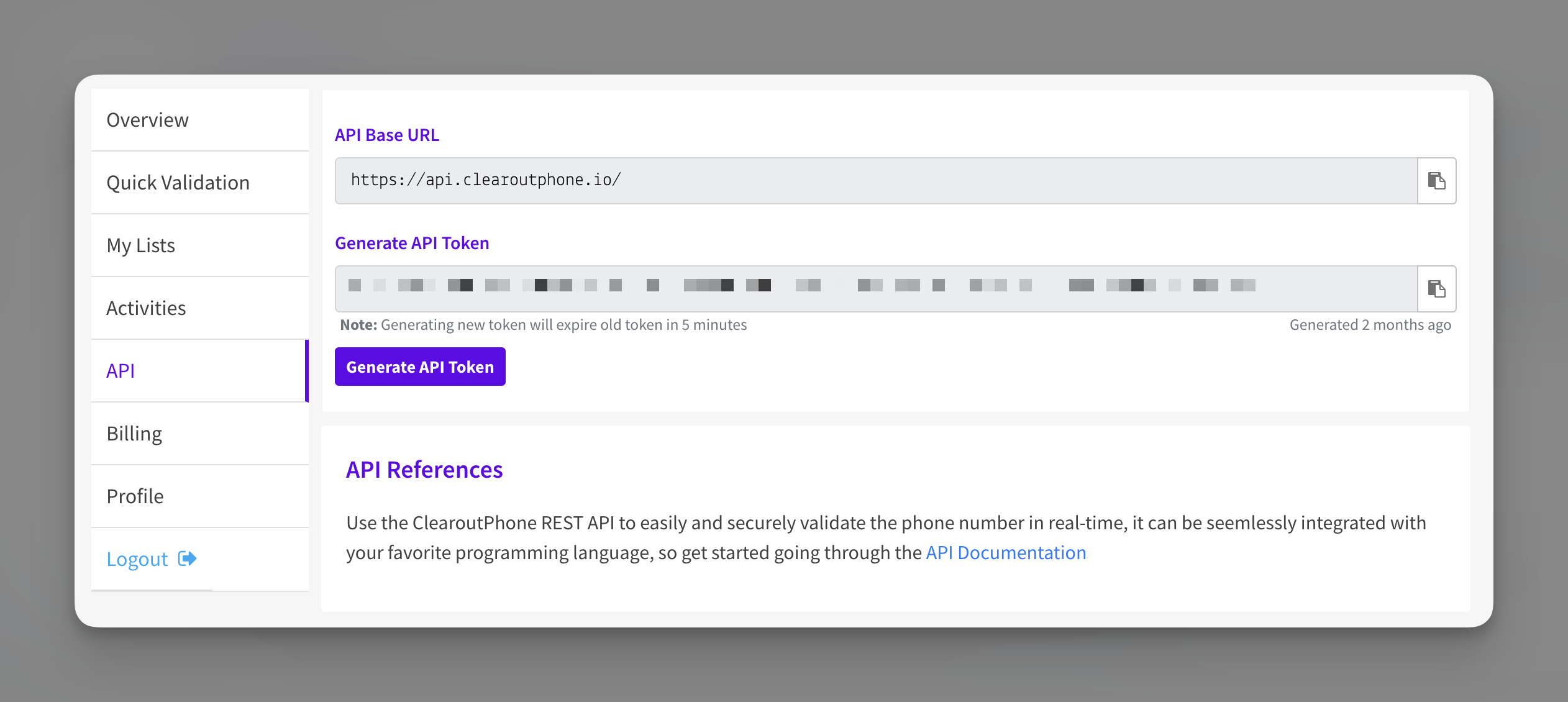
You can add your ClearoutPhone API key to Clay within the enrichment panel. The image below shows where to add your API key in the enrichment panel.
Action Check Phone Line Type & Status
The Check Phone Line Type & Status action helps you verify if a phone number is active and determines the type of line (e.g., mobile or landline).
Step 1: Check Phone Line Type & Status
Access this action through the integration panel.
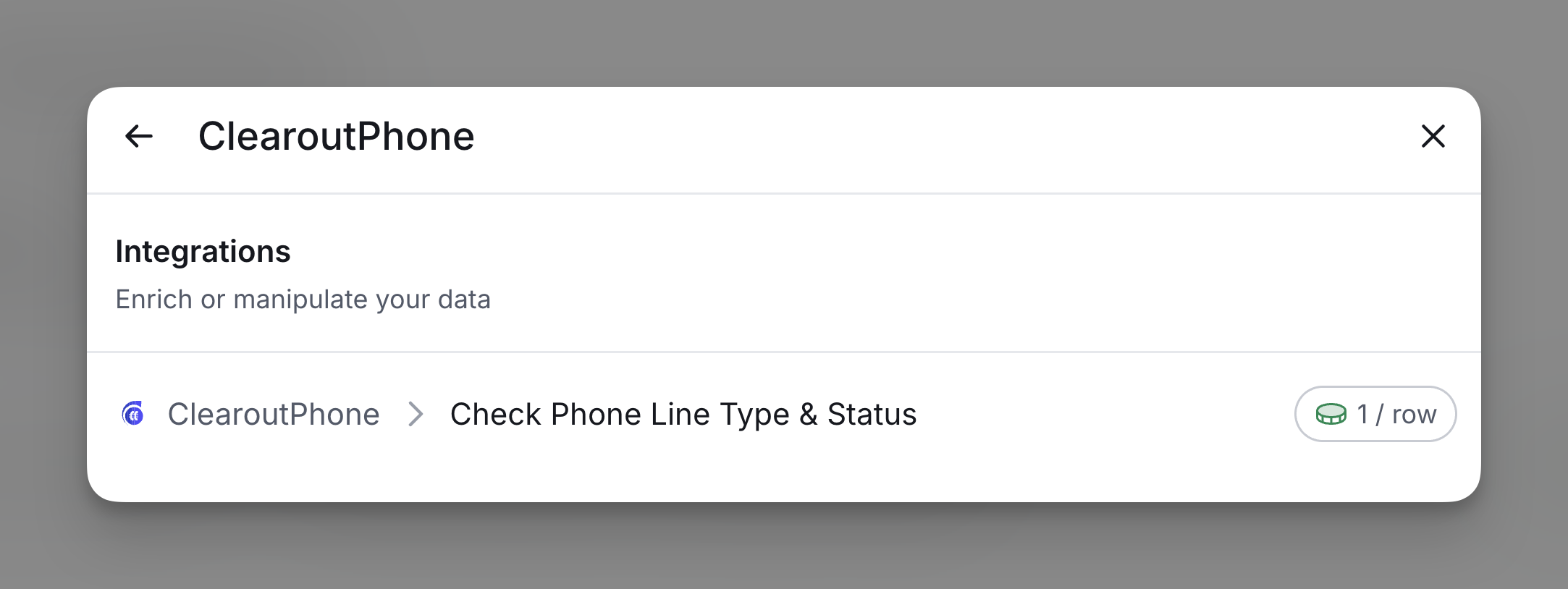
Step 2: Select ClearoutPhone account
Proceed with either a Clay-managed or a personal account.
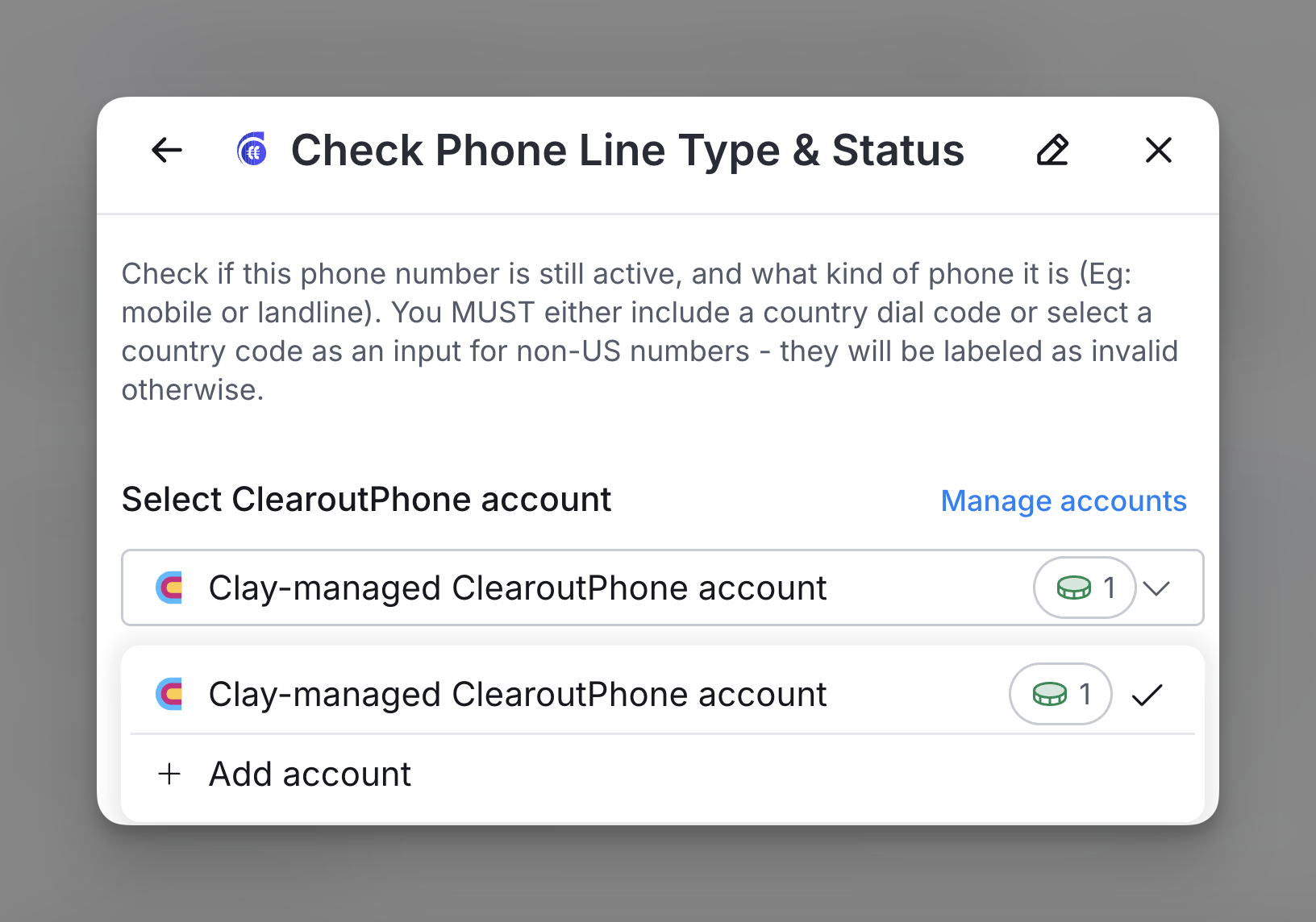
Step 3: Enter phone number additional setup information
Input the phone number you are trying to verify. Additionally, you can also add the following information to better search results:
- Country (Optional): Select a country to refine results to a specific region.
- Mobile Phone Only (Optional): Toggle on if you only want results with mobile phone numbers.
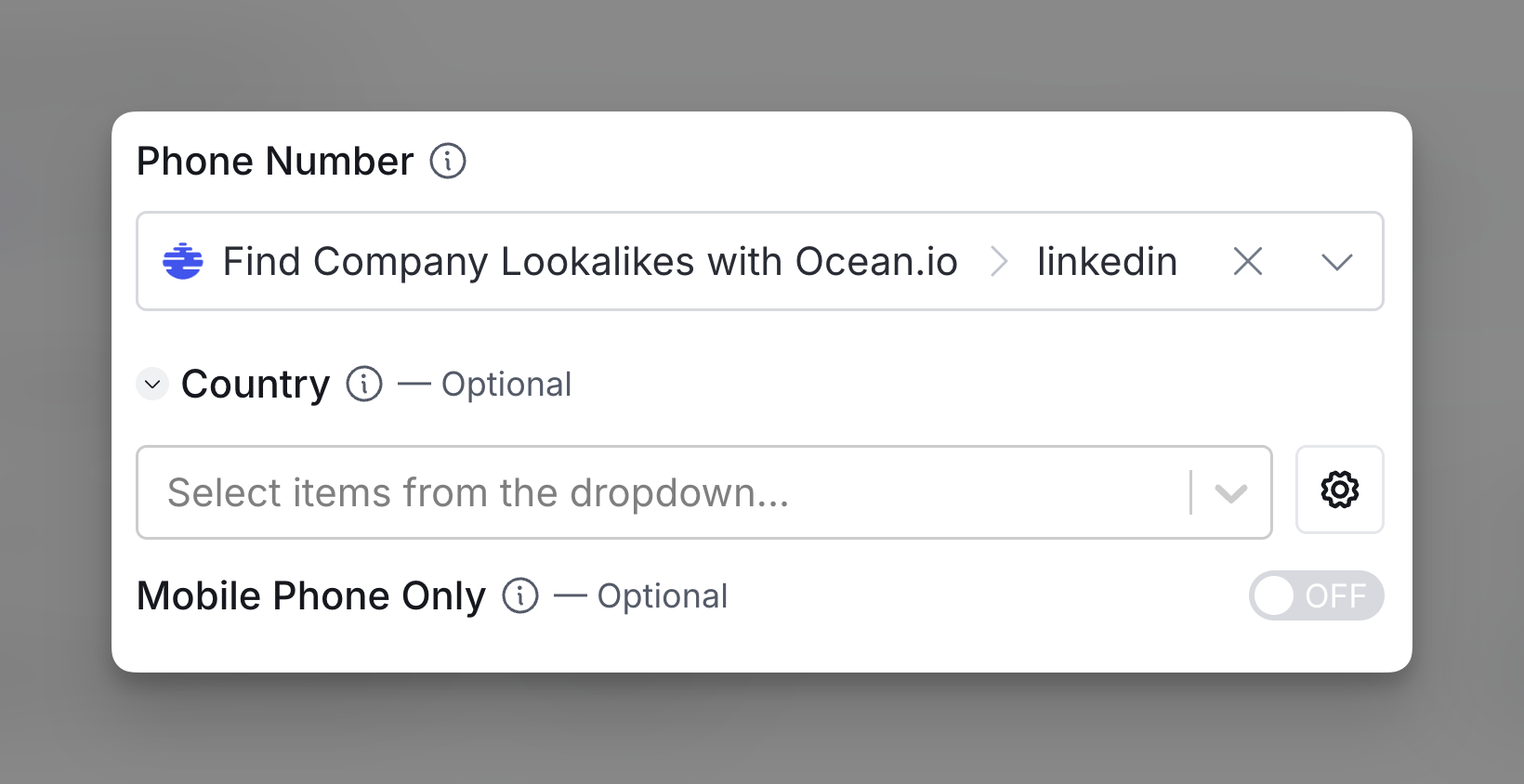
Step 4: Configure run settings
Auto-update: HitHorizons will automatically enrich any new rows that get added to the table. Learn more about auto-update in this this brief guide.
Conditional runs: To run enrichment only under specific conditions, use formulas that trigger the column when the formula is true. See this Clay University lesson.

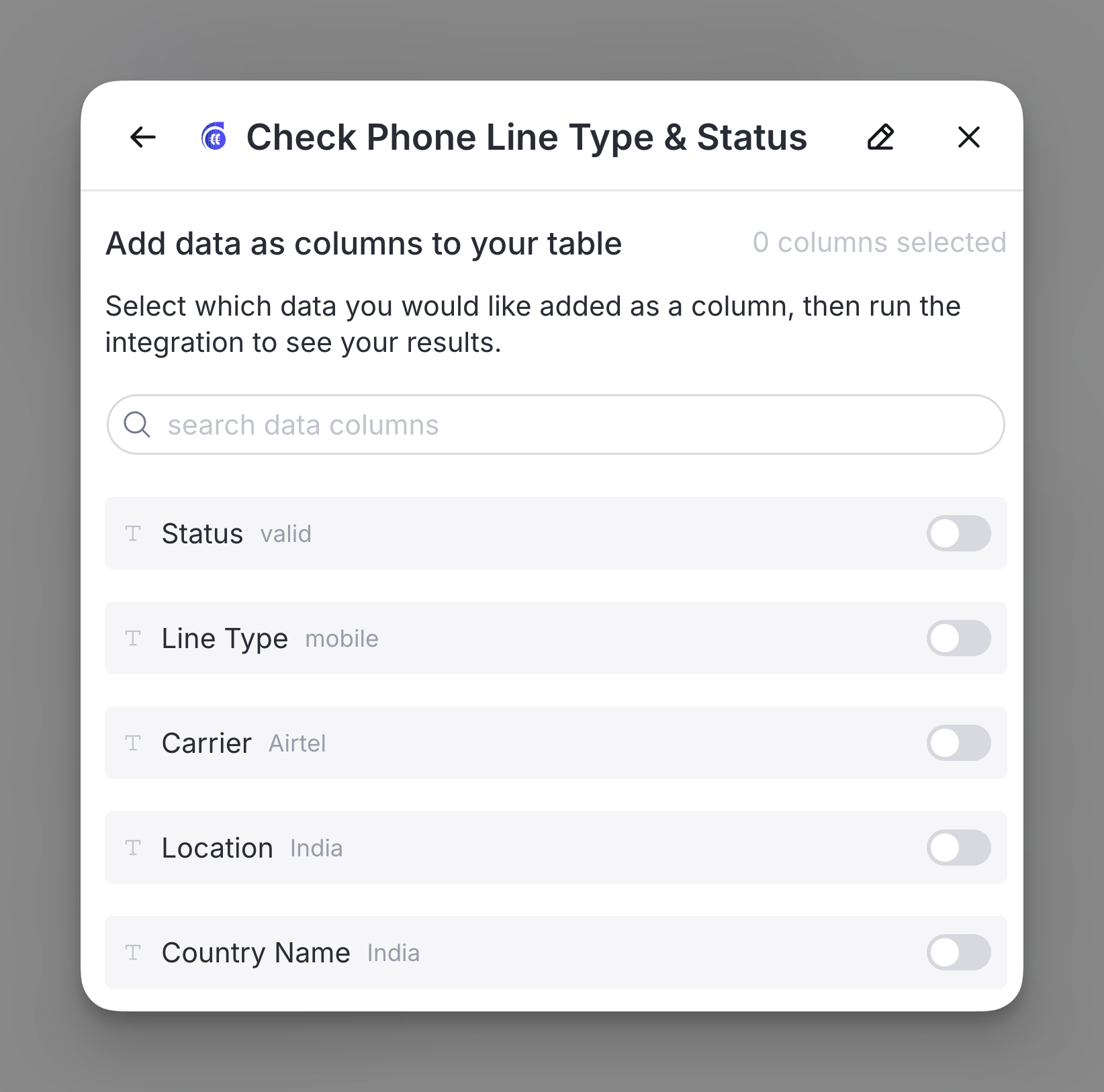
Step 5: Choose data to add as columns to table
Select the data from the enrichment you want to add as columns to your table.
Explore other docs
Other popular resources
Join a cohort, learn Clay fast!
The faster way to master Clay. Sign in if you're enrolled in a cohort (current or past) or apply!
Hire GTME Talent
Find and connect with GTM talent who've demonstrated expertise in building advanced workflows