




Guide: Ways to Save Clay Credits
Clay credits are valuable resources that help you save both time by automating manual work and money on go-to-market resources. By optimizing how you use credits, you can ensure your workflows remain efficient while delivering the results you need growth. This guide outlines a few best practices to help you get the most out of your credits.
Pause enrichments for new entries by turning off Auto-run
How does this save credits?
Auto-run lets Clay enrich any new rows added to your table automatically. While this can be helpful when your table is set up for a fully automated workflow, it can also result in unnecessary credit usage if rows are added by mistake or before you’re ready.
The best practice here is to turn off Auto-run while building your table. Once your setup is finalized, you can turn it back on when you’re ready to launch and start enriching new entries.
How do you implement this?
To stop a column from running automatically, go to Run settings and toggle off Auto-run.
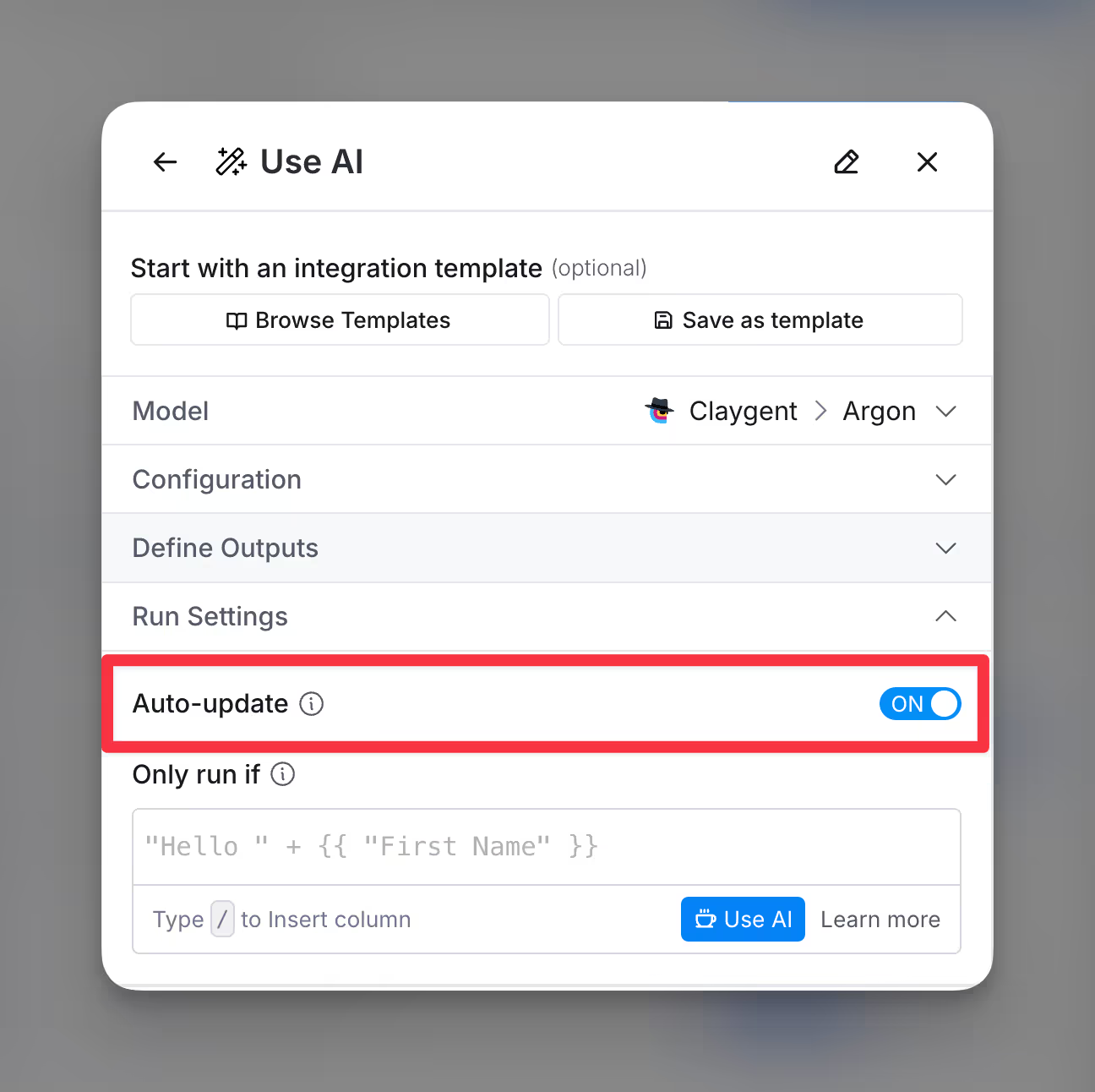
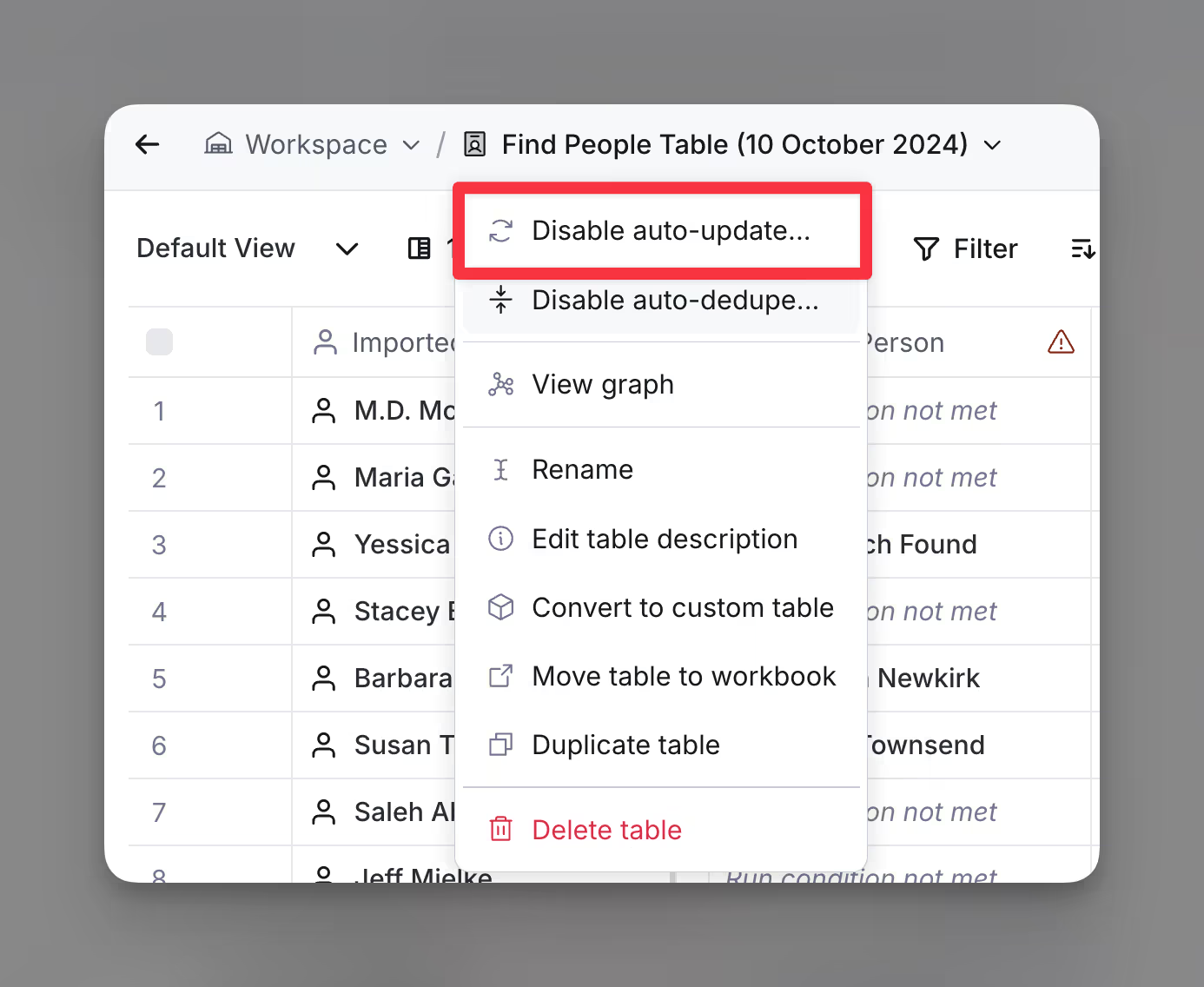
You can also stop an entire table from running automatically: select Auto-run in the table toolbar, then toggle off Auto-run. The button reads Manual while automatic runs are off.
Leveraging your API Keys
How does this save credits?
If you are on a paid plan and have credits with other data providers, Clay allows you to integrate your own API keys, giving you the flexibility to use those resources directly within your workflows.
How do you use your own API key?
You can access adding your API key two ways:
- Profile picture > Settings > Navigation Bar
- Go to your profile picture in the top right corner, navigate to Settings, and head over to the Connections section. From there, you can add your API keys to the Clay panel.
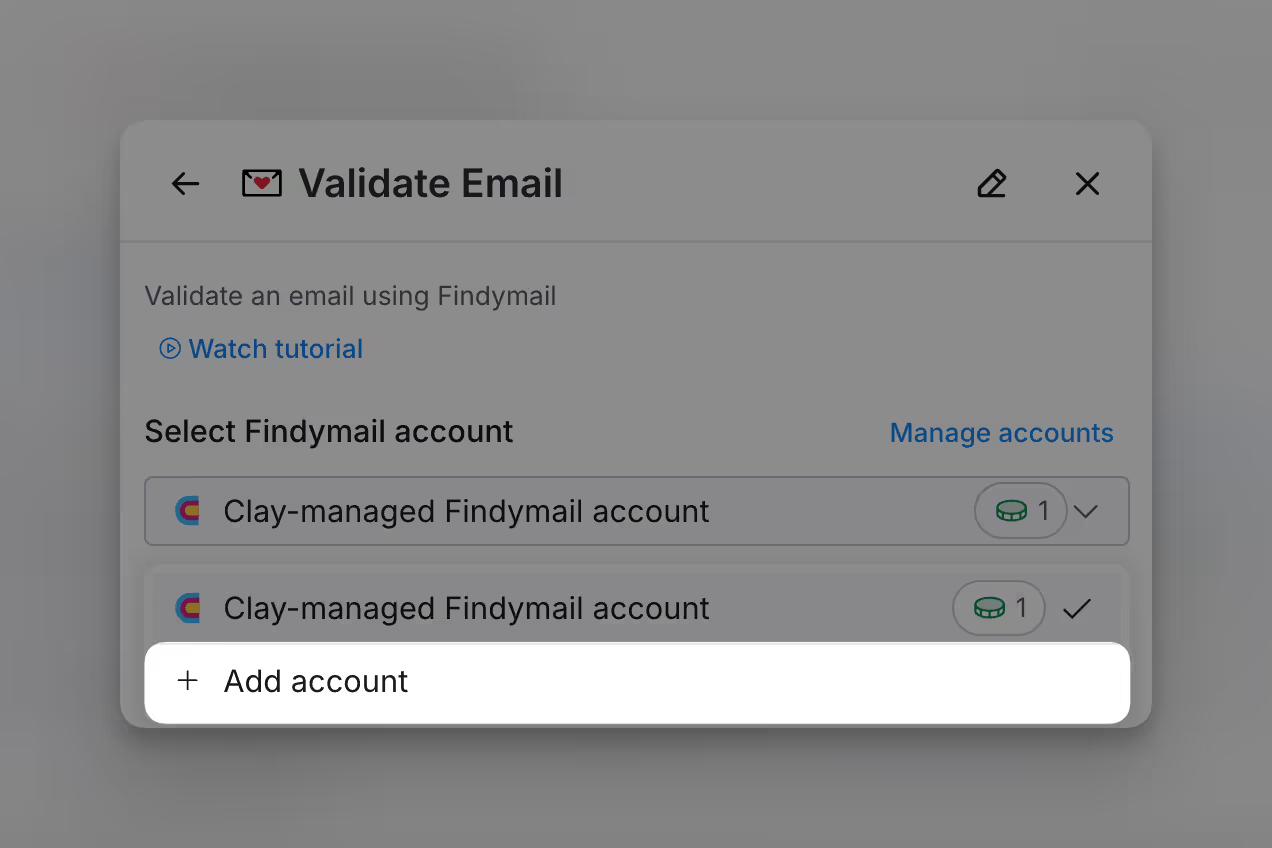
- Enrichment Panel > Account > Add Account
- When setting up an enrichment that accepts an API key, you can add an account linked to your API key. By default, Clay’s API key will be selected, but if you want to use your own, simply switch to your account by selecting Add Account.
Some common API keys you can swap out:
- OpenAI API keys
- Anthropic
- Apollo (Make sure to use the correct API key for the specific service you are integrating)
- Email Providers (e.g., Findymail, Prospeo)
- Email Verifiers (e.g., Debounce, NeverBounce)
Qualify leads before enriching
How does this help conserve credits?
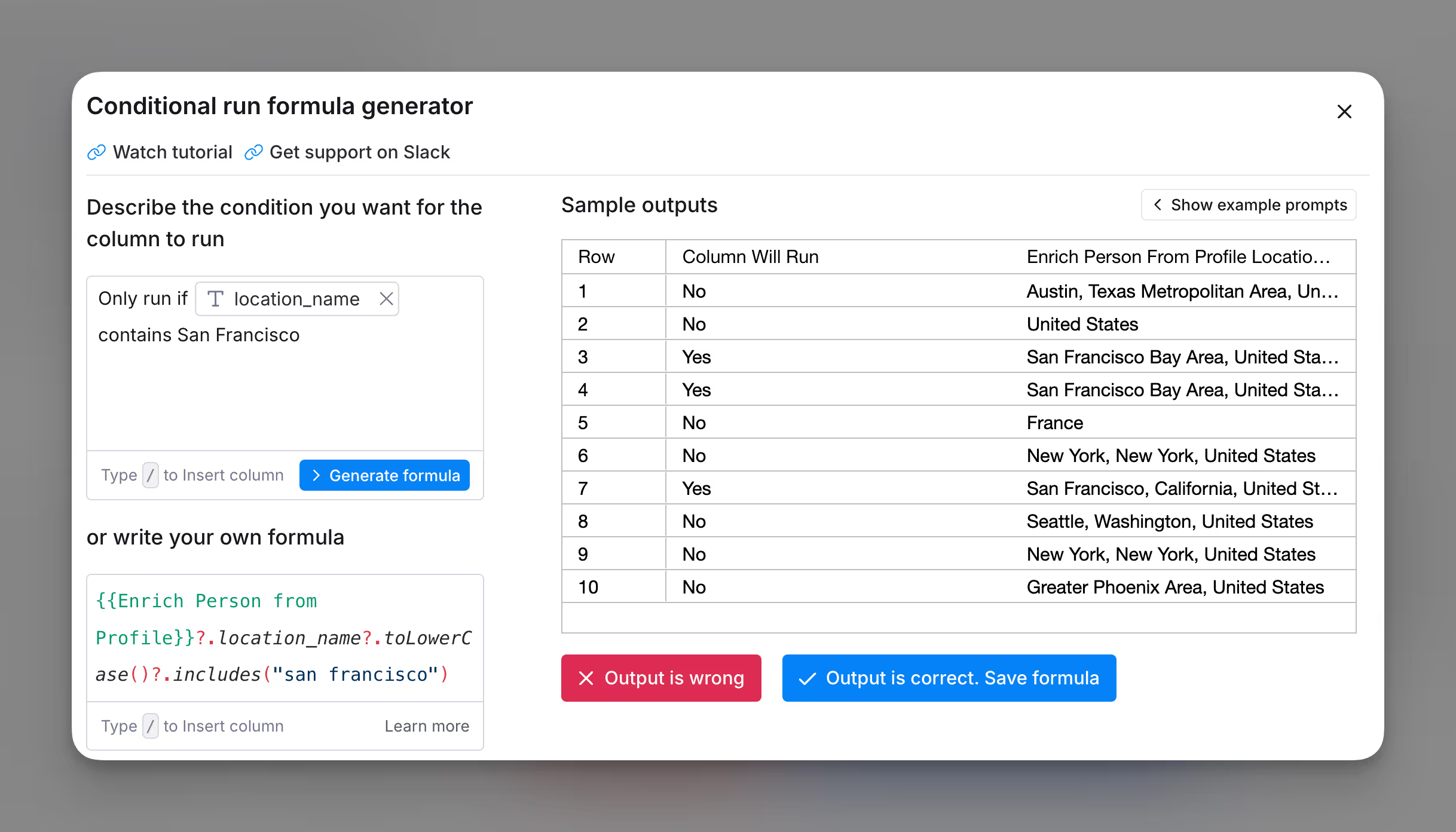
By adjusting the order of enrichments, you can save credits by enriching only the leads that meet specific criteria. If you have leads that can be disqualified early in the process, filtering them out ensures that only qualified contacts are enriched, preventing unnecessary credit usage.
How do you implement this?
You can set up conditional runs or use AI formulas to filter rows based on specific criteria (e.g., location, company size, or industry) to enrich only the contacts that are most relevant to your criteria.
Test out your data
How does this save credits?
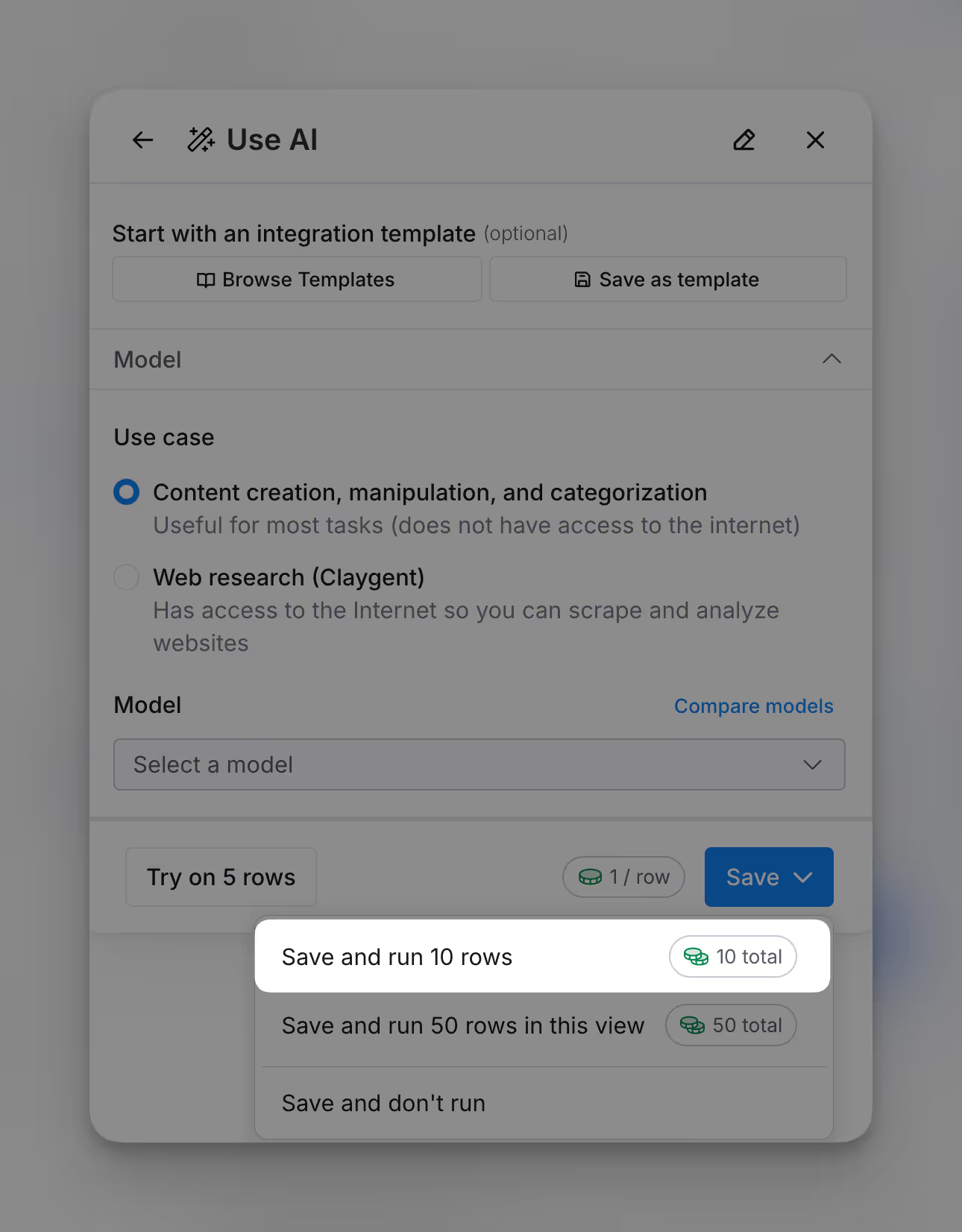
When using a new integration, it’s best to start by testing a small sample—about 10 rows—before running the entire column. This allows you to identify and fix any errors in advance (ex. import errors, column filter error)
For AI enrichments, prompts may need several iterations to get right, so testing and refining your prompts before running the full enrichment will help ensure better results.
How do you implement this?
Before running an enrichment, you can test it on 10 rows or apply it to the entire column. This gives you flexibility in troubleshooting and improving your setup before committing fully.
Conditional runs
How does this save credits?
Conditional formulas help you conserve credits by ensuring that enrichments only run when specific conditions are met. Instead of enriching every row, you can create rules that limit enrichments to only the most relevant rows, such as leads that meet certain criteria. This prevents unnecessary enrichments on disqualified or low-priority leads, allowing you to use credits more efficiently.
How do you implement this?
There are two ways to implement conditional runs:
Method #1: Conditional Runs
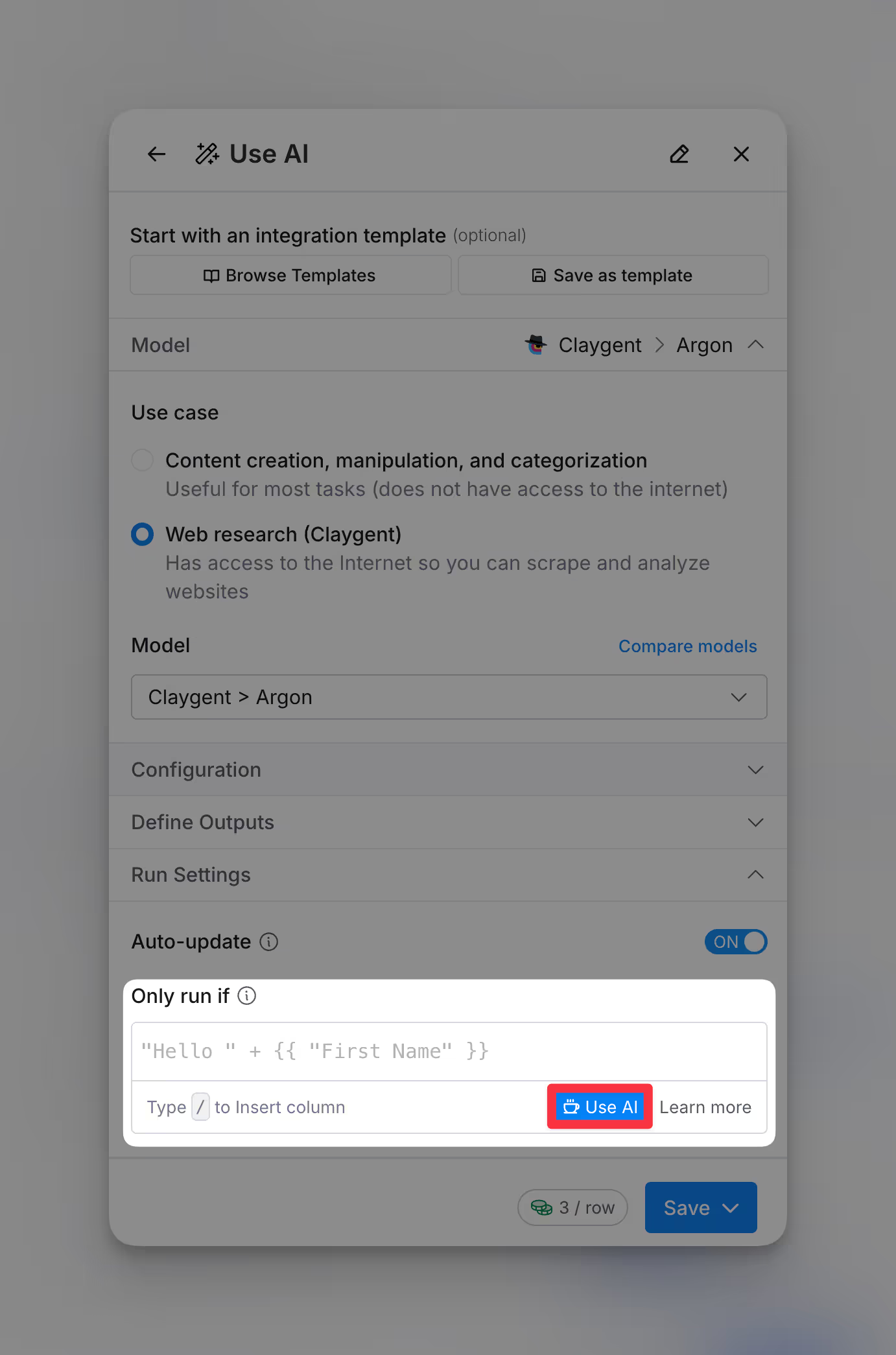
- Go to the Run Settings of any enrichment column.
- In the “Only run if” box, add your conditional formula to specify when the enrichment should run.
- Tip: Use the “Use AI” button to input plain language instructions, making it easier to define your conditions without needing complex formulas.
Method #2: Filter Existing Rows
You can also conditionally run columns through filtering rows.
Filtered views only enriches the rows you're viewing so this can be used as a way to run enrichments conditionally

Look up existing data to avoid duplicate enrichments
If you’ve already enriched contacts in another table or your CRM, you can use Lookup columns to pull that existing data, saving credits by avoiding duplicate enrichments. Before running a new enrichment, check if the data already exists in your CRM or another Clay table. If it does, use a Lookup column to pull the data into your current table.
How do you implement this?
1) Pull Data from Your CRM
2) Leverage Data from Other Tables
Explore other docs
Other popular resources
Join a cohort, learn Clay fast!
The faster way to master Clay. Sign in if you're enrolled in a cohort (current or past) or apply!
Hire GTME Talent
Find and connect with GTM talent who've demonstrated expertise in building advanced workflows