



Functions
Functions let you convert any enrichment sequence into a reusable workflow. Once created, you can use it across any table — and any updates you make to the function automatically apply everywhere it's used.

Functions let you turn any enrichment sequence you've built in a table into a reusable, centrally managed workflow that you can use anywhere — so you can standardize your best logic, stop rebuilding the same columns across tables, and propagate updates everywhere the moment you make them.
What functions are for
Functions are built for workflows you'd otherwise rebuild from scratch in every table. Common use cases include:
- Company enrichment: Given a domain or LinkedIn URL, return firmographic data (revenue, employee count, website traffic) — collapsing 15+ columns into one.
- ICP scoring: Enrich sourced accounts against a pre-defined scoring methodology and update your CRM with the result — governed centrally so logic never drifts between tables.
- Inbound qualification & routing: Run enrichments to identify and score inbound leads, apply routing logic, and update your CRM — all from a single function column.
Creating a function
Create from existing workflow:
- Open any Clay table with the enrichment sequence you want to make reusable.
- Select multiple columns (Hold
Cmdon Mac orCtrlon Windows) and click each column header you want to include in the function. - With your columns highlighted, right click on a column and select
Save as function. - In the dialog that appears:
- Confirm function name/description — We've auto-filled these fields using AI given the selected workflow. Please audit this to make sure there is a descriptive name/description that you can use to find this function later.
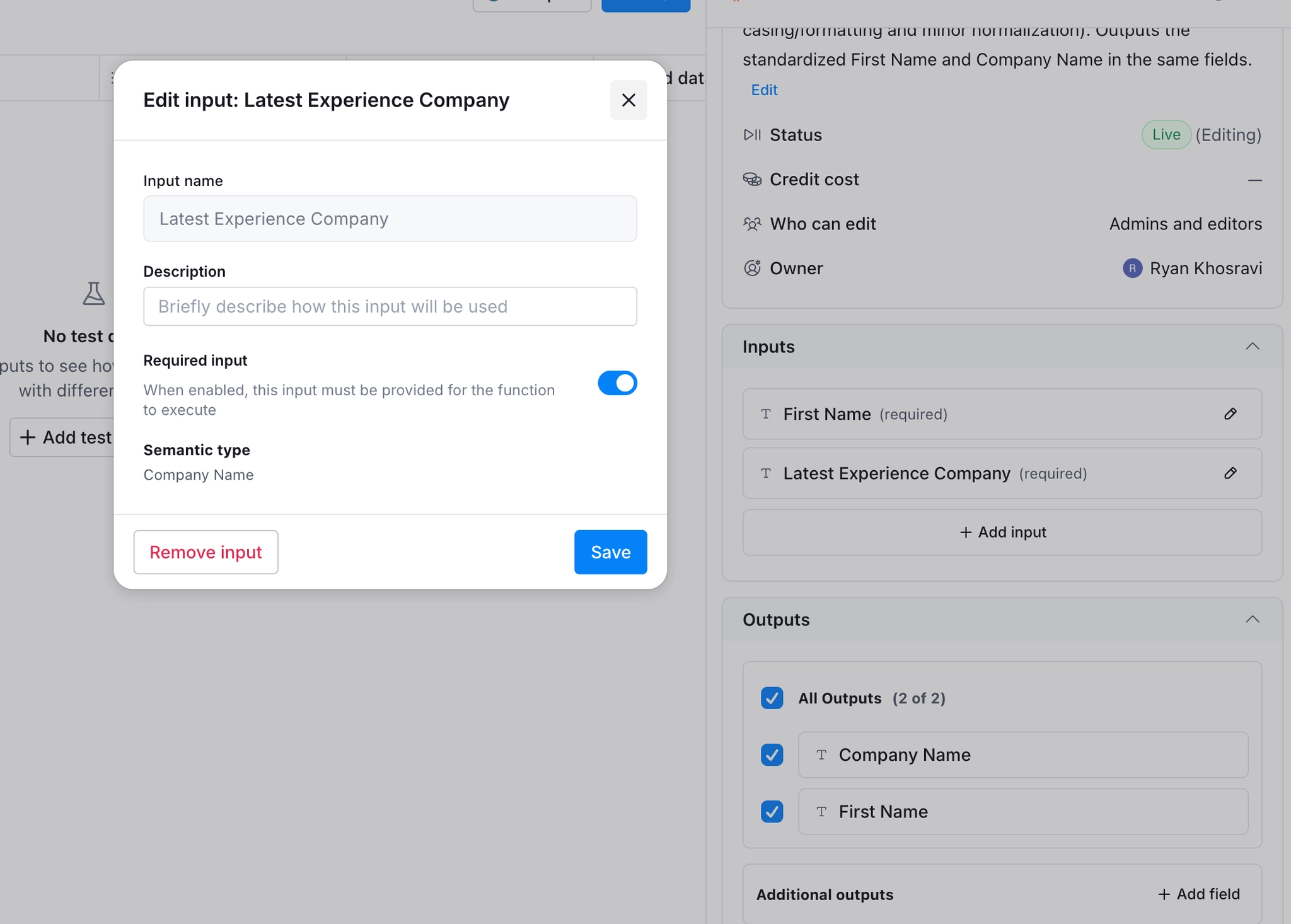
- Define your inputs — the values that will change from table to table (e.g.,
Domain). Everything else is fixed logic that stays the same. - Define your outputs — the value that you will return from the function.
- Note: You can change all the above settings after you create the function as well.
- (Optional) Check
Replace columns with functionto swap out the original columns in your table with the new function- Clay will copy over all the existing data so nothing is lost. This can take a few minutes for larger tables.
- Click
Create→Create. Your function now appears in the left-hand column of your table.- You can also click
Create + Open in Function Editorto view/edit the new functions immediately (See "Editing a function" for more details).
- You can also click
- The function is now ready to be used in your workflow and will also appear under the
Functionstab on your Clay homepage.
Create function from scratch:
- From the homepage, click on
Functionsin the sidebar. - Click on
+ New Functionon the top right. - This will create a blank function that you can directly edit, add inputs/outputs, etc.
Calling a function from a table
- Open any table where you want to run the enrichment.
- Click
Toolsand select an option underFunctions. - In the configuration panel:
- Search/Choose which function to run.
- Map your inputs — connect the function's input fields to the corresponding columns in this table (e.g., map
Domainin the function to the domain column in your table).- You can also add a static value for an input (if a value is not changing for a function) by toggling the inputs mode button at the right of each input.
- Run the column. Clay spins up a background mini-table, runs every enrichment step, and returns the outputs to your table as a single column.
Editing a function
- On your Clay homepage, go to
Functionsand select the function you want to edit. - Select
Edit functionin the top of the function’s settings panel. - While your function is in edit mode, you can safely modify and test your function.
- You can click
Add test inputsto:- Manually enter test data.
- Select recent inputs to replay inputs received by your live function.
- Additionally you can select up to 50 archived rows from your live function and
Debugin edit mode to help safely investigate in a running mode. - Note that no changes made here will apply to the live function until published.
- You can click
- Once your changes are ready, click
Review Changesto view your pending changes and clickPublish Changesto apply your changes to your live function.
Managing MCP access and credit budgets
When you enable functions for MCP (Model Context Protocol), admins can control who can access Clay from tools like ChatGPT and Claude, and set credit limits. You can set default budgets, override limits for specific users, monitor usage, and sync identities from Salesforce.
For a full walkthrough, see MCP settings.
FAQs
What plans are functions available on?
Functions is available on all paid plans at no additional cost, including paid legacy plans. Advanced capabilities such as MCP access are gated to higher tiers.
Does running a function cost extra credits?
No. Functions do not add their own credit or action cost. Credits are consumed by the individual enrichment actions inside the function (e.g., a LinkedIn lookup, an email waterfall step) and are attributed to the table where the function is called, not to the function itself. If a function only contains formula columns and no enrichment steps, it will cost zero credits. Credit cost is visible in the function editor panel and also in the table where the function is referenced.
Is there a row limit for functions?
No. As of General Availability, functions support unlimited rows via passthrough. Functions also include a 10x speedup and fair sharding for parallel execution, so large workloads are distributed efficiently instead of queuing. Prior to GA, Functions had a 50,000-row limit.
What's the difference between an input and a column in a function?
Inputs are the values that change from table to table — typically identifiers like a company domain, a person's full name, or a LinkedIn URL. You define them when saving the function, and map them when calling the function from a different table. Columns that aren't marked as inputs are fixed enrichment logic that runs the same way every time.
Why can't I run/edit a function in "Live" mode directly?
Viewing a function in "Live" mode provides visibility to current/past function runs and mainly serves as an "audit log" of data processing. Once run, rows are effectively archived and cannot be modified from within the function itself.
- If you want to edit/test your function logic, click
Edit functionto safely change, test, and publish your changes. - If you want to re-run past rows in a function, re-run the function column/cells in the origin table that called the function itself. This will generate a new row in your function which will be automatically run on the latest configurations.
Can functions call other functions?
Yes. Functions can be nested — a function can call another function as part of its enrichment sequence, letting you compose complex workflows from smaller, validated building blocks.
What happens if I edit a function while it's running in a production table?
While in edit mode, your function continues to process inputs it receives from production tables. When you publish an edit to your function, the changes apply to all inflight and future rows that the function processes. Note that you can pause your function before publishing changes to ensure that inflight rows are applied with the changes.
How are functions different from column templates?
Column templates are saved configurations for a single column that you apply manually to new tables — they're useful for one-off enrichments but aren't synced across your workspace. Functions are live, centrally managed workflows: edit the function once and every table calling it updates automatically. Functions also run as single columns in your main table, reducing potential column-limit constraints from your workflows.
Is there version history for functions?
No, functions don't currently have a version history.
What is the main use case for functions?
Functions eliminate duplicate work when you need the same workflow in multiple tables. Build your logic once as a function, then reference it anywhere — no more copying enrichment sequences table by table. Common examples include qualification and routing workflows, or repeatable enrichment sequences like "get firmographics from domain."
Does saving columns as a function rerun those columns and consume credits?
No. Saving columns as a function preserves the existing data without rerunning the enrichments. You won't be charged credits twice.
Can I use a function someone else on my team built?
Yes. All workspace functions are available to use in your tables — no special permissions needed. Use them as-is, duplicate and modify for your needs, or request edit access from the owner to collaborate directly.
What is the difference between editing a function and pausing a function?
Editing enters a sandbox mode where you can make changes while the function continues running live. Your edits only take effect when you publish them.
Pausing stops the function entirely — rows that reach a paused function will wait without processing. Use pause when you need to stop execution immediately (e.g., to update an API key or fix an error).
If I edit a function while it's live, will rows that already ran show as stale?
No. Previously processed rows remain unchanged and won't be marked as stale. Only new rows processed after you publish your changes will use the updated logic.
What columns should I include when building a function?
Include action columns (enrichments, Claygents, waterfalls) — not static input columns like company name or domain. Action columns contain the reusable logic you want to apply across tables.
Remember: every column you include becomes a required input. More columns mean more inputs users must provide when calling the function.
Can I share a function with someone outside my workspace?
Yes. Enable "share as template" on the function to generate a shareable link. Anyone with the link can view the function's columns and create a table in their workspace using it.
Can a function be enabled for MCP tools like ChatGPT or Claude?
Yes. In the function editor panel there is an option to enable the function for MCP, which makes it accessible via connected AI tools.
How can I limit who can edit my functions?
- Click on the function.
- In the function's settings panel, scroll to the bottom to find
Access permissions. - Set it to
Admins and invited collaborators onlyto restrict editing permissions to workspace admins and specific collaborators you invite.
How do I debug specific rows while editing a function?
.webp)
You can test your function changes against real-world inputs by debugging selected rows:
- Open your function and click
Edit function. - Select one or more rows from your function table (including archived rows).
- Right-click on the selected rows and choose
Debug selected rows in edit mode. - The selected rows will run through your function using your current edits, allowing you to see how your changes affect specific inputs.
- Review the results to validate your changes before publishing.
This is especially useful when you want to test edge cases or troubleshoot specific inputs that previously failed or produced unexpected results.
Explore other docs
Other popular resources
Join a cohort, learn Clay fast!
The faster way to master Clay. Sign in if you're enrolled in a cohort (current or past) or apply!
Hire GTME Talent
Find and connect with GTM talent who've demonstrated expertise in building advanced workflows