




What is Enrichley?
Enrichley in Clay validates work emails to ensure they’re safe, reducing bounces, protecting your sender reputation, and improving deliverability.
We'll cover how to connect Clay to Enrichley, and then we'll go over how to validate an email with Enrichley.
Connecting Clay with Enrichley
There are two options to connect Enrichley to Clay.
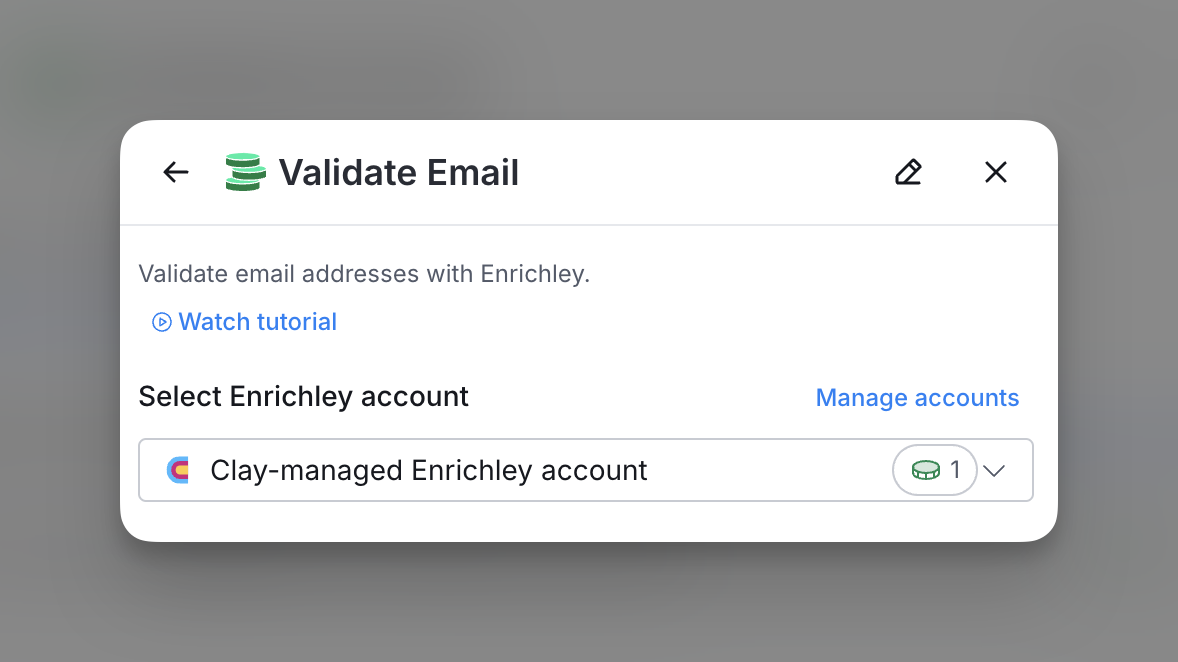
Option 1: Use the Clay-managed Enrichley account
By default, Enrichley enrichments will use the Clay-managed Enrichley account. This means that any new enrichment will charge the 1 credit
Simply pull up any Enrichley enrichment within Clay to use the Clay-managed Enrichley account.
Option 2: Use your own Enrichley API key
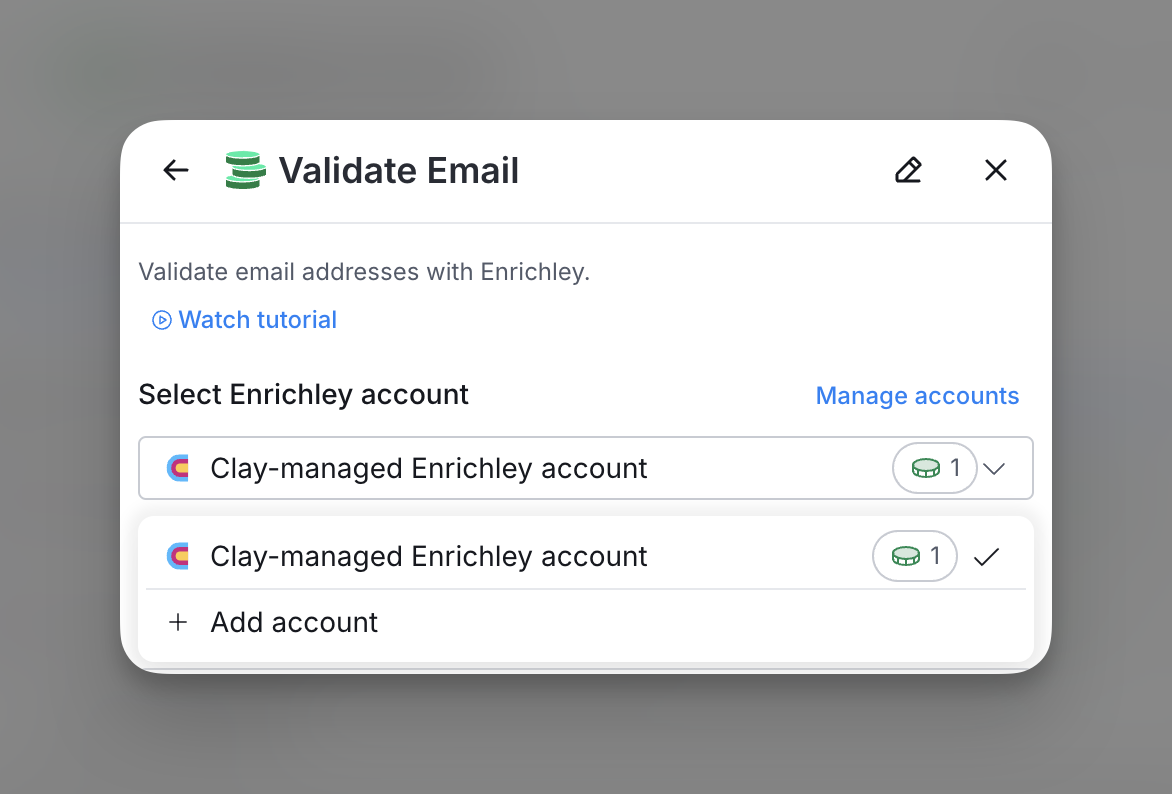
If you are currently on a paid plan, you can use your own Enrichley account within Clay through an API key.
You can add your Enrichley API key to Clay within the enrichment panel. Below is an example of where to add your API key.
How do you use Enrichley to validate your emails?
Enrichley’s Validate Email action helps you determine if the email address you’re sending to has a valid inbox. Follow the steps below to validate your emails with Enrichley.
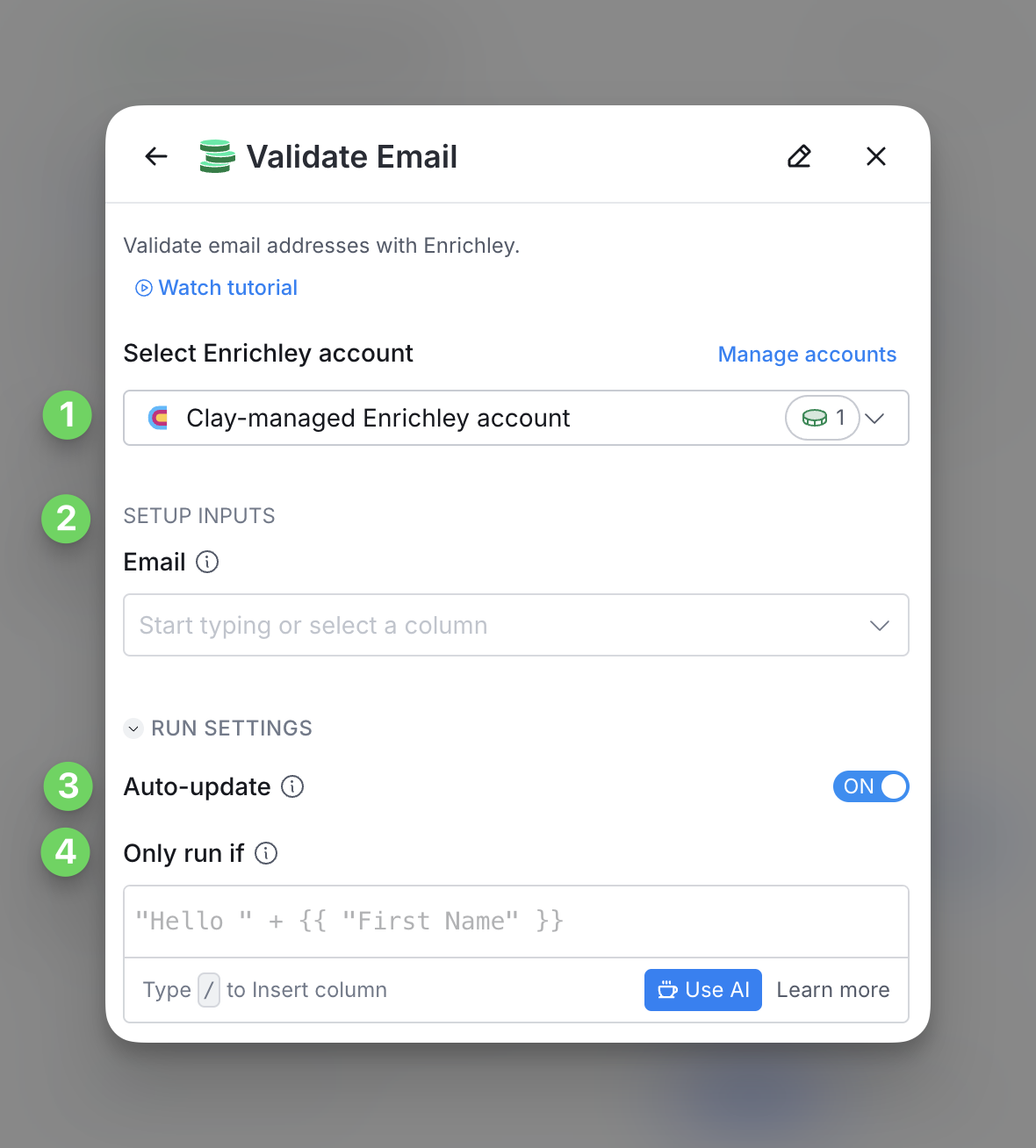
Step 1: Select input Enrichley API key to create account
You can use either the Clay-managed Enrichley account or bring your own key.
If you use the Clay-managed Enrichley account, you will be charged at 1 credit per enriched cell.
Step 2: Select the email you want to verify
For this step, input the email address you want to verify
Step 3 (Optional): Select Auto-update
By default, Enrichley will auto-update the integration every 24 hours. Make sure to toggle this step off if you do not want to auto-update. However if you do so, you might run into stale data problems.
Step 4 (Optional): Select conditional run criteria
If you want to only run this enrichment under set circumstances, you are able to input formulas where the column runs only if the formula is true. Learn more about conditional runs in this Clay University lesson.
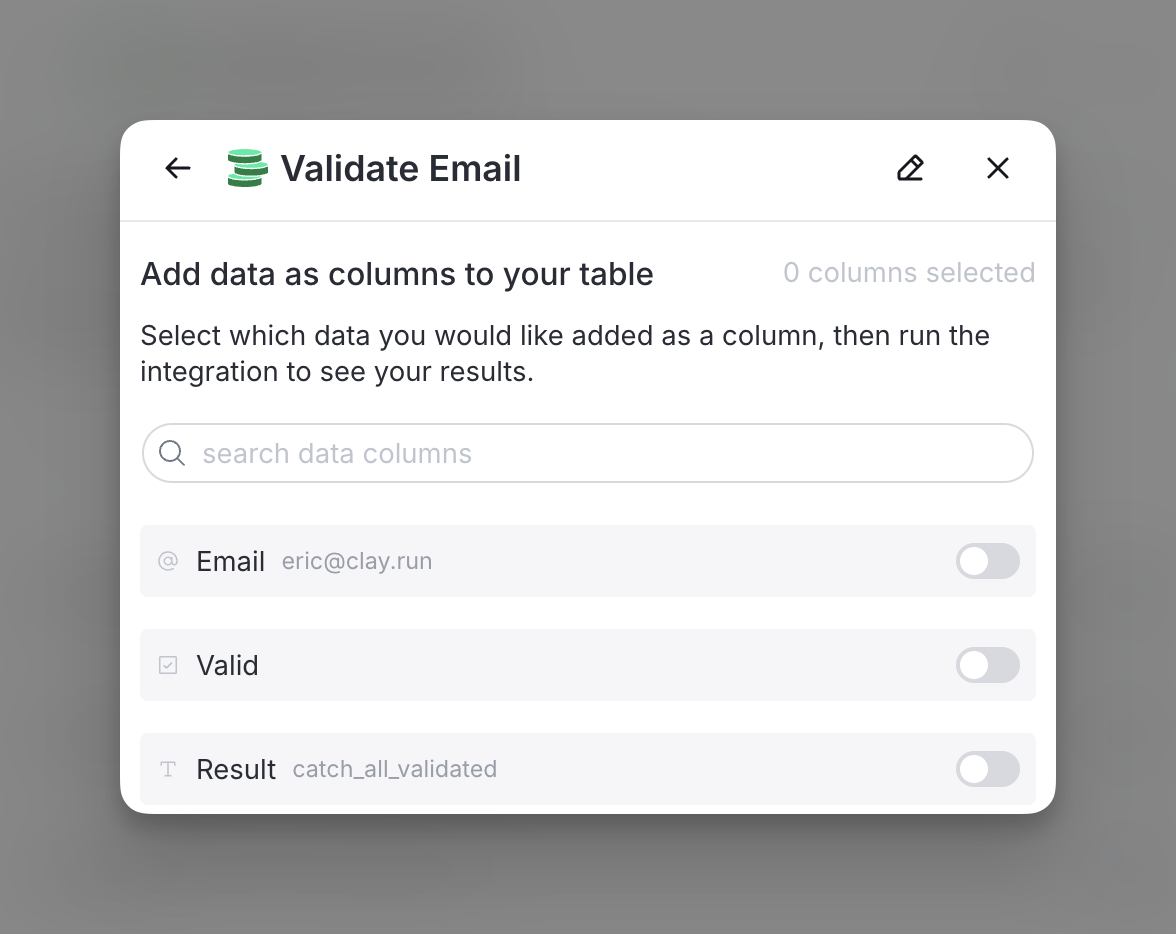
Step 5: Choose data to add as columns to table
Select which data from the enrichment you’d like to add as columns to your table. Even if you choose not to add columns at this point, the enriched data will still be available and accessible for later use.
Explore other docs
Other popular resources
Join a cohort, learn Clay fast!
The faster way to master Clay. Sign in if you're enrolled in a cohort (current or past) or apply!
Hire GTME Talent
Find and connect with GTM talent who've demonstrated expertise in building advanced workflows