




Versium Overview
Versium provides contact data for platforms like AdRoll, Facebook, Google, and LinkedIn, ensuring compatibility and optimized delivery for advertising campaigns.
The integration securely hashes the output data (using SHA256 or MD5) to protect sensitive information while enabling precise audience targeting.
Setting up Versium and Clay
Connecting a Versium account
You can connect to Versium in two ways: using a Clay-managed account, which utilizes your Clay credits, or your own account via an API key.
Option 1: Use the Clay-managed Versium account
Utilize your Clay Credits to pay for Versium enrichments, utilizing the credits available in your Clay account.
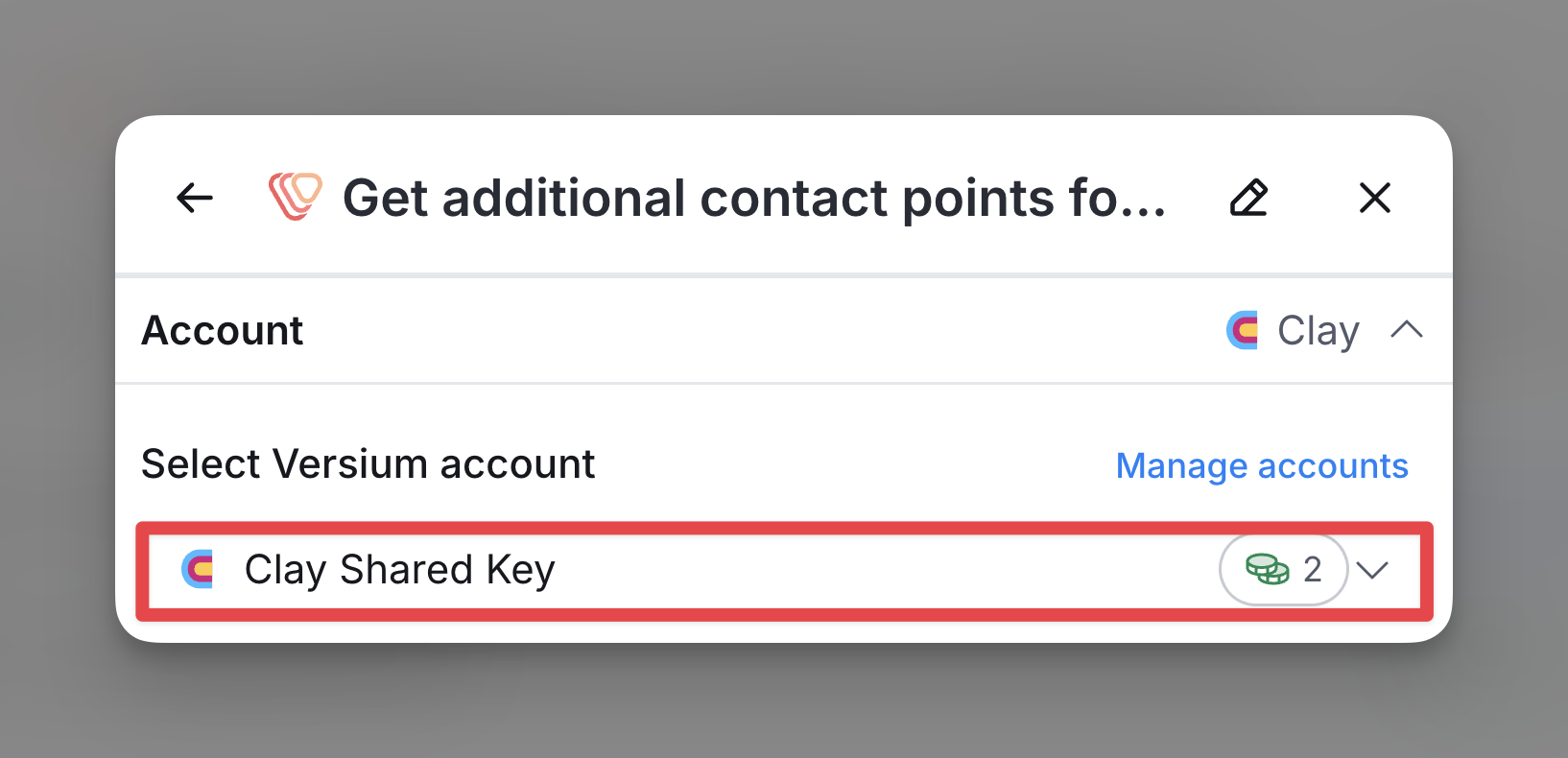
Option 2 (Paid Account Only): Connect your Versium API key to Clay
Only workspaces with paid accounts can connect personal API keys to Clay. To connect your API key and set up a personal Versium account, navigate to any of Versium’s integration panels or go to Settings > Connections.
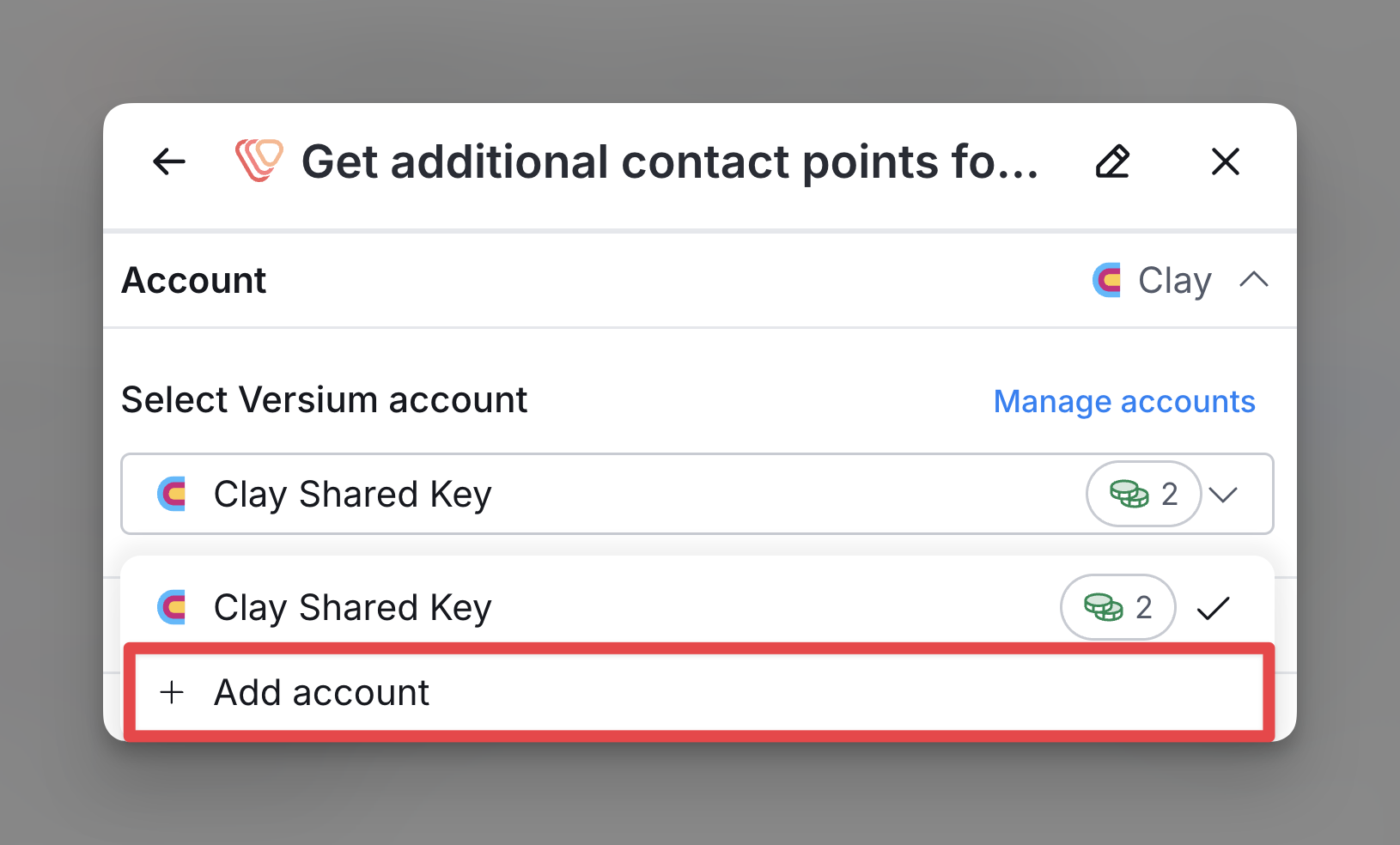
Available Versium Actions
Within Clay, there is one action you can run with Versium:
- Get additional contact points for advertising audience.
Action: Get additional contact points for advertising audience
This action takes personal or business data and returns hashed, pre-formatted contact points (e.g., email, phone, location) for targeting users on platforms such as Facebook, Google, LinkedIn, and AdRoll.
Action Walkthrough
To receive additional contact points for online audience targeting:
Step 1: Select the Versium account you want to use.
Step 2: Input company or contact data.
Provide one of the following input combinations to match and retrieve accurate records:
- Email, First Name, Last Name
- Company Domain, First Name, Last Name, City, State
- Company Name, First Name, Last Name, City, State
- Social URL (Note: This has a lower match rate)
Step 3: Configure run settings.
By default, new rows in your Clay table trigger this action. Learn more about auto-update in this guide.
To run only under specific conditions, use formulas that trigger the action when true. Learn more here.
Step 4: Run the action to retrieve your contact points.
Input Fields
- Email: A valid email address (business or consumer) used to identify the contact.
- First Name: The individual’s first name.
- Last Name: The individual’s last name.
- Social URL: A valid URL to the individual’s social media profile (e.g., LinkedIn). Lower match rate compared to other inputs.
- Company Domain: The domain of the company associated with the contact (e.g., example.com).
- Company Name: The full name of the company associated with the contact.
- State: The U.S. state where the individual or company is located (two-letter abbreviation).
- City: The city where the individual or company is located.
Output Fields
- AdRoll
- Returned Fields: Email
- Hashed Field: MD5-hashed email
- Max Field Count: 8
- Facebook
- Headers: Email, Phone
- Hashed Field: SHA256-hashed for all fields
- Max Field Count: Email: 3, Phone: 3
- Google
- Headers: Email, Phone
- Hashed Field: SHA256-hashed for all fields
- Max Field Count: Email: 3, Phone: 3
- LinkedIn
- Headers: Email, Fn (First Name), Ln (Last Name), Job Title, Company, Country, Apple IDFA, Google AID
- Hashed Field: Email (SHA256), others in plain text
- Max Field Count: Email: 1
- TikTok
- Headers: Email, Phone
- Hashed Field: SHA256-hashed for all fields
- Max Field Count: Email: 3, Phone: 3
- Generic
- Headers: Email
- Hashed Field: SHA256-hashed email
- Max Field Count: 14
Explore other docs
Other popular resources
Join a cohort, learn Clay fast!
The faster way to master Clay. Sign in if you're enrolled in a cohort (current or past) or apply!
Hire GTME Talent
Find and connect with GTM talent who've demonstrated expertise in building advanced workflows