




Getting started with Prospeo
Prospeo in Clay allows you to find work email addresses and enrich person details using a person's name, company domain, or LinkedIn URL.
There are three actions you can perform with Prospeo:
- Find Work Email
- Find Email Addresses Associated with a Domain
- Find Work Email and Enrich Person from LinkedIn URL
We'll cover how to connect Clay to Prospeo, then we'll go over each action that is available with Prospeo.
But first let's talk a bit about data enrichment waterfalls.
Getting better email coverage with waterfall enrichments
Prospeo is great for finding email contacts, but it's not the only way to get this data.
For better coverage on email data, we recommend using Clay's waterfall enrichments, which will let you search sequentially across multiple data providers. Learn more on how to use Clay waterfalls with this Clay University lesson.
That said, let's get into it on how to use Prospeo with Clay!
Connecting with Clay with Prospeo
You have two options to connect Prospeo with Clay.
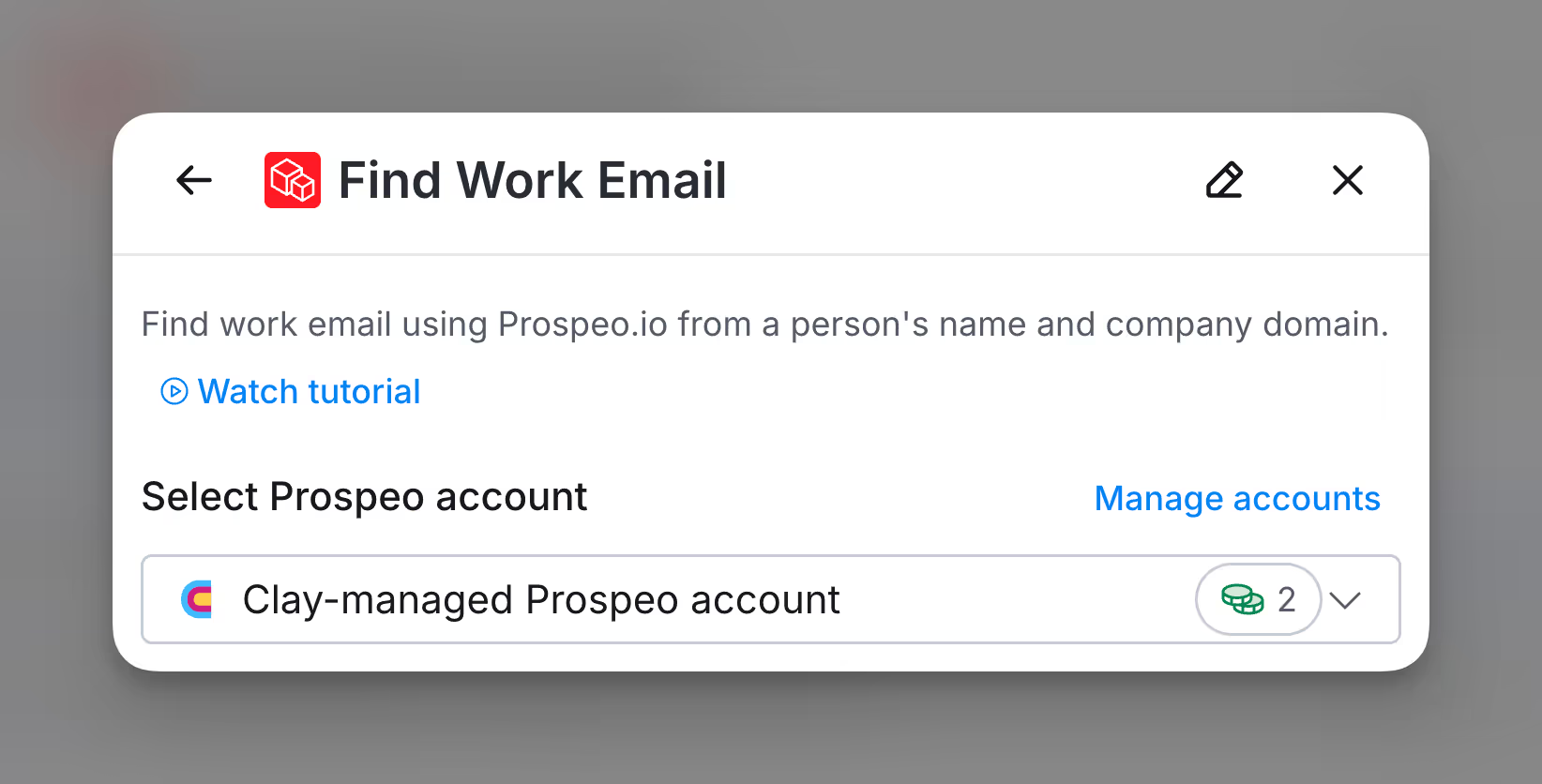
Option 1: Use the Clay-managed Prospeo account
By default, Prospeo enrichments will use the Clay-managed Prospeo account. This means that any new enrichment will charge the designated credit amount.
Simply pull up any Datagma enrichment within Clay to use the Clay-managed Prospeo account.
Option 2: Add your own Prospeo API key
If you are currently on paid plan (Starter, Explorer, Pro) you can use your own Prospeo account within Clay through an API key.
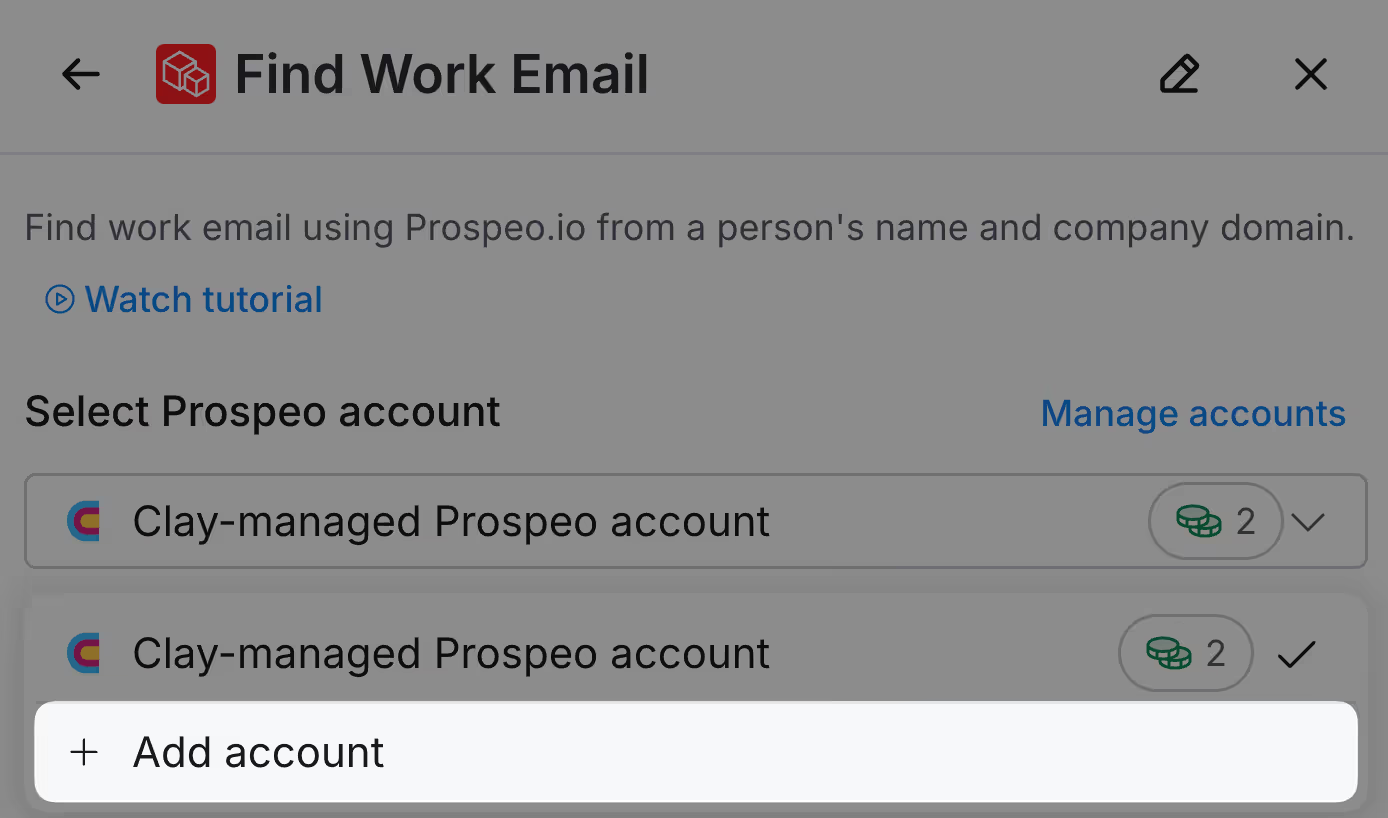
To add your own API key for any Prospeo enrichment, you can do so when you're selecting an account.
Below is an example of where to click within the enrichment panel to add your API key. For more instructions on how to find your Prospeo API key, follow these instructions within Prospeo's documentation.
Action Find Work Email
The Find Work Email action lets you find the work email of a contact using a person's name and company domain.
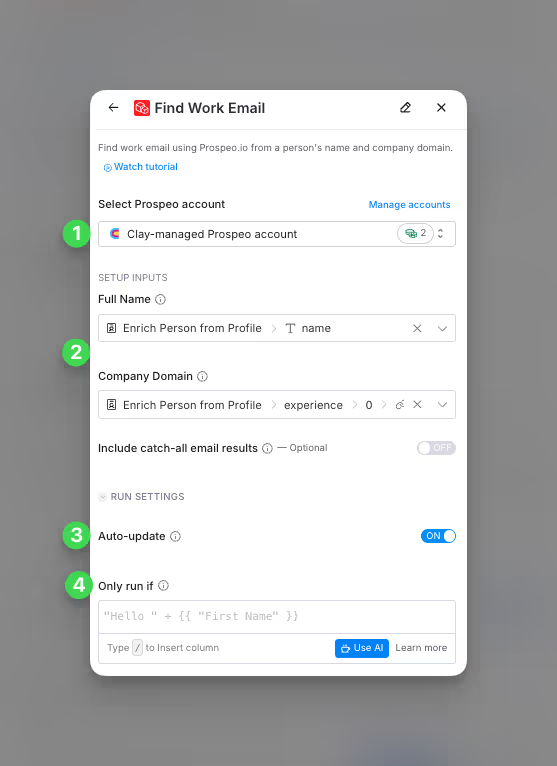
Step 1: Choose the Prospeo account you want to use
You can use either the Clay-managed Prospeo account or bring your own key.
If you use the Clay-managed Prospeo account you will be charged at 2 credits per enriched cell.
Step 2: Select Required and Optional Setup Inputs
You will need to enter the Full Name and Company Domain of person you want to find the Work Email for.
Optionally, you are also able to include catch-all emails.
Step 3 (Optional): Select Auto-update
By default, Prospeo will auto-update the integration every 24 hours. Make sure to toggle this step off if you do not want to auto-update. However if you do so, you might run into stale data problems.
Step 4 (Optional): Select Conditional Run Criteria
If you want to only run this enrichment under set circumstances, you are able to input formulas where the column runs only if the formula is true. Learn more about conditional runs in this Clay University lesson.
Action Find Email Addresses Associated with a Domain
The Find Email Addresses Associated with a Domain action lets you find email addresses associated with a company domain and can also be used to find generic email addresses for a given domain.
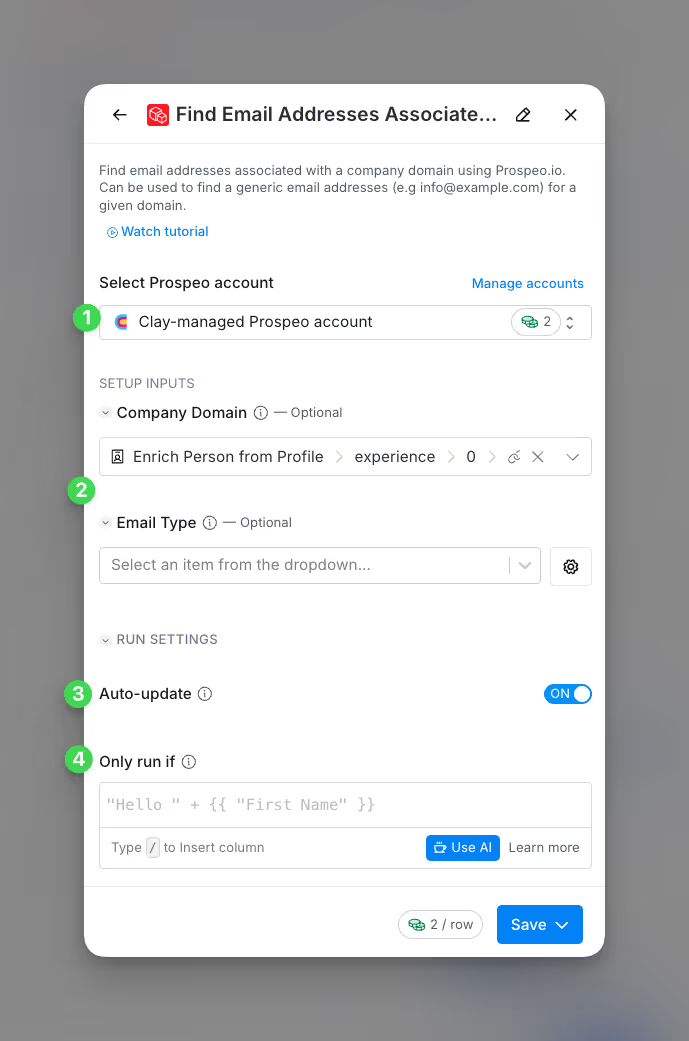
Step 1: Choose the Prospeo account you want to use
You can use either the Clay-managed Prospeo account or bring your own key.
If you use the Clay-managed Prospeo account you will be charged at 2 credits per enriched cell.
Step 2: Select Required and Optional Setup Inputs
To find the email addresses associated with a given domain using Prospeo’s email database, you will need to provide the domain and email type which you want to receive (generic, professional). Even though these are marked as optional, it’s best advised to enter both fields.
Step 3 (Optional): Select Auto-update
By default, Prospeo will auto-update the integration every 24 hours. Make sure to toggle this step off if you do not want to auto-update. However if you do so, you might run into stale data problems.
Step 4 (Optional): Select Conditional Run Criteria
If you want to only run this enrichment under set circumstances, you are able to input formulas where the column runs only if the formula is true. Learn more about conditional runs in this Clay University lesson.
Action Find Work Email and Enrich Person from LinkedIn URL
The Find Work Email and Enrich Person from LinkedIn URL action lets you find email addresses associated with the given company domain.
Step 1: Choose the Prospeo account you want to use
You can use either the Clay-managed Prospeo account or bring your own key.
If you use the Clay-managed Prospeo account you will be charged at 2 credits per enriched cell.
Step 2: Enter LinkedIn URL as setup input
Please input the Linkedin URL of your contact to find their work email and enriched profile.
Step 3 (Optional): Select Auto-update
By default, Prospeo will auto-update the integration every 24 hours. Make sure to toggle this step off if you do not want to auto-update. However if you do so, you might run into stale data problems.
Step 4 (Optional): Select Conditional Run Criteria
If you want to only run this enrichment under set circumstances, you are able to input formulas where the column runs only if the formula is true. Learn more about conditional runs in this Clay University lesson
Explore other docs
Other popular resources
Join a cohort, learn Clay fast!
The faster way to master Clay. Sign in if you're enrolled in a cohort (current or past) or apply!
Hire GTME Talent
Find and connect with GTM talent who've demonstrated expertise in building advanced workflows