




Perplexity Overview
With Perplexity, you can search the web for information with AI or use a non-online model.
Accessing the Perplexity integration
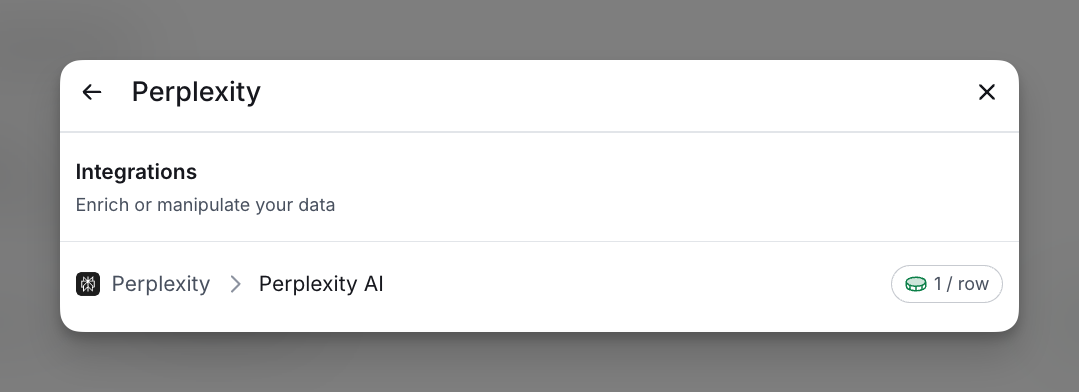
To access Perplexity, click Add Enrichment in the top-right corner and search for “Perplexity” in the bar. Select Perplexity AI. Each enriched cell costs 1 credit.
Using the Perplexity integration
Step 1: Select the Perplexity integration
You can access the Perplexity integration through the enrichment search bar.
Step 2: Select Perplexity model
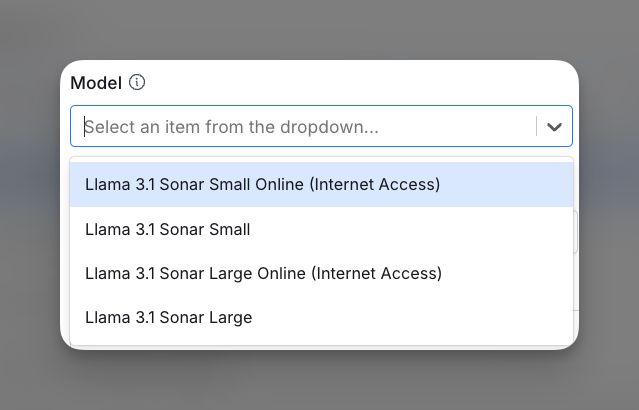
In the Model dropdown menu, select the appropriate model based on your needs. For more information on each model, please visit Perplexity’s documentation on its Sonar models.
Step 3 (Optional): Limit citations to specific domains
If you want to restrict citations to certain sources, enable the “Only use certain domains for citations” option.
In the “Enter Value…” field, type a comma-separated list of domains (e.g., example.com, trustedsource.org). Only citations from the specified domains will be used.

Step 4: Enter prompt
In the Prompt field, type the prompt for which you want to generate completions. This will guide the model in producing the responses or outputs based on your input.

Step 5: Enter system prompt (optional)
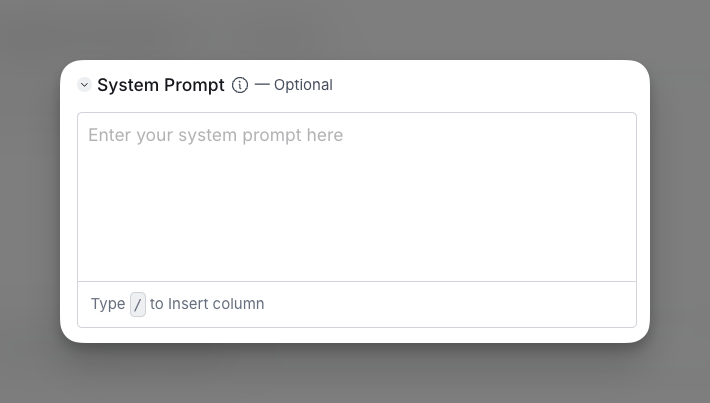
In the System Prompt field, enter a brief instruction to guide the model’s tone and behavior. This optional prompt helps the model align responses with your specific needs.
Step 6: Configure run settings
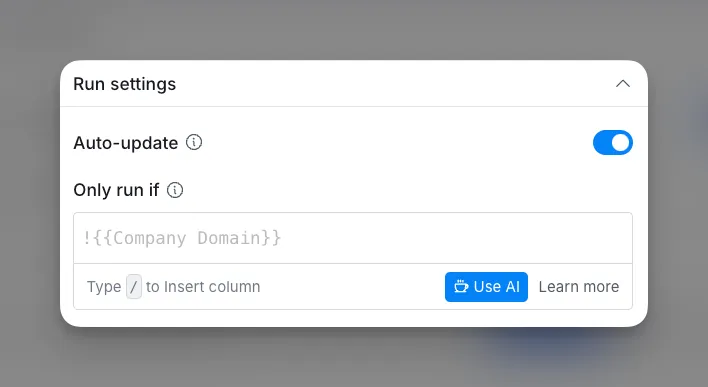
To run this enrichment only under specific conditions, enter a formula so the column updates only when the formula is true.
Autoupdate: By default, auto-update enriches new rows as they’re added. Toggle this off if you don’t want auto-updates, though this may result in stale data.
Conditional Run: Use a formula to specify conditions for running this enrichment. Learn more in this Clay University lesson.
Now you can run your Perplexity integration within your Clay table!
Explore other docs
Other popular resources
Join a cohort, learn Clay fast!
The faster way to master Clay. Sign in if you're enrolled in a cohort (current or past) or apply!
Hire GTME Talent
Find and connect with GTM talent who've demonstrated expertise in building advanced workflows