


All docs
/
Export
/
Coda integration overview

Coda integration overview

All-in-one workspace for team collaboration.

Overview

Coda Overview

The Coda integration lets you sync data within your Clay table with your Coda bases. With this integration you’re able to:

  • Lookup Row
  • Create or Upsert Row

Setting up Coda and Clay

To get set up, you’ll need to add your Coda account to Clay from either the enrichment panel or the Settings > Connections page.
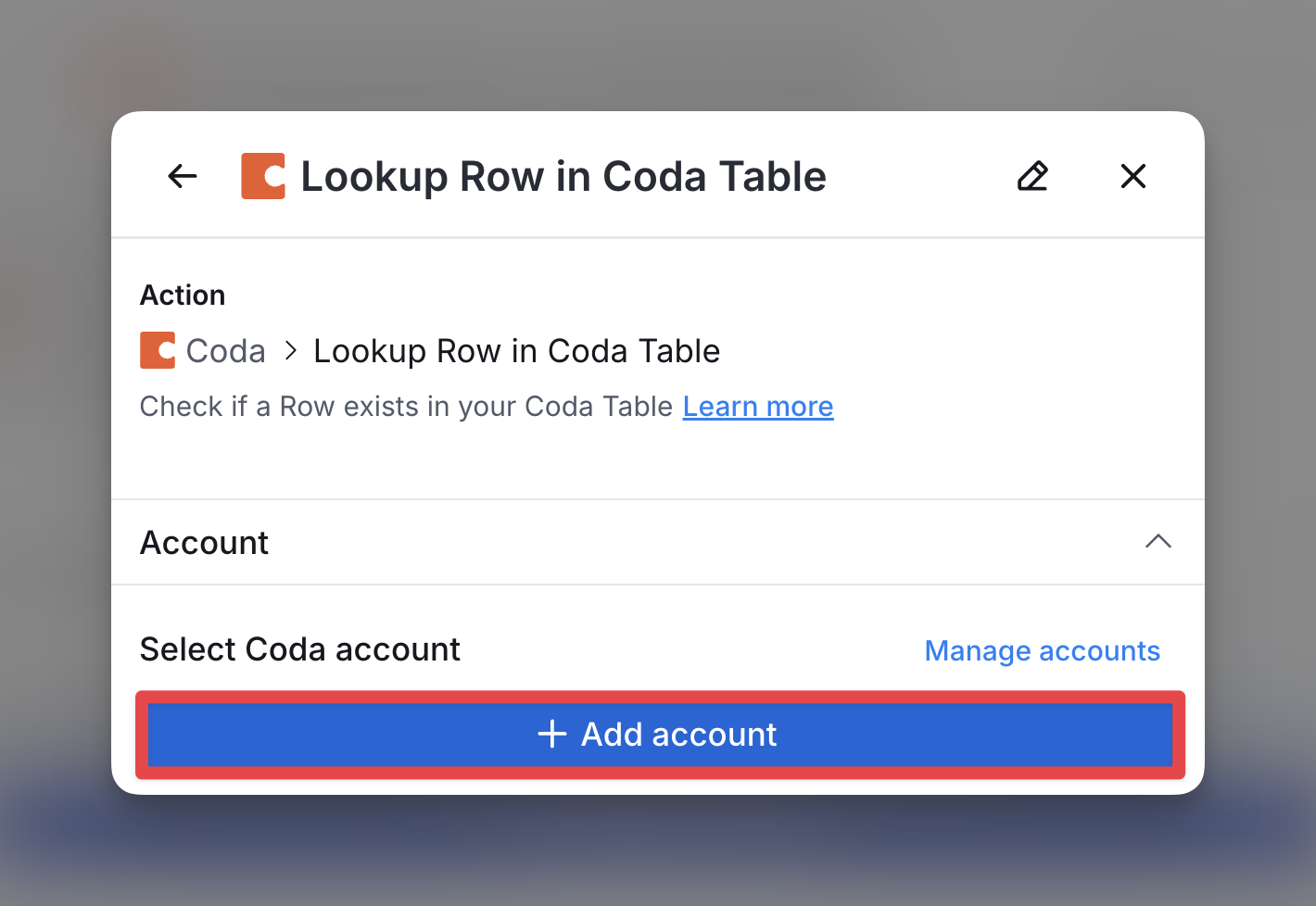
You’ll add your account by entering your API token which can be obtained from My account in Coda.
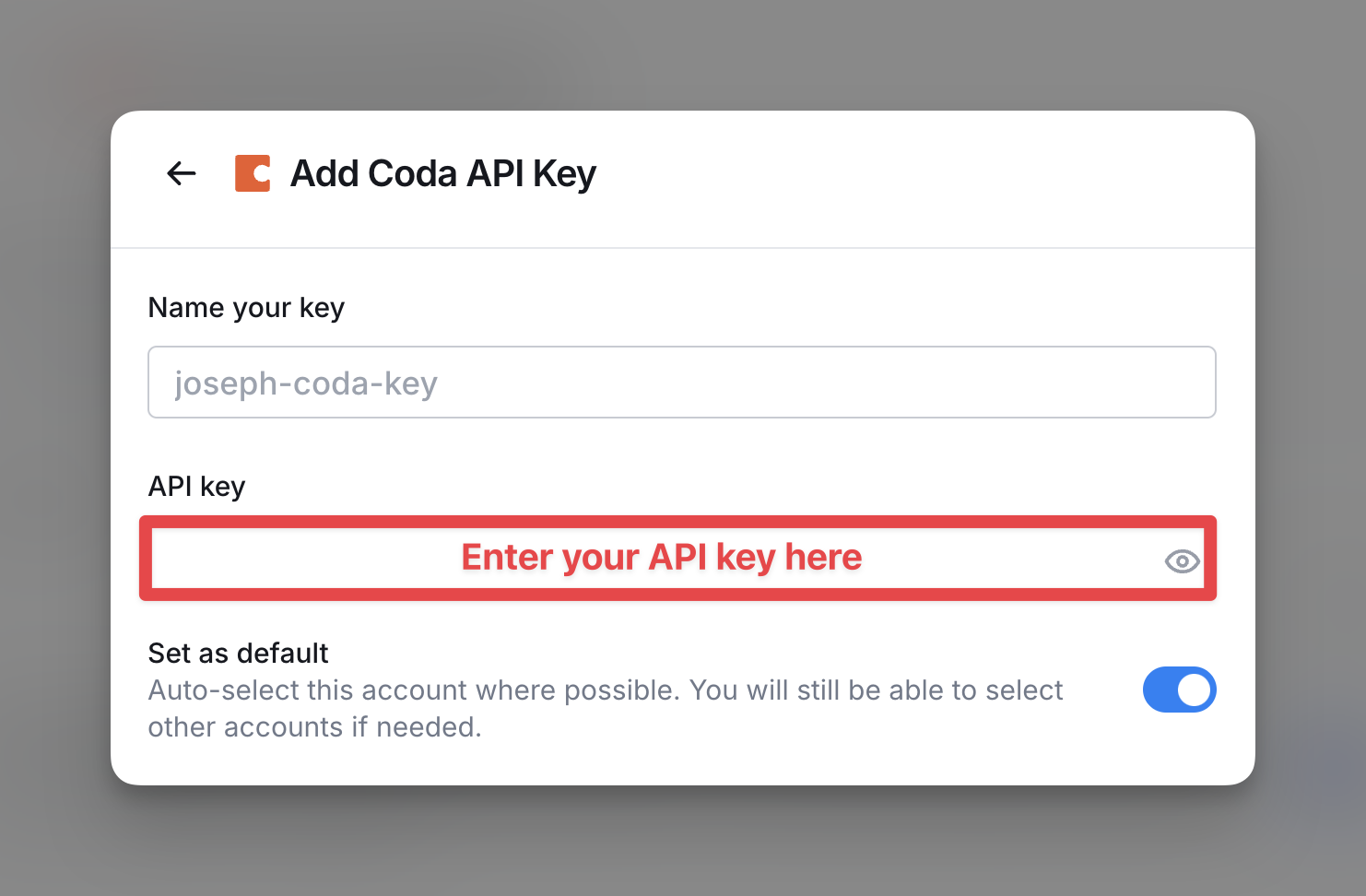
Make sure your linked Coda account has the right level of access to the tables you want to connect with Clay.

Available Actions with the Coda Integration

Action Lookup Row

Create and push a new record to your Coda directly from Clay.

Input Fields:

  • Doc ID (Required): The ID for the Coda Doc containing the table.
  • Table ID (Required): The ID for the Coda Table to search.
  • Lookup Criteria: Specify fields or conditions to identify the row to look up.

Action Create or Upsert Row

Create or upsert a new row in a Coda Table directly from Clay.

Input Fields:

  • Doc ID (Required): The ID for the Coda Doc containing the table.
  • Table ID (Required): The ID for the Coda Table to use.
  • Additional Fields: Specify any other fields and values to include or update.

Explore other docs

Gen AI

Guide: Using Clay plugin

Go-to-market plays you can run from a coding agent with the Clay plugin — source your market, score it for fit, and prioritize who gets worked first.

View article
Gen AI

Audiences for agents and the CLI

Read, segment, and manage your workspace's people, companies, and deals from the Clay CLI — and from the Clay agents that run it for you.

View article
Getting started

Clay MCP for Reps vs. Agent Plugin

Choose between MCP for Reps and the Clay Agent Plugin based on who will be using it and how much your ops team needs to approve in advance.

View article
Enrich

Enrichment in Workflows

Enrich an Audiences segment through a guided workflow that opens with its trigger and write-back step already configured.

View article
Export

Getting started with Sequencer

Sequencer runs cold email campaigns at scale from your Audiences data, handling sending infrastructure, copy, and deliverability in one place.

View article
Export

Connect your own email accounts

Connect email accounts you already own — Google Workspace, Microsoft 365, or any mailbox that supports SMTP — and use them as sending accounts for your campaigns.

View article
Export

Email warmup

What email warmup does, how it differs on purchased and self-connected accounts, and why you'll see unfamiliar emails while it runs.

View article

Other popular resources

Experts

Find a Clay Expert

Explore our network of Clay experts and agencies.

View experts
Community

Join our slack community

Find help in our slack community, and support channels.

Go to slack
Cohorts

Join a cohort, learn Clay fast!

The faster way to master Clay. Sign in if you're enrolled in a cohort (current or past) or apply!

Learn more about cohorts
Talents

Hire GTME Talent

Find and connect with GTM talent who've demonstrated expertise in building advanced workflows

Explore GTME talents