




What is BuiltWith?
BuiltWith allows you to view a website's tech stack and find technologies that companies are built with.This action costs 2 credits per cell to run.
Setting up BuiltWith and Clay
You can connect BuiltWith in Clay two ways.
Option 1: Use the Clay-managed BuiltWith account
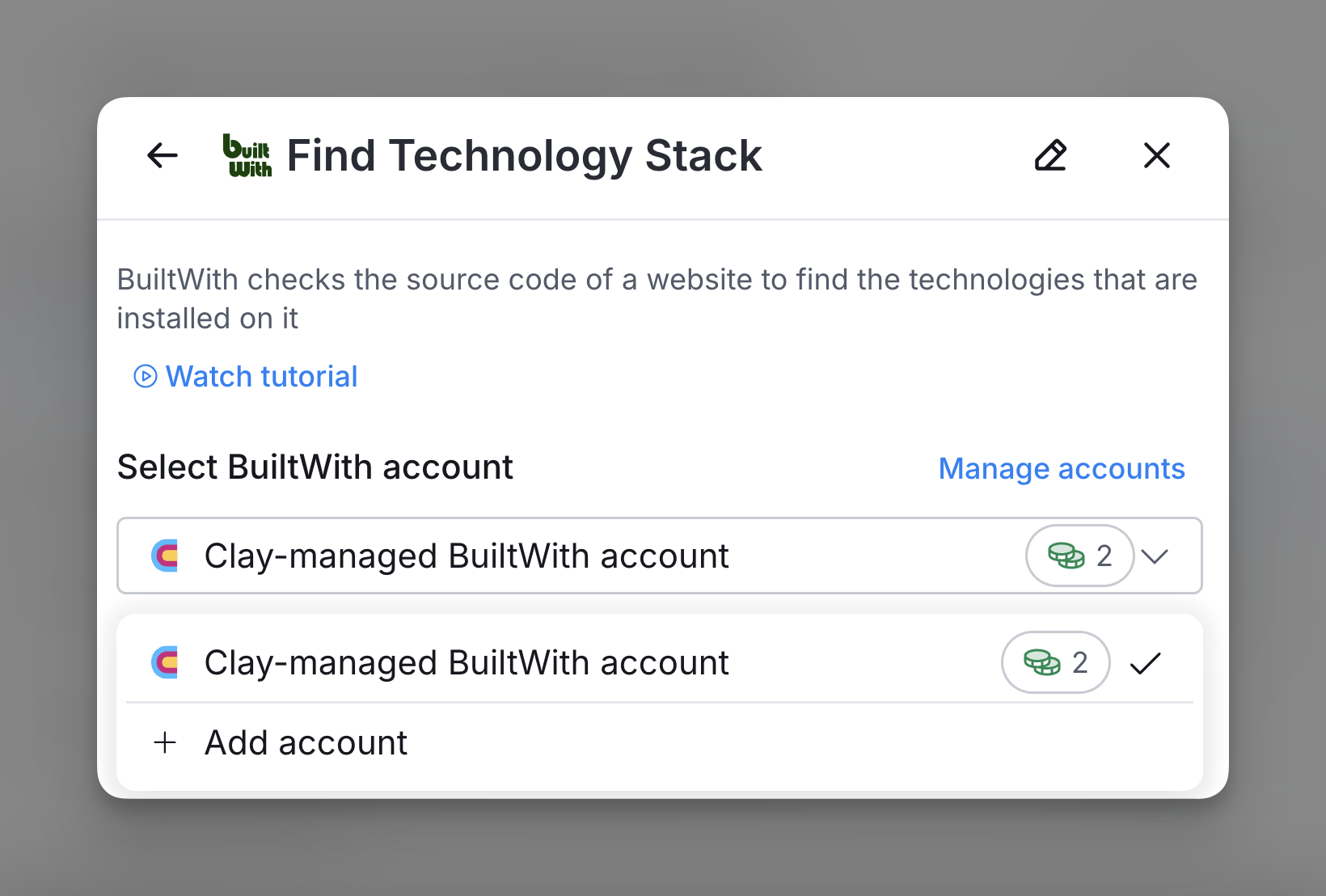
By default, BuiltWith enrichments in Clay use the Clay-managed BuiltWith account, which charges 2 credits for each enrichment.
To utilize this, simply open any BuiltWith enrichment within Clay.

Option 2: Use your own BuiltWith API key
If you are currently on a paid plan, you can use your own BuiltWith account within Clay through an API key.
To access your BuiltWith API key, you can head over to pro.builtwith.com to retrieve your API key.
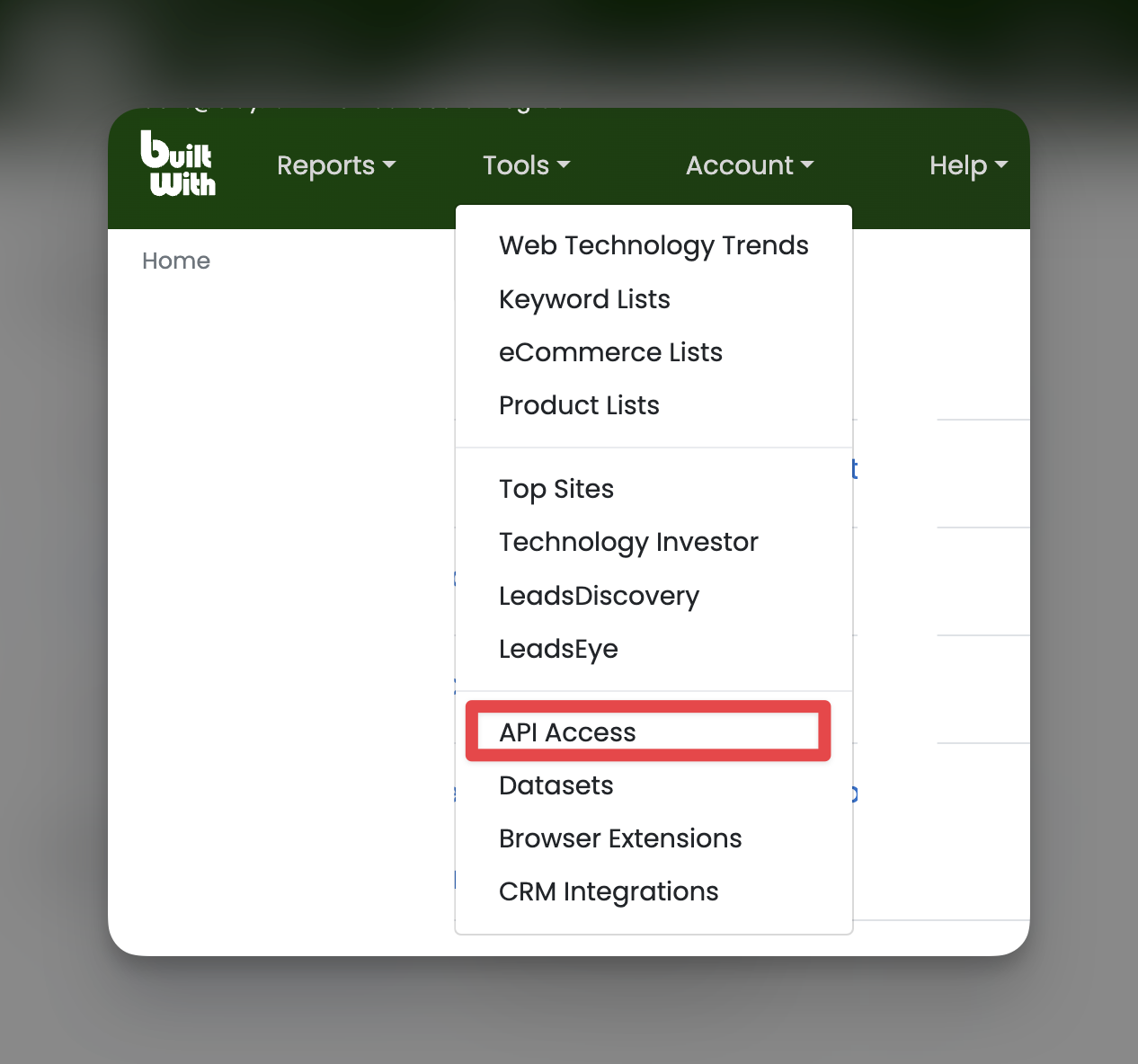
You can add your BuiltWith API key to Clay within the enrichment panel. The image below shows where to add your API key in the enrichment panel.
Action Find Technology Stack
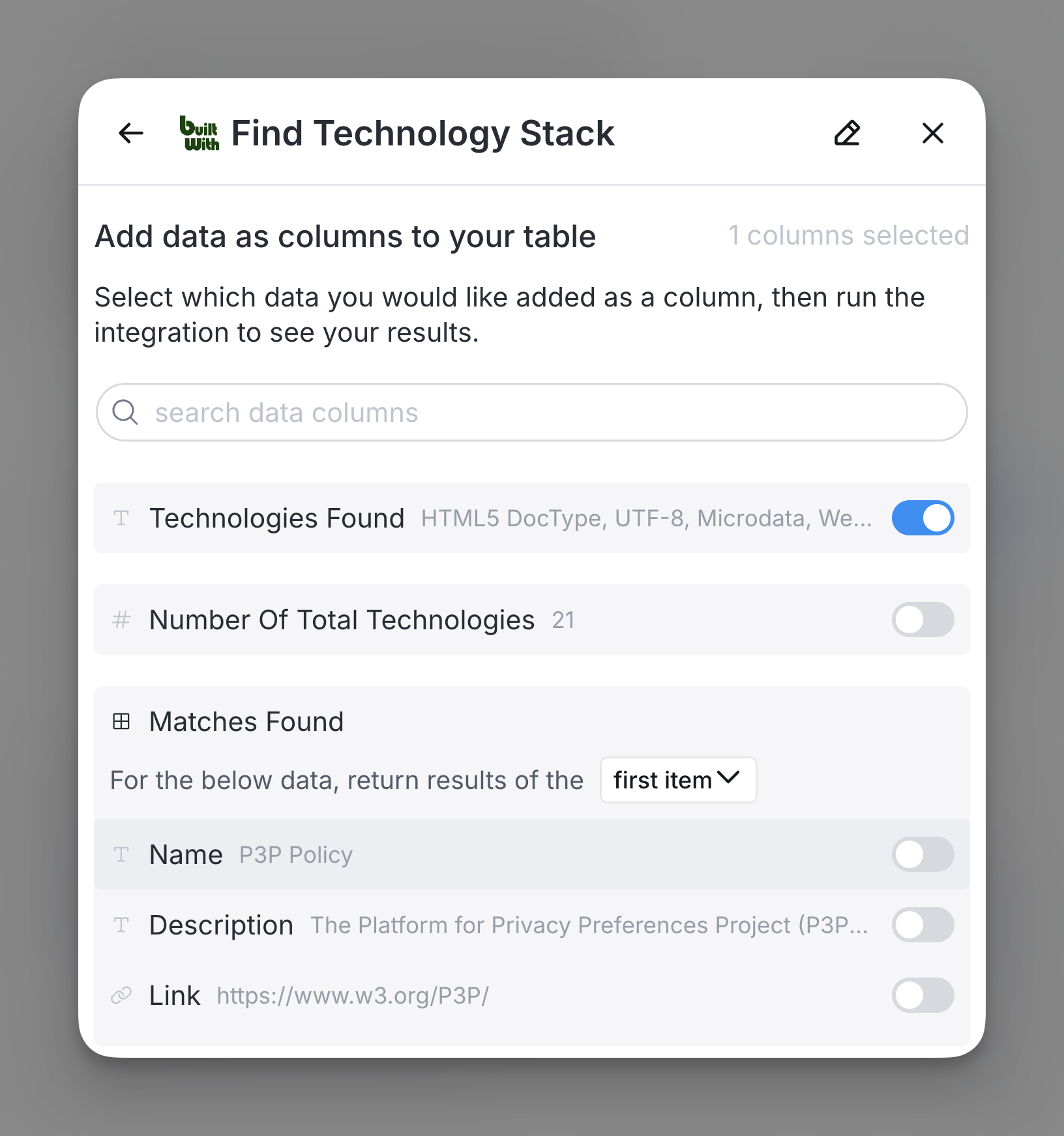
The Find Technology Stack integration with BuiltWith allows users to identify the technologies used on a website.
Users can gain insights into its tech stack, with options to filter by keyword, category, and detection date for more tailored results.
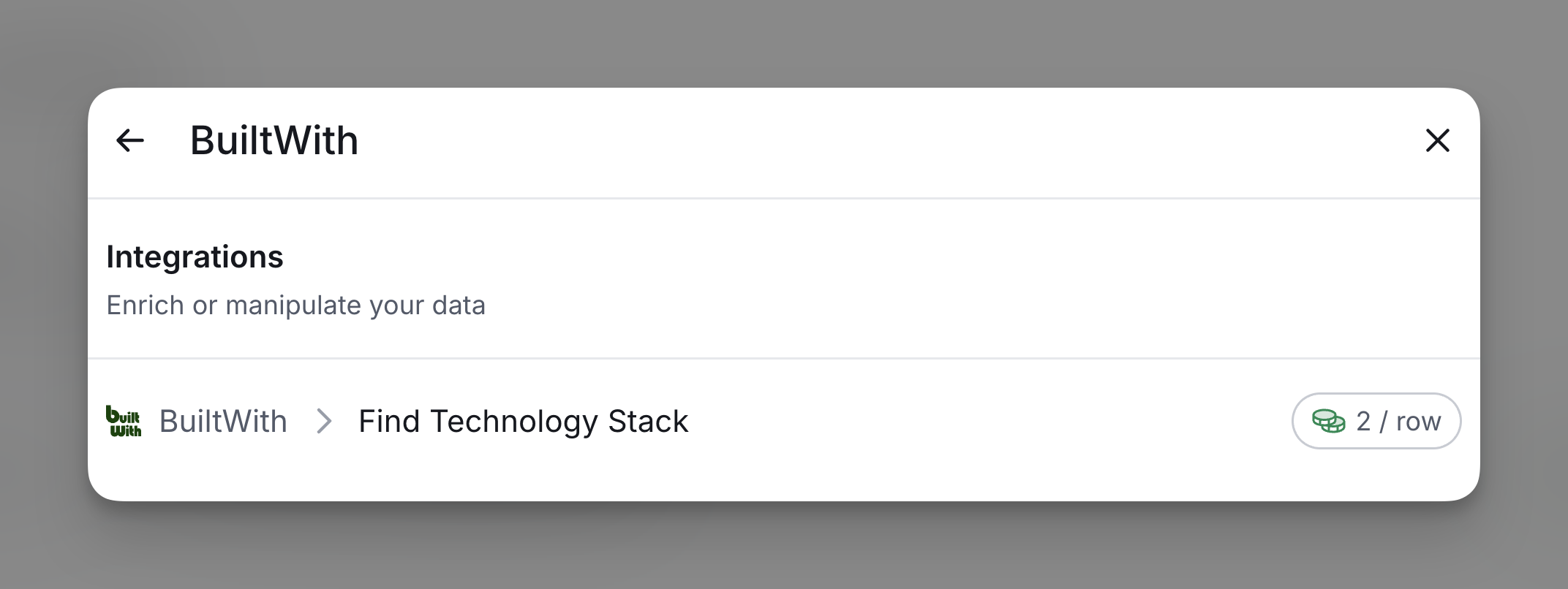
Step 1: Select Find Technology Stack
Access this action through the integration panel.
Step 2: Select BuiltWith Account
Proceed with either a Clay-managed or a personal account.

Step 3: Configure tech stack search
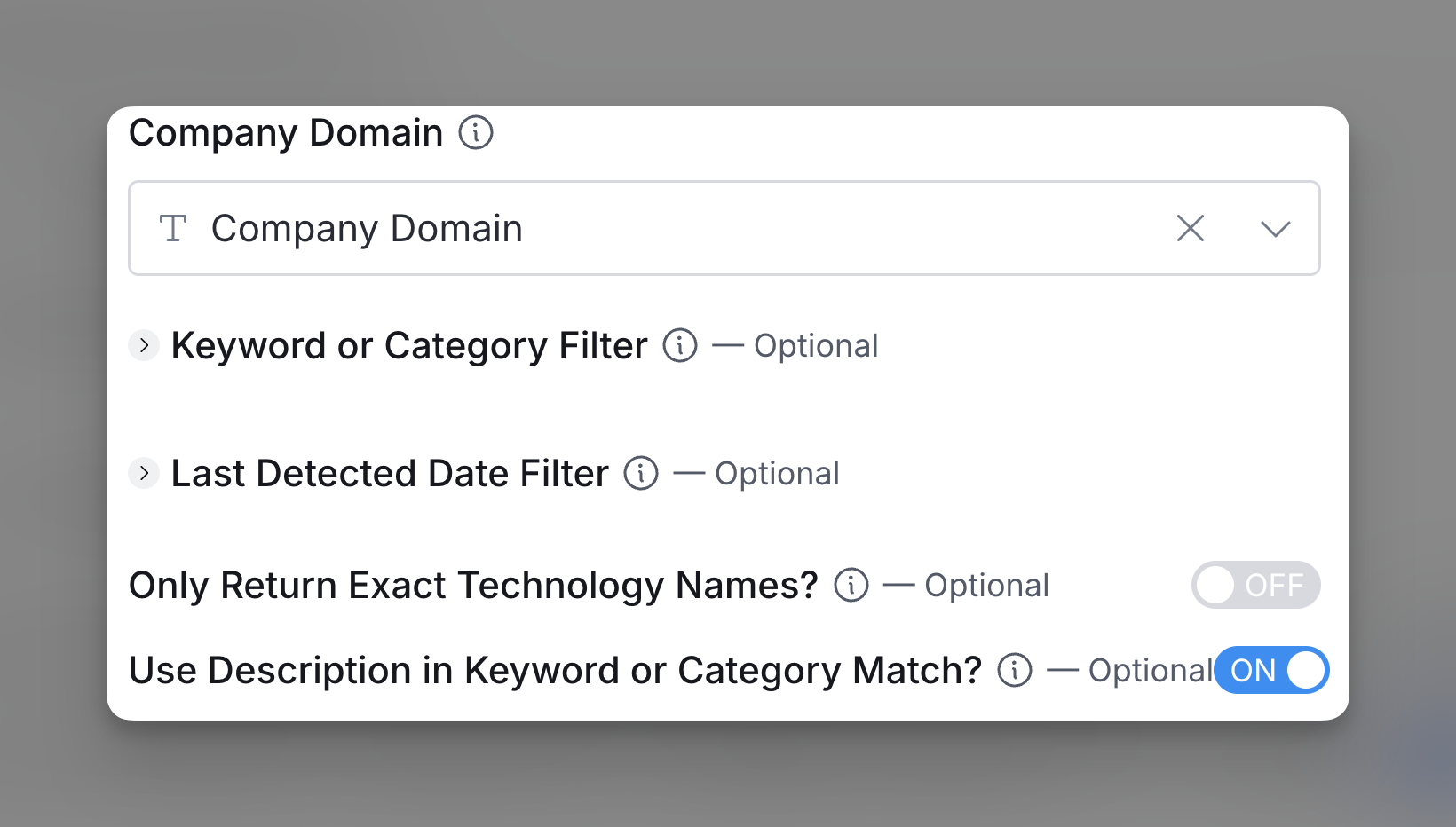
Enter the Company Domain search for the tech stack.
Optionally, apply filters for Keyword or Category and Last Detected Date to narrow results, and use toggles to refine the search criteria as needed.
Step 4: Configure run settings
Auto-update: BuiltWith will automatically enrich any new rows that get added to the table. Learn more about auto-update in this this brief guide.
Conditional runs: To run enrichment only under specific conditions, use formulas that trigger the column when the formula is true. See this Clay University lesson.

If needed, you can later break out entries from the list format using the Write to Table integration.
Explore other docs
Other popular resources
Join a cohort, learn Clay fast!
The faster way to master Clay. Sign in if you're enrolled in a cohort (current or past) or apply!
Hire GTME Talent
Find and connect with GTM talent who've demonstrated expertise in building advanced workflows